

Anzo Vocabulary Manager (AVM) is a graph data platform for teams and communities to collaboratively develop ontologies and vocabularies for seamless integration with the Anzo platform.
Introduction
AVM is a collaborative tool that extends the Anzo platform with powerful ontology and vocabulary editing and versioning capabilities, creating an environment for teams and communities to accelerate exploration and harmonization of complex data systems. AVM leverages OWL 2 and SKOS for authoring ontologies and vocabularies, the SPARQL query language for data lookup, and a pluggable backend system for processing and handling graph data modeled using the Resource Description Framework (RDF). AVM natively integrates with Anzo onboard and dataset capabilities for ingesting and publishing ontologies and vocabularies for blend and access across the platform.
Quick Start Guide
Installing from the Distribution
Prerequisites
AVM requires a Java SE 8 environment to run. Refer to http://www.oracle.com/technetwork/java/javase/ for details on how to download and install Java SE 1.8.
Make sure your JAVA_HOME environment variable correctly points to your Java 8 installation directory. For example on a Mac, this would look like /Library/Java/JavaVirtualMachines/jdk1.8.0_221. On Windows, this would resemble C:\Program Files\Java\jdk1.8.0_221.
Installation
Download the appropriate binary distribution provided by the AVM team.
The AVM distribution comes packaged as a .zip file for Windows and a tar.gz file for Linux/OSX. Extract this file to a new directory on your system. For example, in C:\AVM - from now on this directory will be referenced as AVM_HOME.
Open a command line console and change the directory to AVM_HOME. If you were provided a valid AVM license already, copy it into the {AVM_HOME}/etc directory. If you were not provided a valid AVM license already, contact the CSI team.
To start the AVM server, run the following command in Windows:
> cd %AVM_HOME%
> bin\start.bat
or for Linux/OSX:
$ cd $AVM_HOME
$ ./bin/start
All AVM prepackaged bundles, services, and required artifacts and dependencies will be automatically deployed by the runtime once started.
|
Tip
|
You can check the status of the running server using the bin/status script or access the AVM shell using the bin/client script (that’s bin\status.bat and bin\client.bat for you Windows users). If you are having problems starting AVM, check the log files in $MOBI_HOME\data\log.
|
The AVM web application should now be accessible at https://localhost:8443/avm/index.html. The default login credentials are admin:admin.
User Guide
The AVM web application currently has 10 main modules:
-
the Catalog
-
the Ontology Editor,
-
the Synchronization tool,
-
the Publishing tool,
-
the Linking tool
-
the Mapping Tool,
-
the Datasets Manager,
-
and the Discover Page
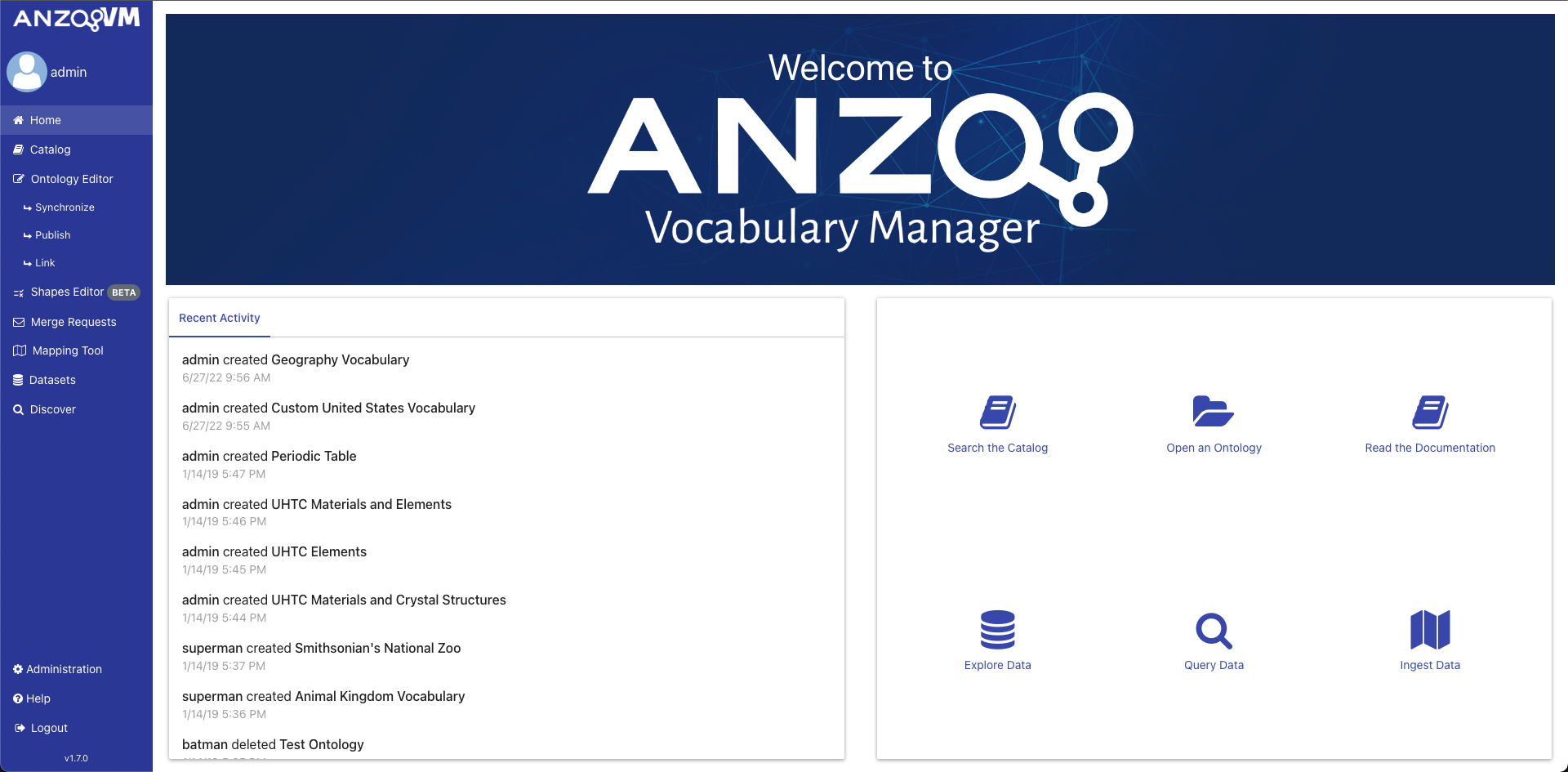
The web application also has a My Account page to configure various settings and preferences of the logged in user and a Administration page for admin users to configure user accounts and groups. The Configuration for the AVM software itself is set in configuration files. The AVM Shell also provides several commands for accessing the application data. The home page of AVM includes some quick action buttons for performing common tasks and a display of the latest key activities performed by users throughout the application. Each activity displays a summary about the action performed, who did it, and when it happened. The list is sorted with the latest activities first and is paginated so you can view earlier actions.
Catalog
The AVM web-based Catalog allows users to publish data, dataset descriptions, analytics and other resources. It allows users to control the way their data is shared.
To reach the Catalog click on the link in the left menu.
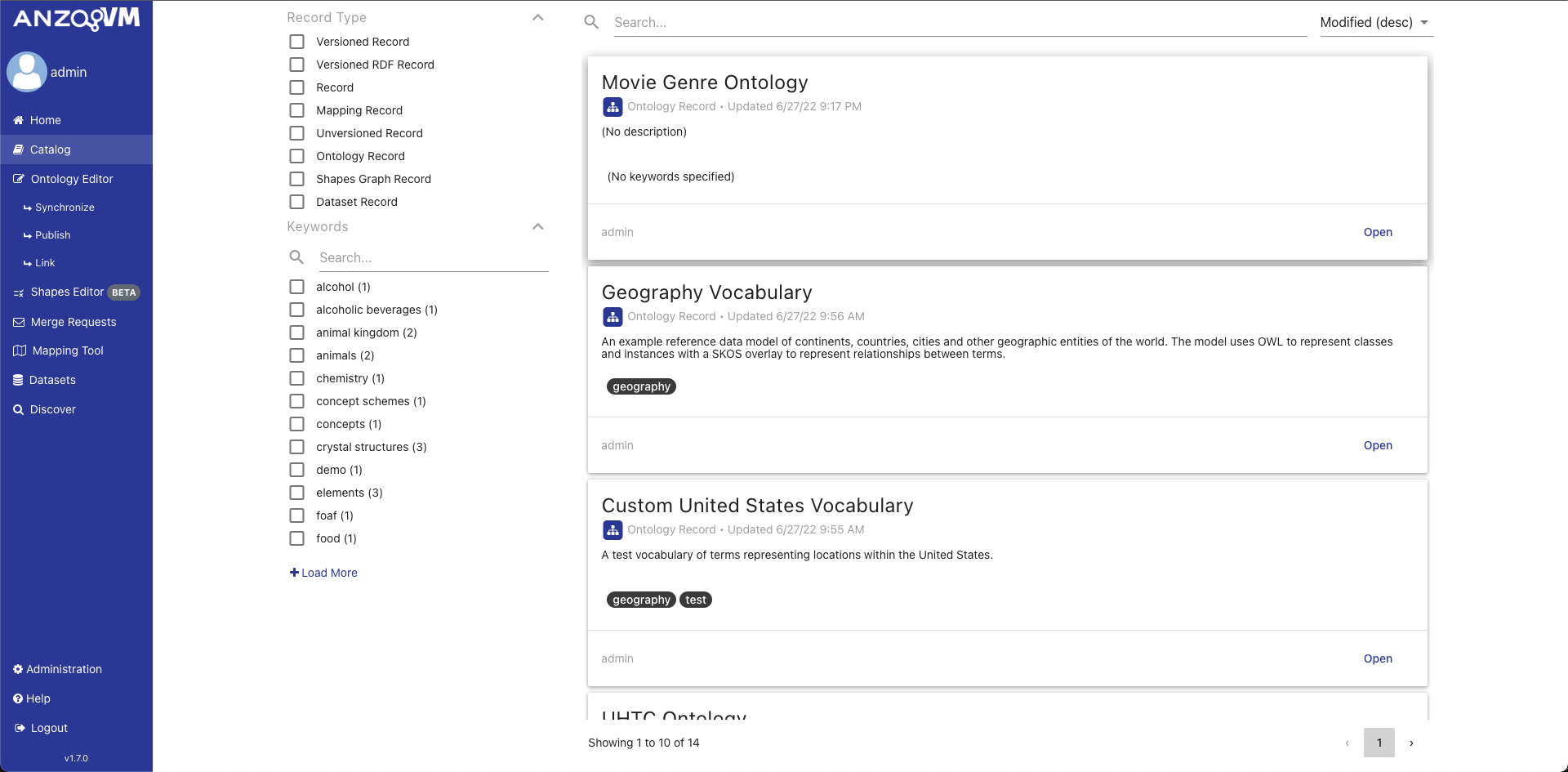
The Local Catalog of AVM contains all Records contained within your AVM node. This includes all versioned ontologies created in the Ontology Editor, versioned mappings created in the Mapping Tool, and all datasets created in the Datasets Manager.
There are two main views of the Catalog:
-
the Record View
Catalog Landing Page
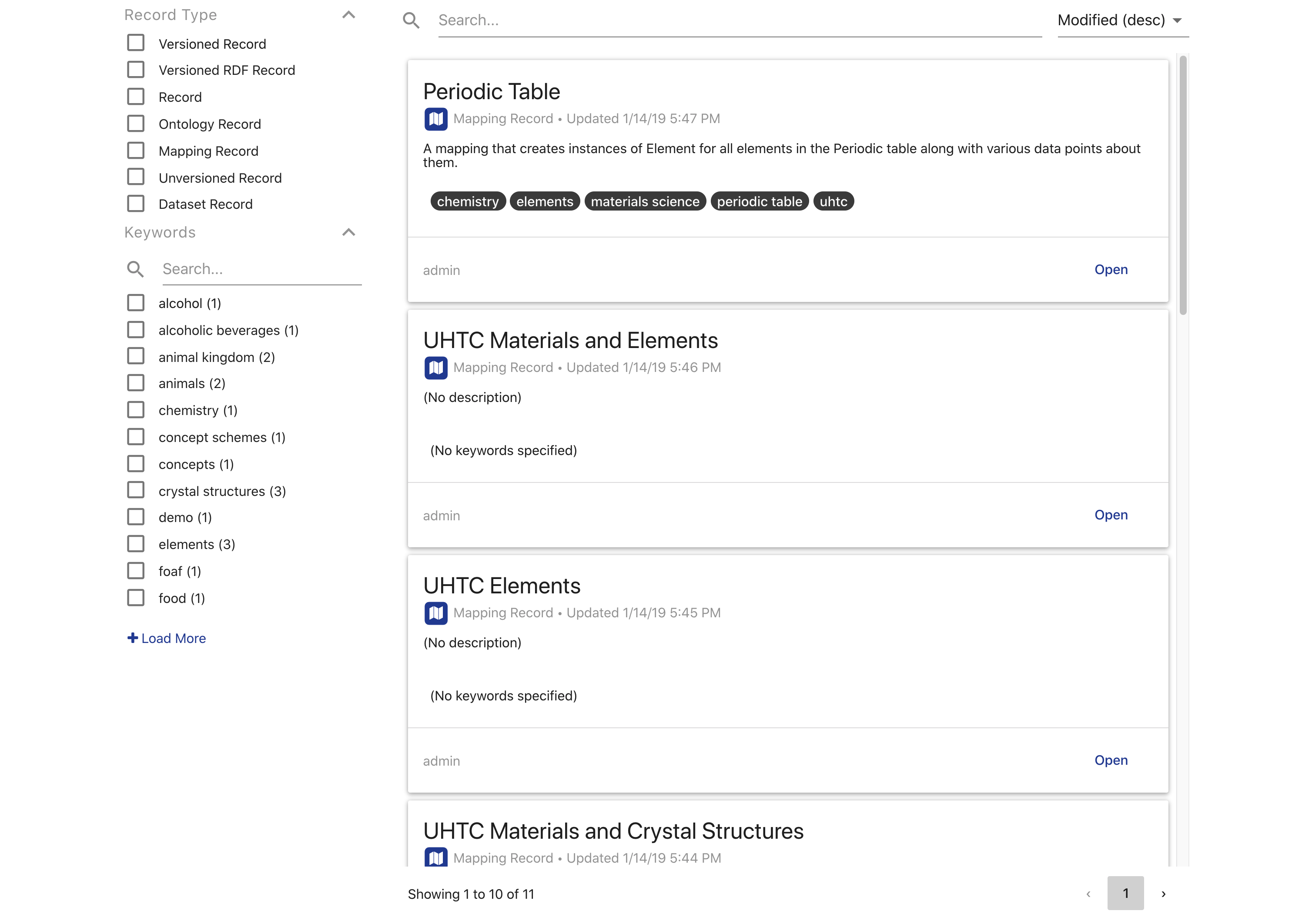
The landing page of the Catalog displays a paginated list of all the Records in the Local Catalog that can be searched, sorted, and filtered. The filters on the left contain all possible types of Records and all possible user keywords. The search bar allows you to perform a text search through all the Record metadata.
Each Record in the list is displayed as a card with the Record title, type with related icon, date last modified, description, and keywords. Clicking on the title of the Record will copy its unique identifier (IRI). The footer of each Record card shows the username of its creator and a button to open that Record in its respective module (ontologies in the Ontology Editor, etc.). Clicking on the Record card will open it in the Record View.
Record View
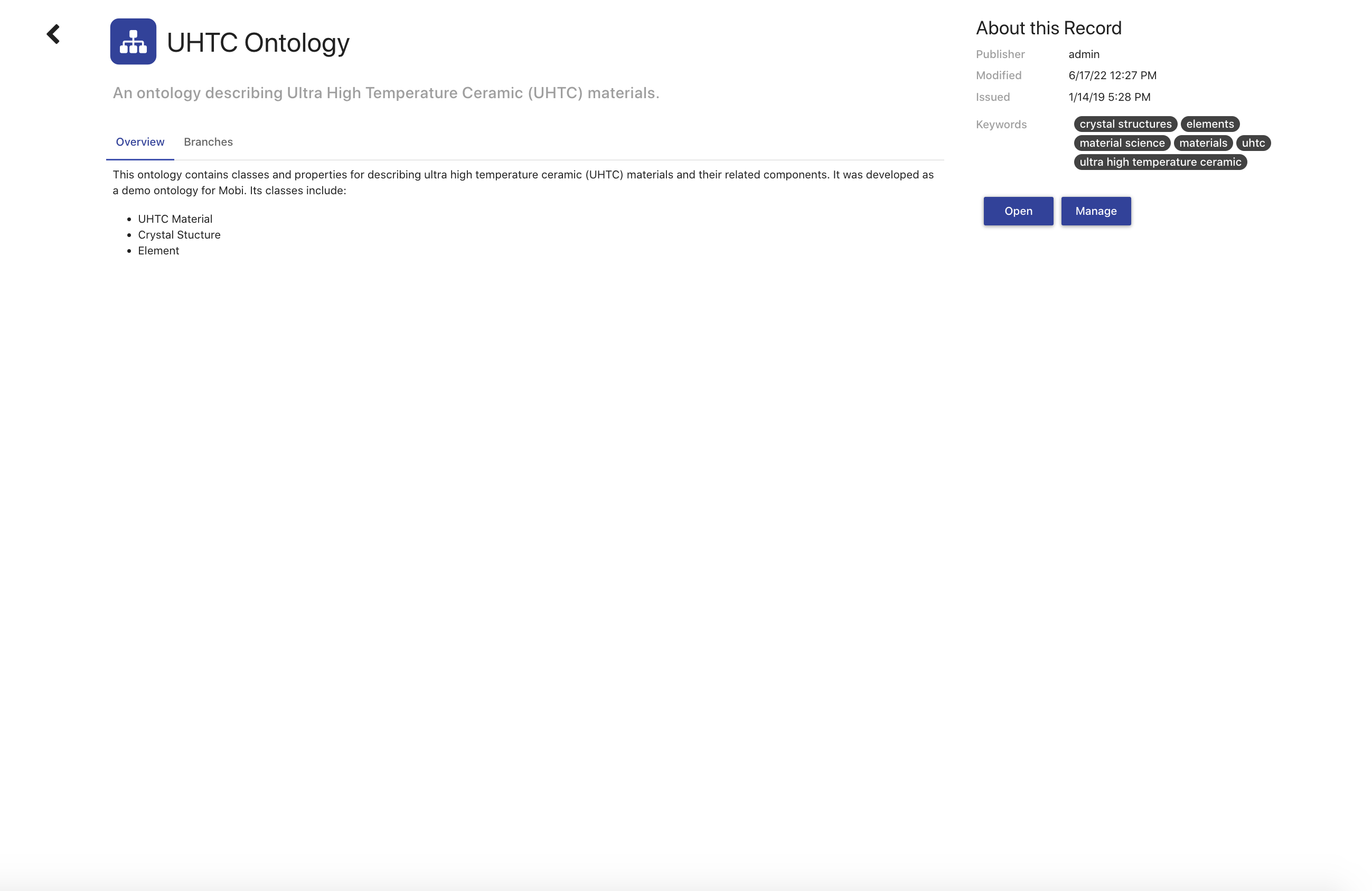
The Record View displays all metadata for the selected Record along with set of tabs that updates based on the type of Record. The top of the Record view shows the Record title, type icon, and its description. The Record description is meant to provide a short summary of the Record. The right side of the view displays the created and modified dates of the Record along with its keywords and a button to open the Record in its associated module (ontologies in the Ontology Editor, etc.).
Every Record type will contain an Overview tab where you can view a Markdown description of the Record that provides more detailed information than the description field. If the Record is a Versioned RDF Record, such as an Ontology Record or Mapping Record, the tabset will also include a tab displaying the list of its Branches. The Branches in the list are expandable to view the description and commit history of the Branch.
If you have the permission to manage the Record, clicking on the title, description, overview, and keywords fields will turn them into editable fields for easy updates. In addition, you will see a Manage button which will navigate you to the Record Permissions page.
Record Permissions
The Record Permissions page enables you to specify which users and groups can perform various actions against a record, such as viewing, deleting, modifying, and managing. Modify refers to the ability to affect the data represented by the record while Manage refers to the ability to edit the Record metadata. Versioned RDF Records like Ontologies and Mappings will also provide the ability to restrict who can modify the MASTER branch. Each type of Record has its own default permissions that get set uploaded or created.
Permissions can be set to allow all authenticated users (the Everyone slider) or limit access to specific users and groups. To set the permission to a user or group, unselect the Everyone permission, find a user or group in the search box underneath the appropriate box, and select it. To remove a user or group from the permission, click the X button next to the username or group title. After you have finished making the changes you want, make sure to click the save button in the bottom right. You can also click on the back button if you want to go back to the Record View.
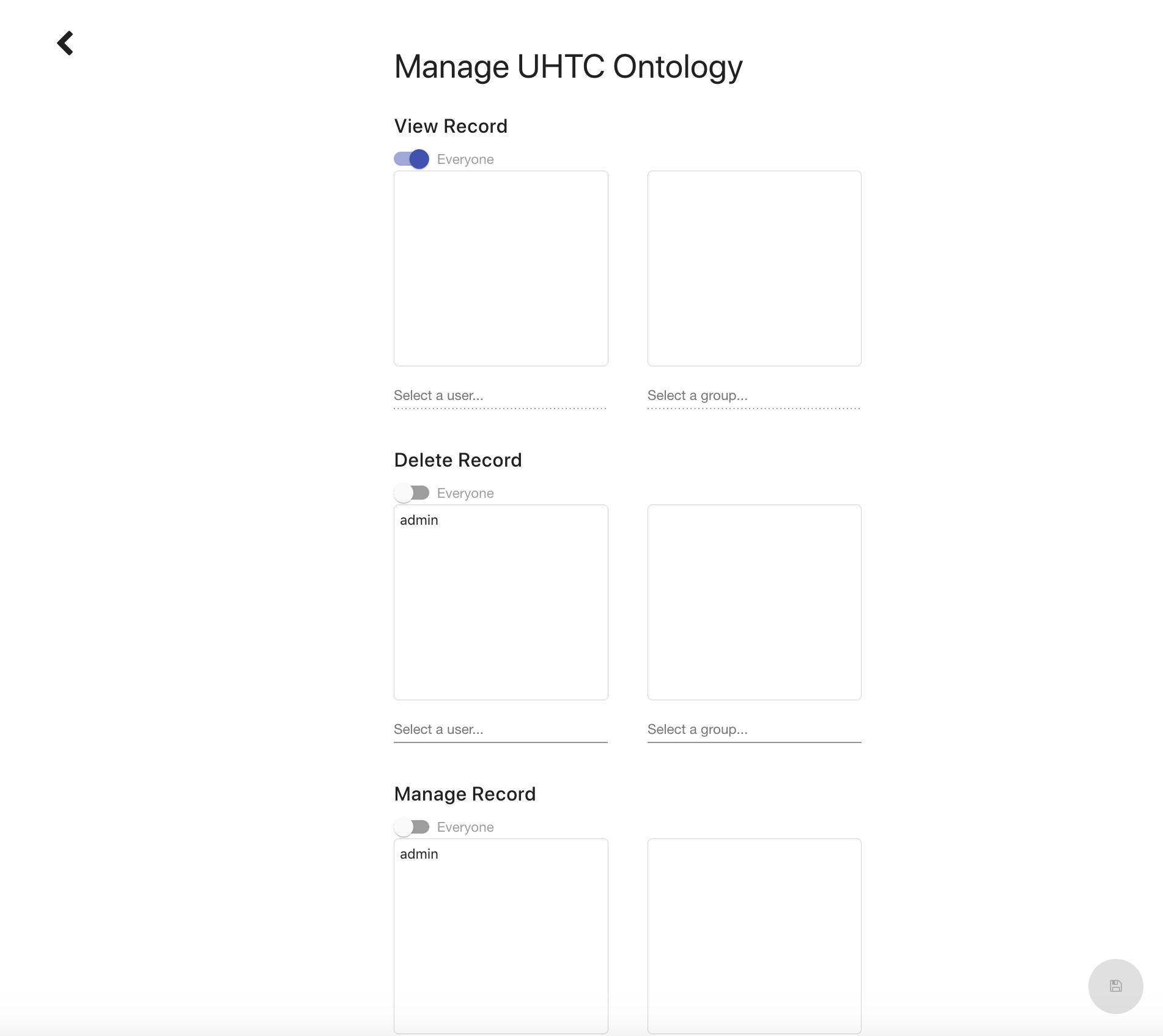
For Versioned RDF records, If a user is not allowed to modify the branch they are currently viewing, all actions in the editor that would affect the branch are disabled or removed. In addition, if a user is not allowed to edit the target branch of a merge request, they will not be able to accept the request.
Ontology Editor
The AVM web-based ontology editor provides a Distributed Ontology Management System (DOMS) for local and community development of Web Ontology Language (OWL) ontologies. The DOMS features a customizable user interface, knowledge capture, collaboration, access policy management, ontology reuse, and extensibility.
To reach the ontology editor, click on the link in the left menu.
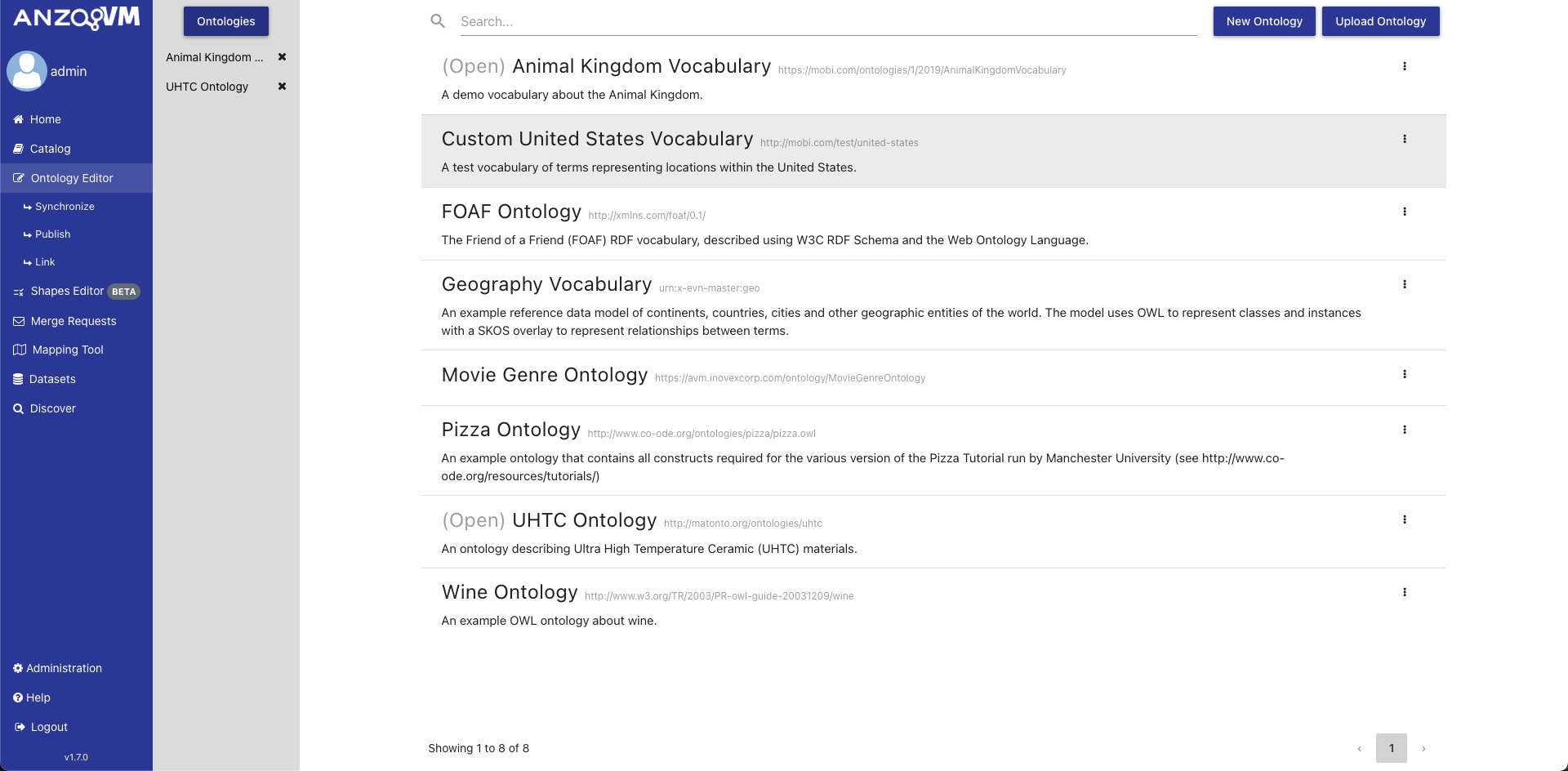
The initial view of the Ontology Editor shows the Ontologies page. The center of the page contains a paginated list of all ontologies in the local AVM repository. Each ontology in the list displays ontology metadata and an action menu. The action menu allows you to delete the ontology and manage its permissions, (see the section on [Ontology Managing]). Deleting an ontology from this location will delete the ontology and associated ontology record and change history from the local catalog. Clicking an ontology will open it in the editor.
When opening an ontology, the editor will load the previous branch and commit you were viewing. If you have not previously opened the ontology or the branch you were viewing no longer exists, then the editor will load the HEAD commit of the ontology’s master branch. For an explanation of commits and branches see the section on Ontology Versioning.
From this screen you can also filter the ontology list, create new ontologies, upload existing ones, or publish ones to the Anzo Catalog.
Creating New Ontologies
To create a new ontology, select the New Ontology button on the main ontology editor view. In the creation dialog, you are required to provide an ontology IRI and title. You can also optionally provide a description and keywords. This metadata is used to describe the ontology in the local catalog.
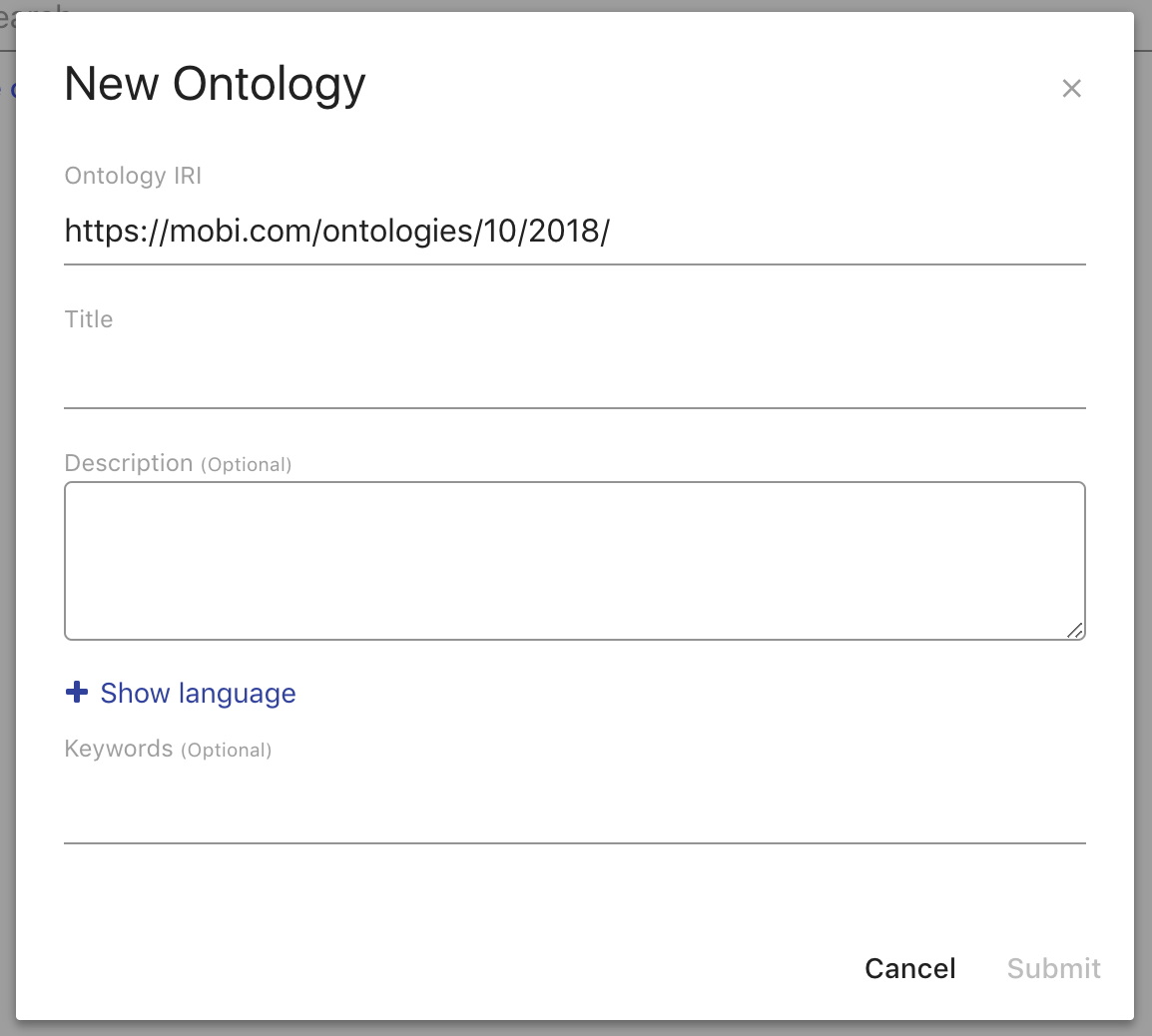
The Ontology IRI is the unique identifier for the new ontology. The editor pre-populates this field with a default namespace and a local name generated from the Title field. You can always override this behavior. The Title field populates the dcterms:title annotations of both the new ontology record and the ontology object within the new ontology. The Description field populates the dcterms:description annotations of both the new ontology record and the ontology object within the new ontology. The Keywords field will attach the entered values as keywords to the new ontology record.
Uploading Existing Ontologies
To upload an existing ontology, you can either click the Upload Ontology button and use the browser’s native file browser or drag and drop files onto the main ontologies view.
When uploading a file or files, a dialog box will prompt you for metadata entry for the ontology record (title, description, keywords). This metadata is used to describe the ontology in the local catalog. By default, the application will set the record title using the filename. Metadata for each ontology can be entered and submitted separately, or default metadata can be entered for all records using the Submit All button.
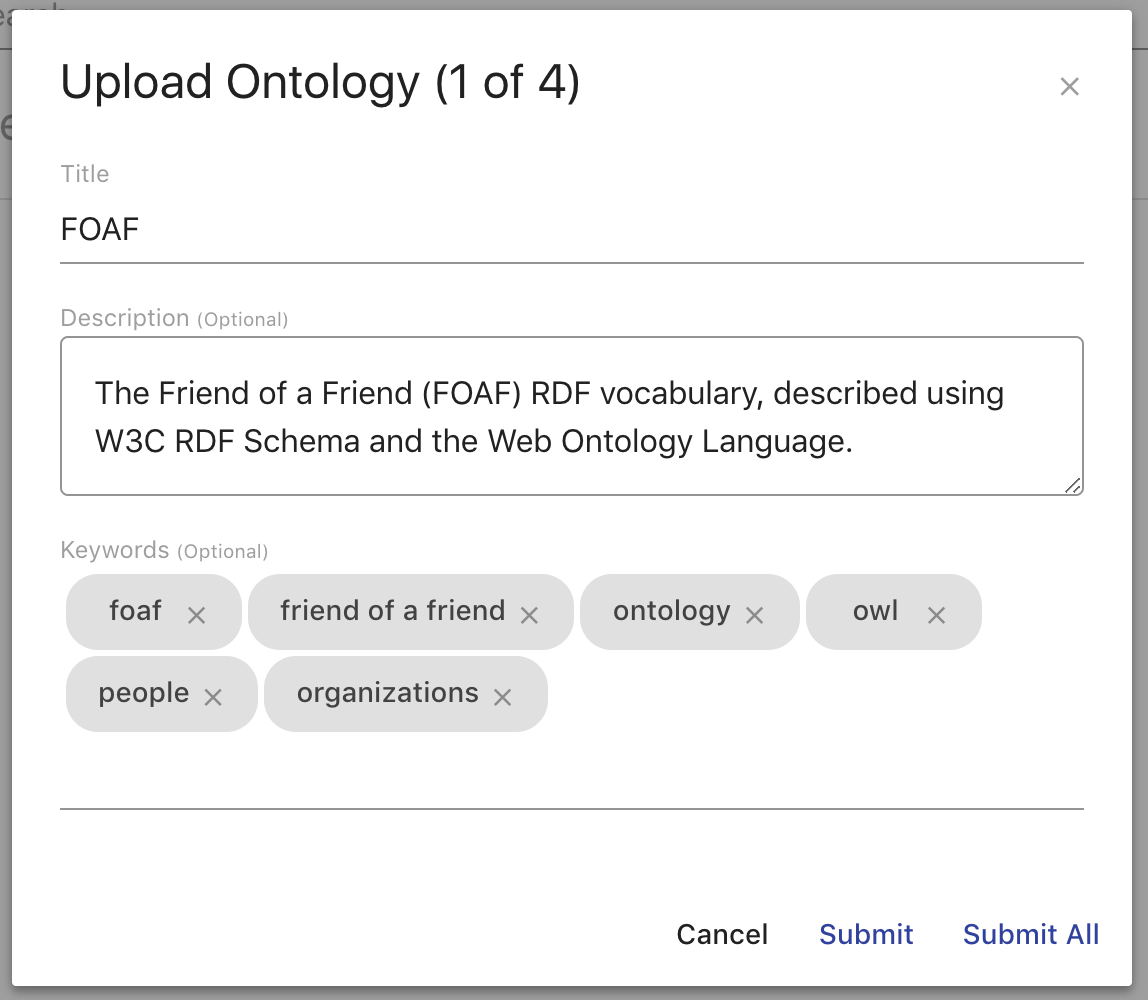
Once all metadata has been submitted, a panel will be shown in the bottom right of the page which shows the status for each upload. Any errors will be detailed for each file. To refresh the main ontologies list with the new files, close the upload panel.
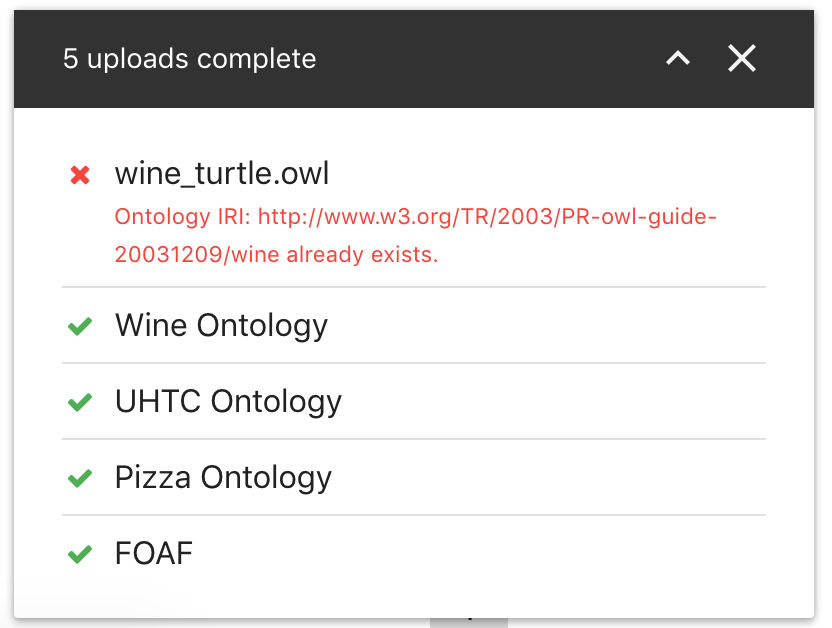
Supported ontology file types are .owl, .ttl, .xml, .jsonld, .owx, .trig, .json, .n3, .nq, .nt, and .rdf. The Title field populates the dcterms:title annotation of the new ontology record. The Description field populates the dcterms:description annotation of the new ontology record. The Keywords field will attach the entered values as keywords to the new ontology record.
Editing an Ontology
The Ontology Editor provides an interface for developing OWL 2 ontologies with additional features directed towards developing Simple Knowledge Organization System (SKOS) vocabularies and extensions thereof, including support for (SKOS-XL)
|
Tip
|
To learn more about OWL ontologies, see the W3C Specification. To learn more about SKOS vocabularies, see the W3C Specification |
The Ontology Editor contains various tabs supporting activities for ontology development, search, and version control.
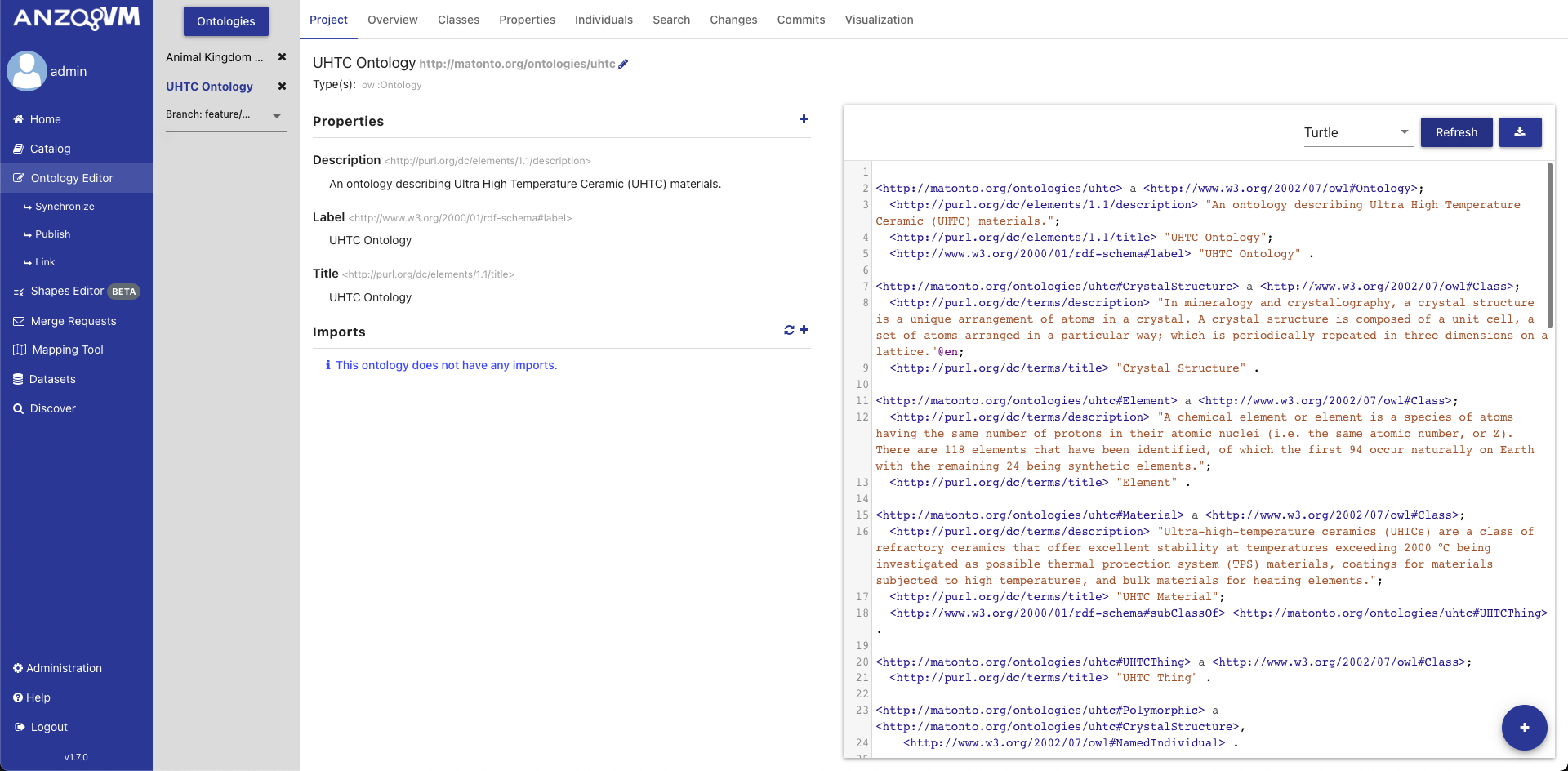
This section will describe the tools related to ontology development activities. These include:
-
the Overview Tab
-
the Classes Tab
-
the Properties Tab
-
the Individuals Tab
-
the optional Schemes Tab
-
the optional Concepts Tab
-
the Search Tab
The Schemes Tab and Concepts Tab will appear if the editor detects that the opened ontology contains SKOS classes and properties. The easiest way to have access to these tabs is to import the SKOS ontology (http://www.w3.org/2004/02/skos/core).
For a detailed description of the versioning components, refer to the Ontology Versioning section.
Ontology Project Tab
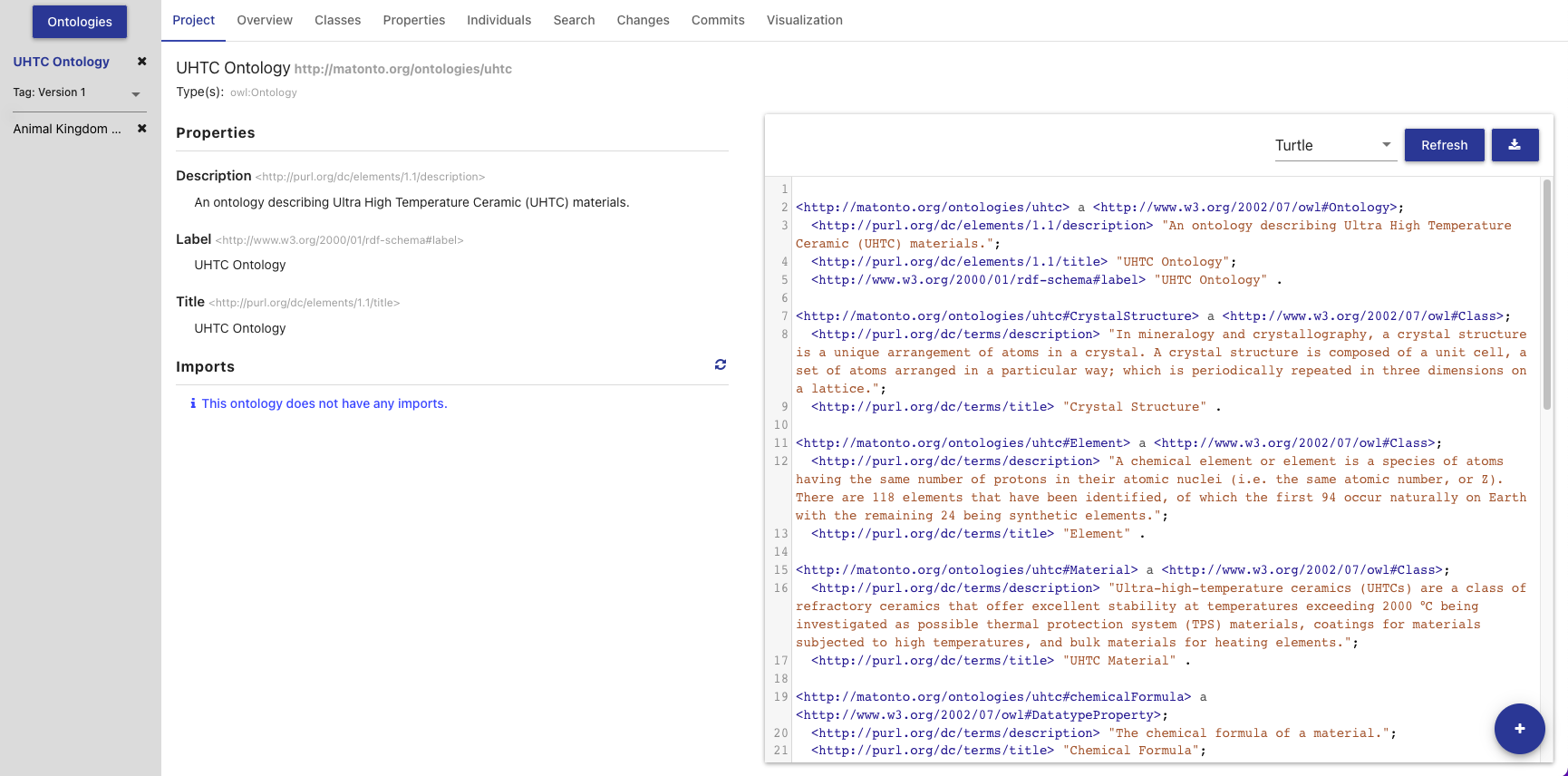
The Ontology Project Tab displays high-level information about the ontology. This includes the ontology annotations and properties, ontology imports, and a preview of the serialized ontology RDF.
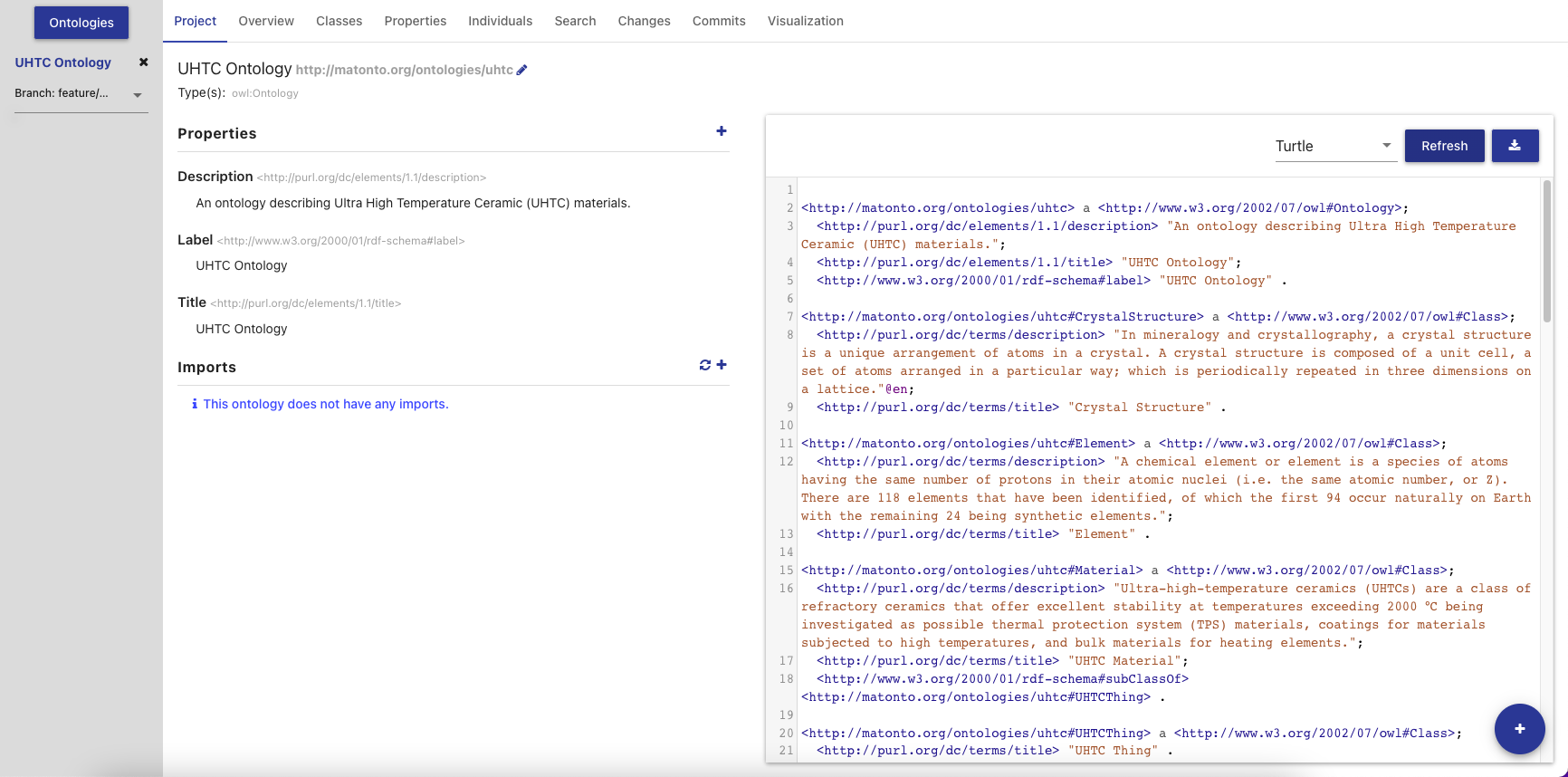
The top of this tab contains the title of the ontology and its IRI. The IRI shown is the Version IRI, Ontology IRI, or a blank node identifier. The IRI can be copied quickly by clicking on it.
On the upper left side of this tab is a section containing a list of all the applied OWL Ontology Properties and Annotations. There are controls included to add, remove, and edit these properties.
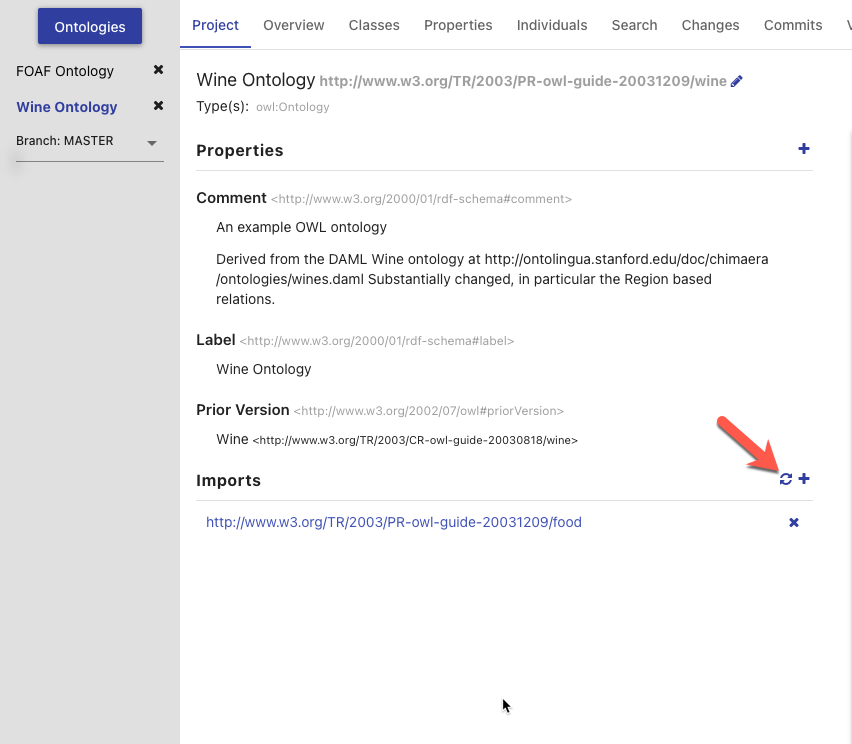
On the lower left side of this tab is a section containing a list of all direct and indirect ontology imports. If an imported ontology could not be resolved, it will appear red. To add a new imported ontology, click on the plus button and either enter the IRI of an ontology available on the web or select an ontology within AVM. To refresh the cached versions of the imported ontologies and attempt to resolve any unresolved imports, click on the refresh button.
On the right of this tab is a card used to generate a preview of the ontology as RDF. There is a drop down with several different RDF serializations to choose from. Clicking Refresh will generate a preview of the saved state of the ontology in the specified RDF format in the area below. The preview will be limited to the first 5000 results. Additionally, there is a button for downloading the ontology in the selected format.
|
Tip
|
The serialized ontology is a representation of data stored in the repository and will not include unsaved changes. |
Overview Tab
The Overview Tab provides quick access to classes and their associated properties as compared to the Classes and Properties tabs. Properties are associated to classes through the use of rdfs:domain.
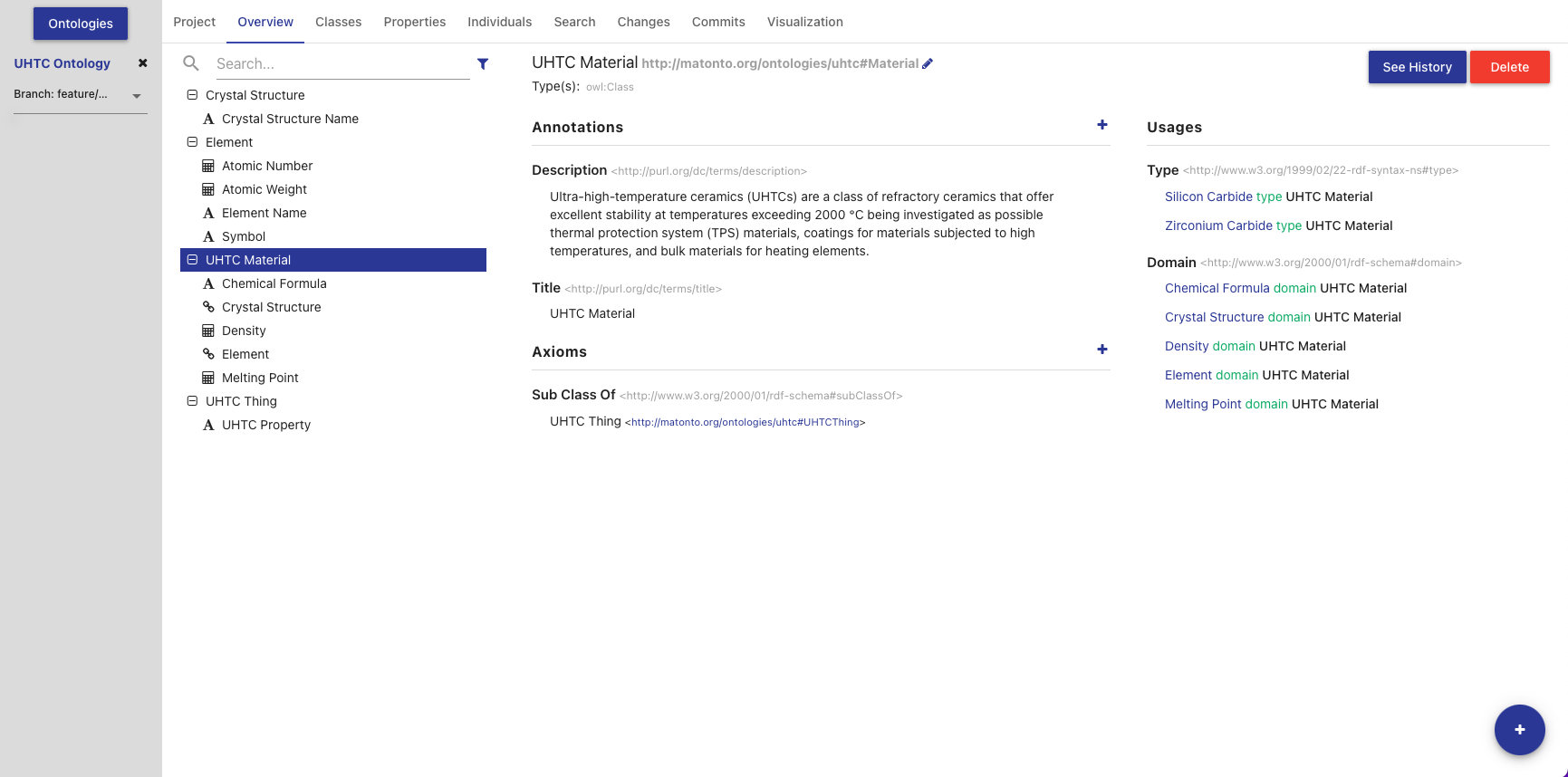
The left side of this tab contains the list of all classes and their associated properties, including imports. Any properties that have no rdfs:domain are grouped into a folder in the hierarchy called "Properties". You can expand a class to view its properties by clicking the "+" icon or double-clicking the class name. Properties are displayed with a symbol representing the data type of the range property. If an entity has been changed and those changes have not been committed, it will appear bold and an indicator will be shown on the right of the entity name. Imported classes and properties will appear grey and italicized.
The list also includes a search bar that will filter the list to classes/properties with annotations or local names containing your search query and the ability to apply one or more filters.
The Hide unused imports filter will remove all imported entities from the list that are not used by any of the entities defined in the ontology.
The Hide deprecated entities filter will remove all entities annotated with the owl:deprecated property.
Clicking on an item in the tree will load that entity’s information into the other sections in this tab.
The title of the selected class or property, its IRI, and its type(s) are displayed at the top of the tab along with buttons to delete the entity and view its change history (see Entity History). The IRI can be copied quickly by clicking on it. The middle sections in this tab allow you to add, remove, and edit Annotations and Axioms for the selected class or property. Imported classes and properties cannot be edited.
If you selected a property, a section with checkboxes for adding different characteristics to the selected property is shown in the top right of the Overview Tab.
|
Tip
|
See the W3C Specification for the definitions of property characteristics. |
The last section on the right displays all the locations where the selected entity is used within the saved state of the ontology. For classes, this is anywhere the selected class is used as the object of a statement. For properties, this is anywhere the selected property is used as the predicate or object of a statement. Usages are grouped by the predicate of the statement and can be collapsed by clicking on the predicate title. Links in the usages section, as with links in various other components of the editor, can be clicked to navigate to that entity. If the number of usages exceeds 100, a button to load the next 100 is shown at the bottom of the section.
Classes Tab
The Classes Tab allows you to view, create, and delete classes in the opened ontology.
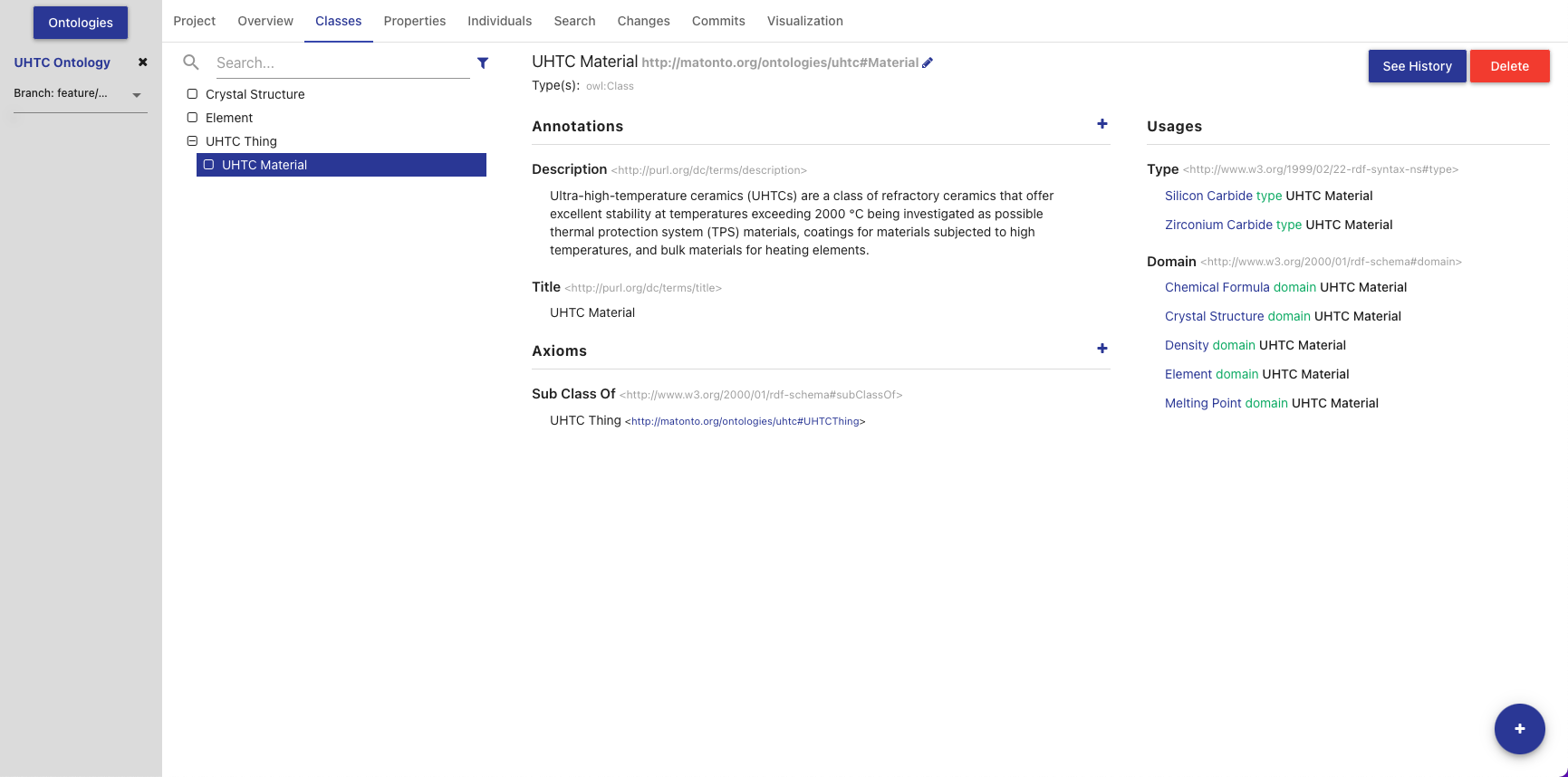
The left side of the tab contains a hierarchical view of the classes, including imports, nested according to their rdfs:subClassOf property. That is, a class’s children are classes which are defined as subclasses of the particular class. Since classes can be defined as a subclass of multiple classes, they may appear several times within the hierarchy. If a class has been changed and those changes have not been committed, it will appear bold and an indicator will be shown on the right of the class name. Imported classes will appear grey and italicized.
The list also includes a search bar that will filter the list to classes with annotations or local names containing your search query and the ability to apply one or more filters.
The Hide unused imports filter will remove all imported entities from the list that are not used by any of the entities defined in the ontology.
The Hide deprecated entities filter will remove all classes annotated with the owl:deprecated property.
Clicking on an item in the hierarchy will load that class’s information into the other sections in this tab. Double clicking on a class with children will toggle the display of the children.
The title of the selected class, its IRI, and its type(s) are displayed at the top of the tab along with buttons to delete the class and view its change history (see Entity History). The IRI can be copied quickly by clicking on it. The middle sections in this tab allow you to add, remove, and edit Annotations and Axioms for the selected class. Imported classes cannot be edited.
The section on the right of the Classes Tab displays all the locations where the selected class is used within the saved state of the ontology. That is, anywhere the selected class is used as the object of a statement. Usages are grouped by the predicate of the statement and can be collapsed by clicking on the predicate title. Links in the usages section, as with links in various other components of the editor, can be clicked to navigate to that entity. If the number of usages exceeds 100, a button to load the next 100 is shown at the bottom of the section.
Properties Tab
The Properties Tab allows you to view, create, and delete properties in the opened ontology.
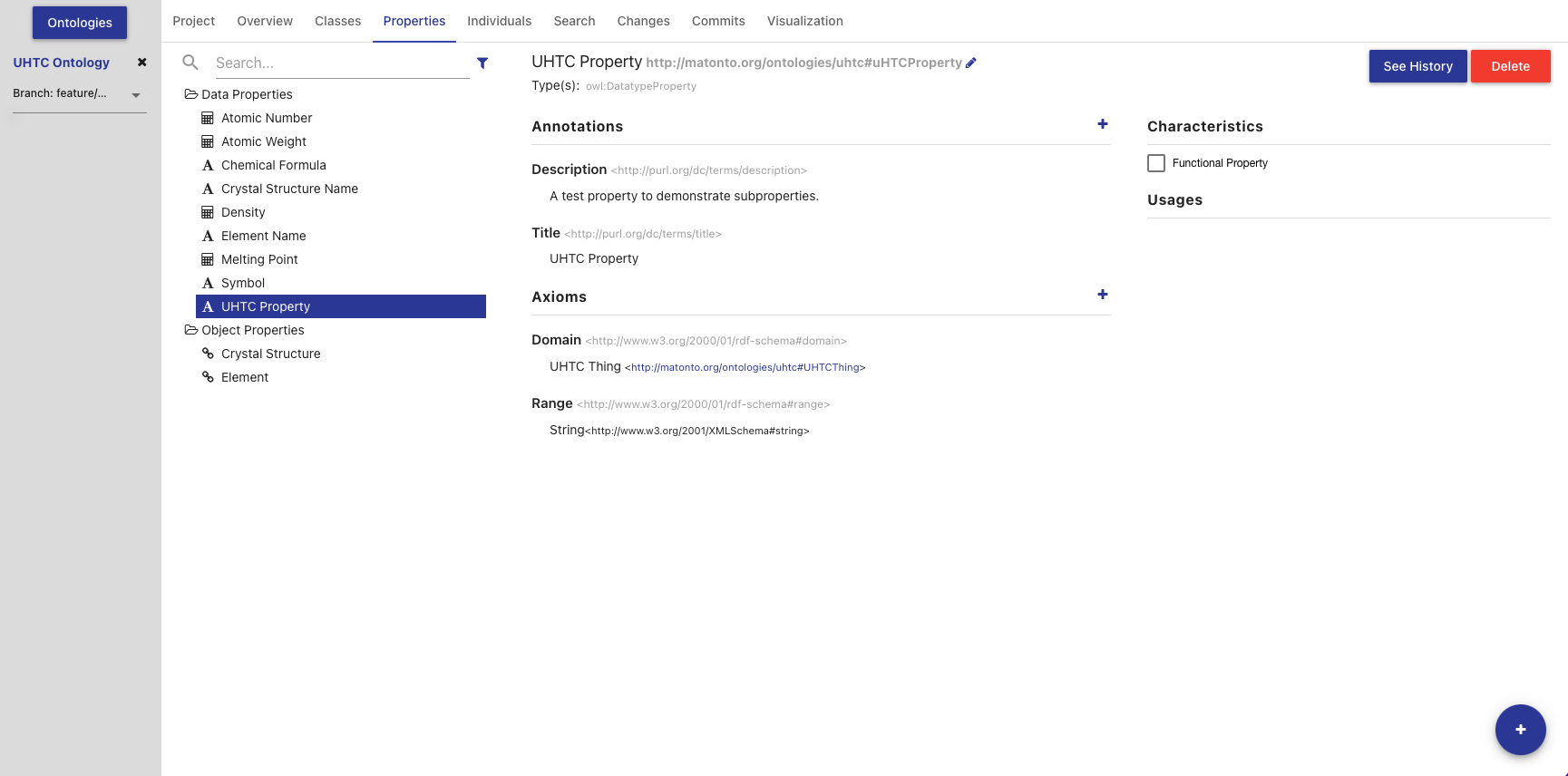
The left side of the tab contains a hierarchical view of the data, object, and annotation properties, including imports. The data, object, and annotation properties are grouped into three separate folders within the hierarchy that will open and close when clicked. Properties are nested according to their rdfs:subPropertyOf property. That is, a property’s children are properties which are defined as subproperties of the particular property. Properties are displayed with a symbol representing the data type of the range property. If a property has been changed and those changes have not been committed, it will appear bold and an indicator will be shown on the right of the property name. Imported properties will appear grey and italicized.
The list also includes a search bar that will filter the list to properties with annotations or local names containing your search query and the ability to apply one or more filters.
The Hide unused imports filter will remove all imported properties from the list that are not used by any of the entities defined in the ontology.
The Hide deprecated entities filter will remove all properties annotated with the owl:deprecated property.
Clicking on an item in the hierarchy will load that property’s information into the other sections in this tab. Double clicking on a property with children will toggle the display of the children.
The title of the selected property, its IRI, and its type(s) are displayed at the top of the tab along with buttons to delete the property and view its change history (see Entity History). The IRI can be copied quickly by clicking on it. The middle sections in this tab change depending on whether you have selected a data, object, or annotation property. If the selected property is a data or object property, the sections for adding, removing, and editing Annotations and Axioms are shown. If the selected property is an annotation property, only the Annotation sections is shown. Imported properties cannot be edited.
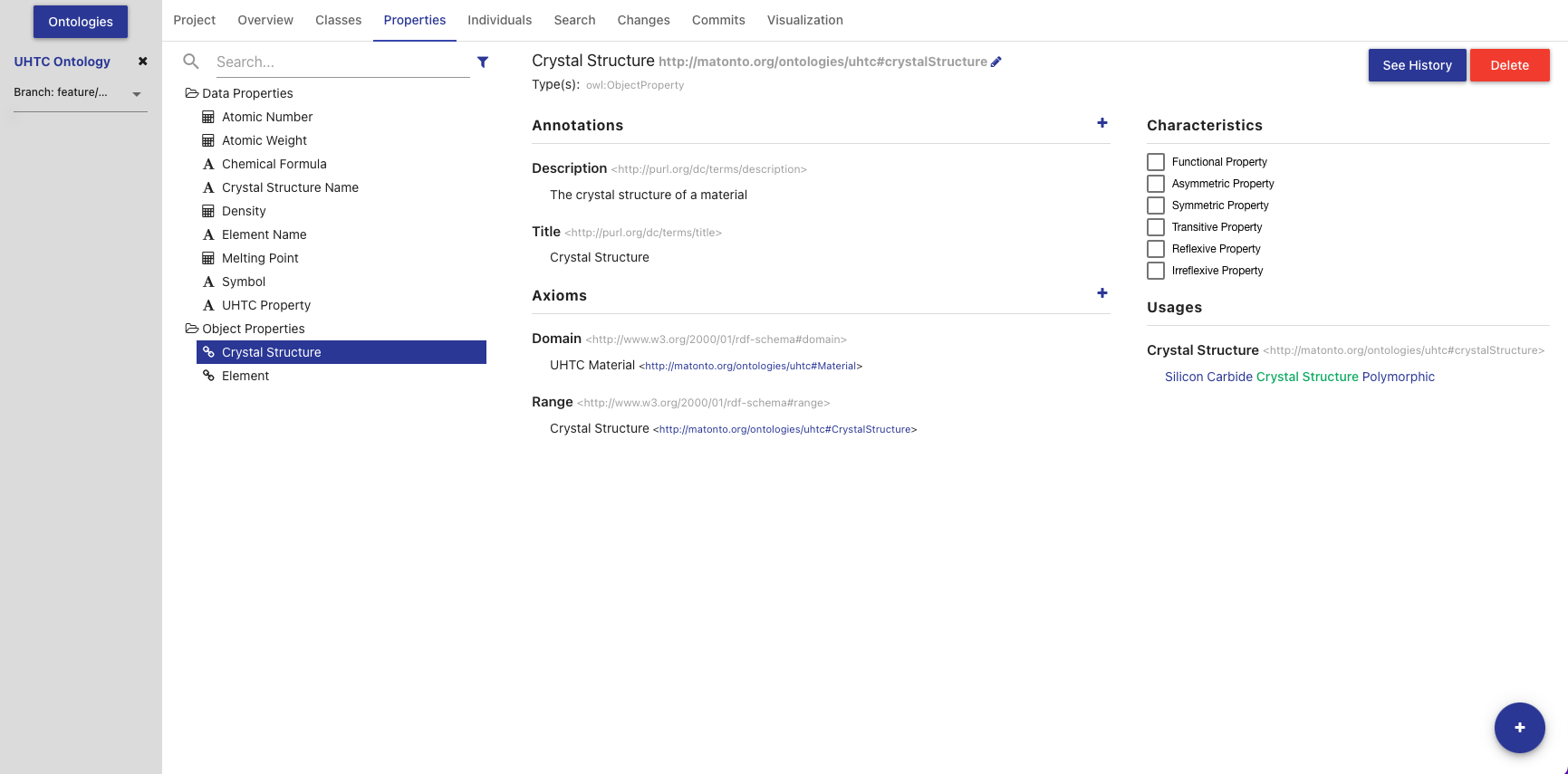
If the selected property is a data or object property, a block with checkboxes for adding different characteristics to the selected property is shown in the top right of the Properties Tab. Imported properties cannot be edited.
|
Tip
|
See the W3C Specification for the definitions of property characteristics. |
The last section on the right of the tab displays all the locations where the selected property is used within the saved state of the ontology. That is, anywhere the selected property is used as the predicate or object of a statement. Usages are grouped by the predicate of the statement and can be collapsed by clicking on the predicate title. Links in the usages section, as with links in various other components of the editor, can be clicked to navigate to that entity. If the number of usages exceeds 100, a button to load the next 100 is shown at the bottom of the section.
Individuals Tab
The Individuals Tab allows you to view, edit, create, and delete individuals in the opened ontology.
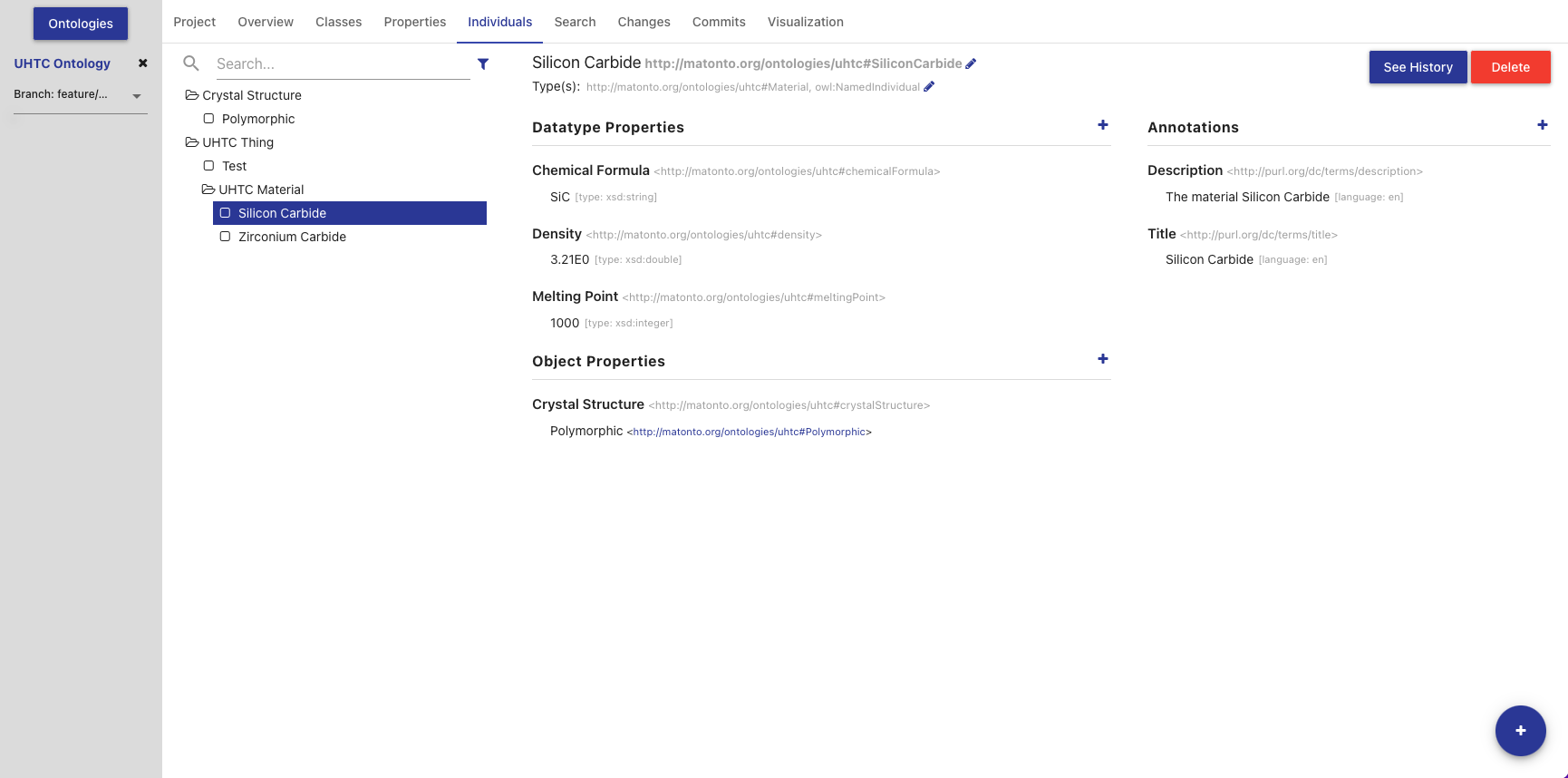
The left side of the tab contains a view of all individuals, including imports, nested under their classes based on the rdfs:subClassOf property. If an individual has been changed and those changes have not been committed, it will appear bold and an indicator will be shown on the right of the individual name. Imported individuals will appear grey and italicized.
The list also includes a search bar that will filter the list to individuals with annotations or local names containing your search query and the ability to apply one or more filters.
The Hide unused imports filter will remove all imported individuals from the list that are not used by any of the entities defined in the ontology.
The Hide deprecated entities filter will remove all individuals annotated with the owl:deprecated property.
Clicking on an item in the list will load that individual’s information into the other sections in this tab.
The title of the selected individual, its IRI, and its type(s) are displayed at the top of the tab along with buttons to delete the individual and view its change history (see Entity History). The IRI can be copied quickly by clicking on it. The section to the center and right of the tab allow you to add, remove, and edit Data, Object, and Annotation Properties for the selected individual. The options for Data and Object Properties are populated from the ontology and its imports. Imported individuals cannot be edited.
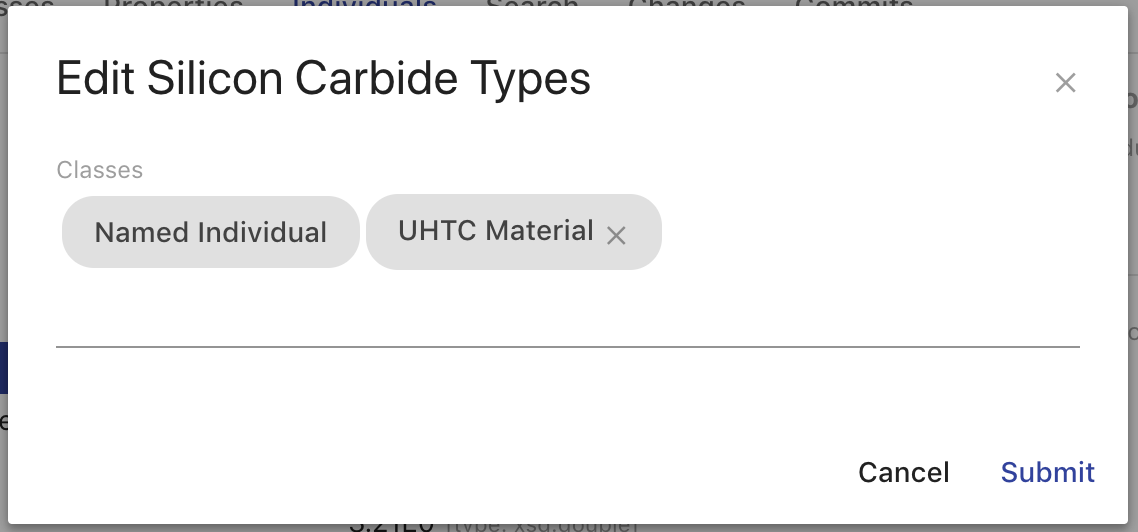
The types of an individual are editable by clicking the pencil icon at the end of the types list. The overlay allows you to add and remove types from the ontology and its imports. The "Named Individual" type is required.
Schemes Tab
The Schemes Tab will appear if the editor detects the opened ontology is a SKOS vocabulary. It displays information about all the concept schemes and their directly related concepts defined in the opened vocabulary.
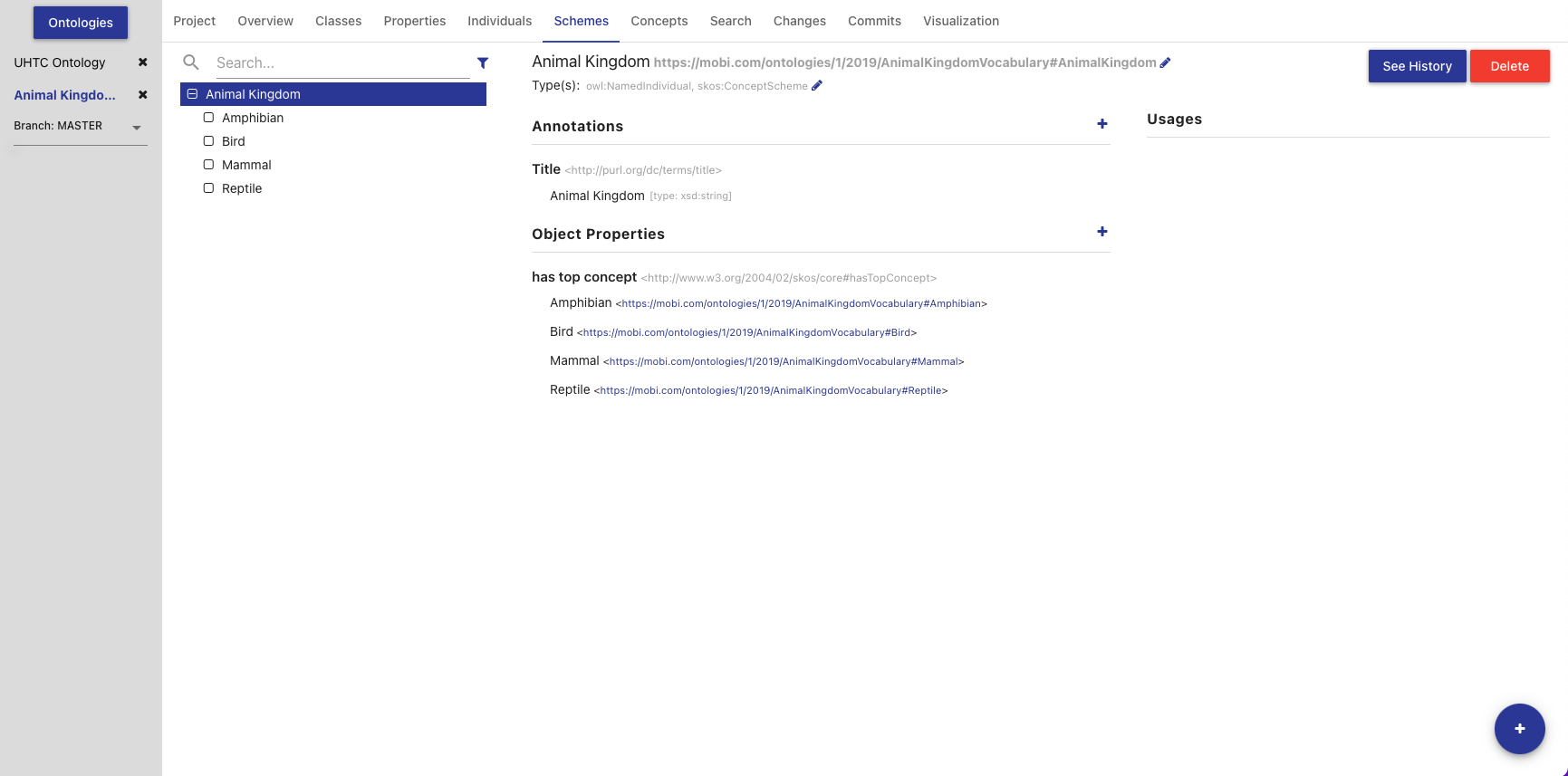
The left side of the tab contains a hierarchical view of the concept schemes, including imports. The top level items are the concept schemes, or subclasses of skos:ConceptScheme, and their children are all concepts, or subclasses of skos:Concept, within that scheme. This could be defined through the skos:hasTopConcept, skos:topConceptOf, or skos:inScheme properties. If a concept scheme or concept has been changed and those changes have not been committed, it will appear bold and an indicator will be shown on the right of its name. Imported concept schemes and concepts will appear grey and italicized.
The list also includes a search bar that will filter the list to concepts/schemes with annotations or local names containing your search query and the ability to apply one or more filters.
The Hide unused imports filter will remove all imported schemes from the list that are not used by any of the entities defined in the ontology.
The Hide deprecated entities filter will remove all schemes annotated with the owl:deprecated property.
Clicking on an item in the hierarchy will load that concept scheme’s or concept’s information in the other sections in this tab. Double clicking on a concept scheme with children will toggle the display of the children.
The title of the selected concept scheme or concept, its IRI, and its type(s) are displayed at the top of the tab along with buttons to delete the entity and view its change history (see Entity History). The IRI can be copied quickly by clicking on it. The middle sections in this tab allow you to add, remove, and edit Annotations, Data Properties, and Object Properties for the selected concept scheme or concept. Imported concept schemes and concepts cannot be edited.
The third section on the right of the Schemes Tab displays all the locations where the selected concept scheme or concept is used within the saved state of the vocabulary. This is anywhere the selected concept scheme or concept is used as the object of a statement. Usages are grouped by the predicate of the statement and can be collapsed by clicking on the predicate title. Links in the usages section, as with links in various other components of the editor, can be clicked to navigate to that entity. If the number of usages exceeds 100, a button to load the next 100 is shown at the bottom of the section.
Concepts Tab
The Concepts Tab will appear if the editor detects the opened ontology is a SKOS vocabulary. The Concepts Tab displays information about all the concepts defined in the opened vocabulary.
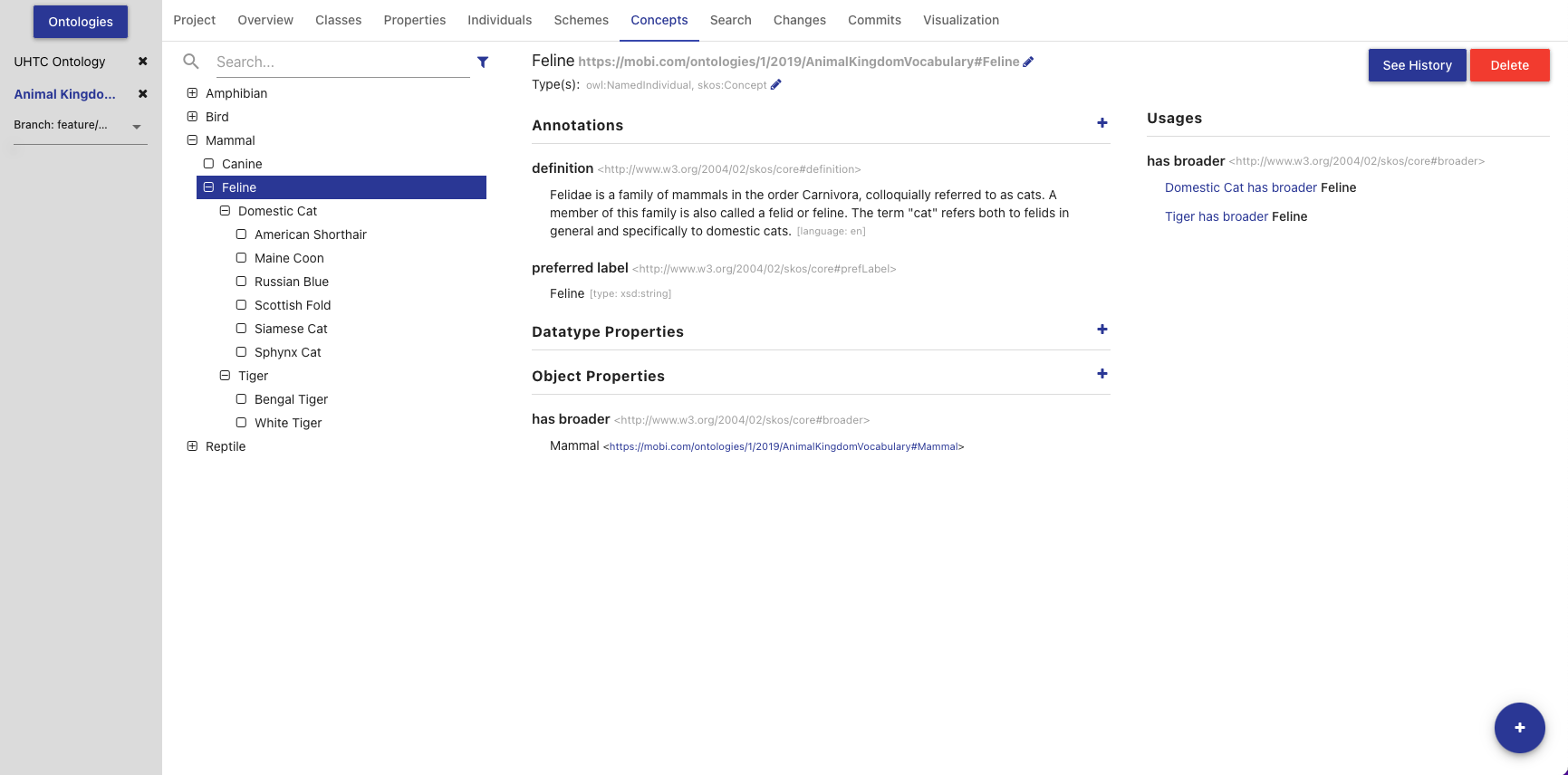
The left side of the tab contains a hierarchical view of the concepts, including imports. The concept hierarchy is determined using all of the SKOS broader and narrower properties. If a concept scheme or concept has been changed and those changes have not been committed, it will appear bold and an indicator will be shown on the right of its name. Imported concepts will appear grey and italicized. The list also includes a search bar that will filter the list to concepts with annotations or local names containing your search query and the ability to apply one or more filters. The Hide unused imports filter will remove all imported concepts from the list that are not used by any of the entities defined in the ontology. The Hide deprecated entities filter will remove all concepts annotated with the owl:deprecated property. Clicking on an item in the hierarchy will load that concept’s information in the other sections in this tab. Double clicking on a concept with children will toggle the display of the children.
The title of the selected concept, its IRI, and its type(s) are displayed at the top of the tab along with buttons to delete the concept and view its change history (see Entity History). The IRI can be copied quickly by clicking on it. The middle blocks in this tab allow you to add, remove, and edit Annotations, Data Properties, and Object Properties for the selected concept. Imported concepts cannot be edited.
The third section on the right of the Concepts Tab displays all the locations where the selected concept is used within the saved state of the vocabulary. This is anywhere the selected concept is used as the object of a statement. Usages are grouped by the predicate of the statement and can be collapsed by clicking on the predicate title. Links in the usages section, as with links in various other components of the editor, can be clicked to navigate to that entity. If the number of usages exceeds 100, a button to load the next 100 is shown at the bottom of the section.
Search Tab
The Search Tab allows you to perform a keyword search through all the entities within the saved state of the opened ontology and its imports.
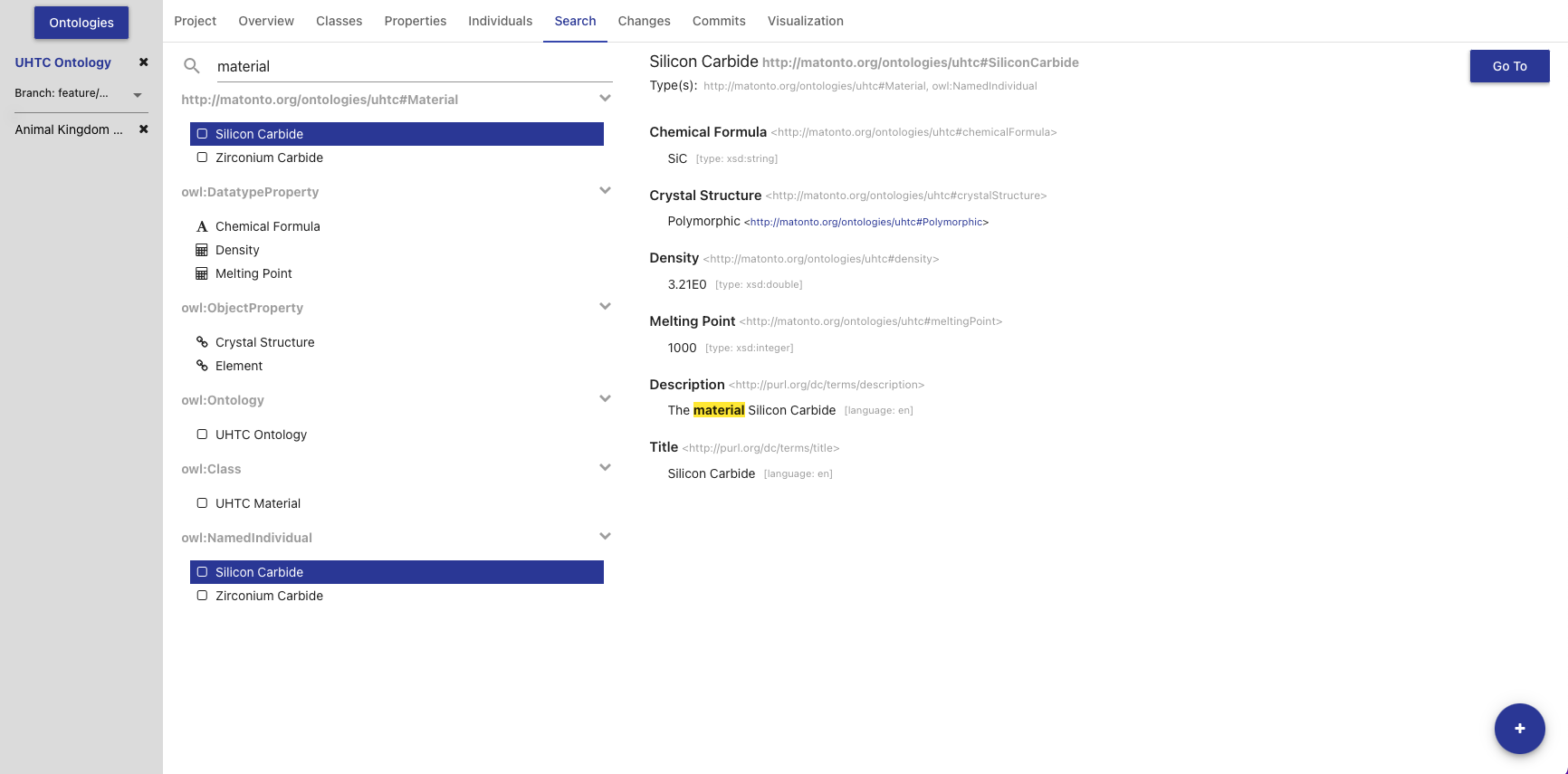
The left side of the tab contains a simple search bar and a list of search results. To perform a search, type a string into the search bar and press the ENTER key. The results are separated by type headers which are collapsible. Each result is displayed with its display name. Properties are displayed with a symbol representing the data type of the range property. Clicking on a result will load that entity’s information into the right section of this tab. The right section displays the entity’s display name, IRI, types, and properties. The parts of the property values that match the search text will be highlighted. The right section also includes a Go To button that will open the entity in the appropriate tab. Double clicking on an entity in the list will also open that entity in the appropriate tab.
Visualization Tab
The Visualization Tab depicts the ontology in a force-directed graph layout. Each node represents a class, with dotted lines symbolizing the relationship between parent class and subclass, and solid lines representing the object properties.
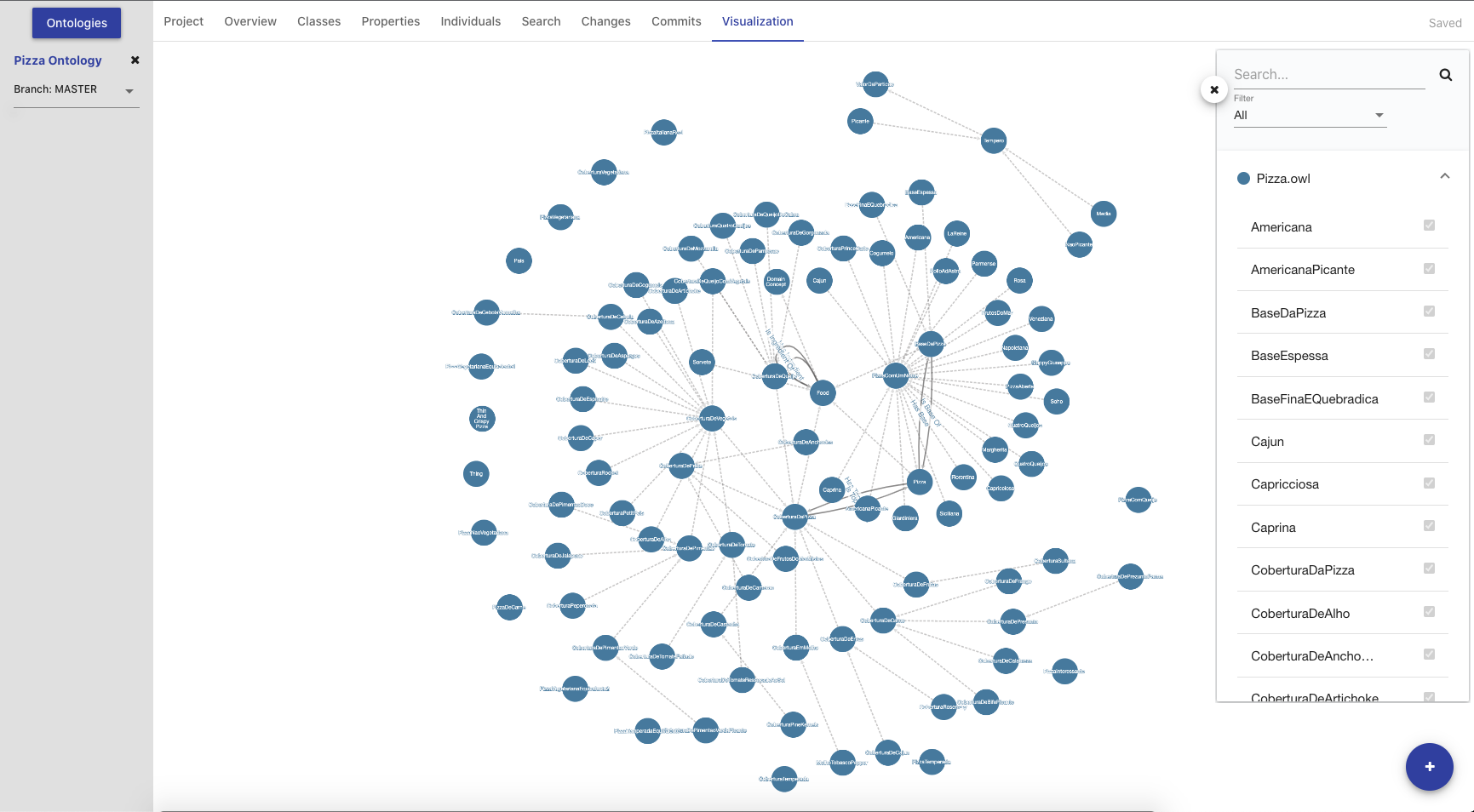
The ontology visualization feature enables users to easily understand data within an Ontology by allowing them to navigate across the classes and their relationships. The feature allows users to zoom, pan, select, drag, hover, and click nodes and links.
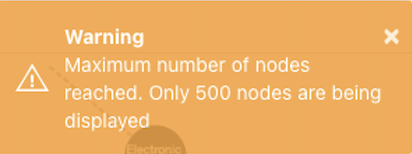
The number of classes displayed is limited to 500. Any in progress changes you have will not be rendered until they are committed. After initial graph calculation, the state of the graph will persist while users keep the Ontology open. The graph will only be re-rendered when there is a new commit.

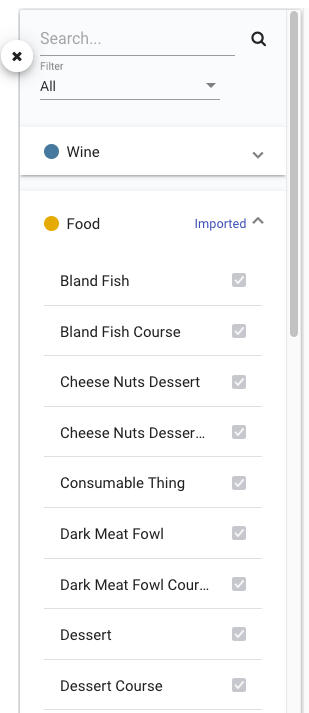
The side panel of the Visualization tab displays a searchable list of all the classes in the import closure (i.e. direct and imported) grouped by parent ontology. The checkboxes next to each class indicate whether a class is currently shown in the visualization and can be toggled to customize the displayed graph. Selecting a class in the side panel will highlight the node in the graph if displayed. Selecting a node in the graph will also highlight in the side panel. The side panel also includes a "Filter" dropdown with three options to help find the classes of interest in the list.
-
“All” which is the default. When selected, the list of classes contains both classes declared in the opened ontology and imported classes
-
“Local” which will filter the list of classes to only those declared in the opened ontology when selected
-
“Imported” which will filter the list of classes to only those from imported ontologies
The side panel can be hidden or shown with a button.


Imported Ontologies
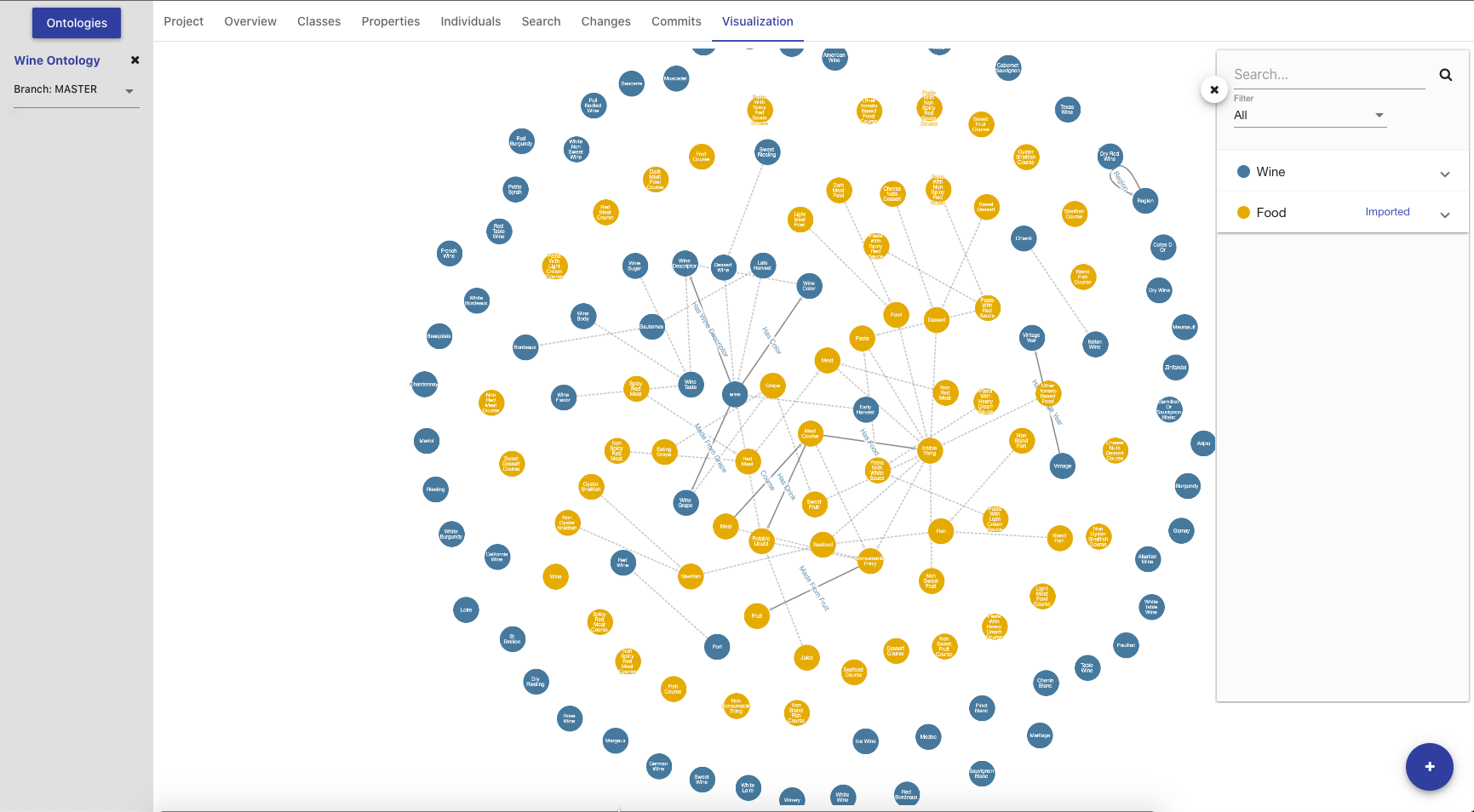
The rendered graph will include every ontology within the imports closure. The classes in the graph are rendered with different colors based on which ontology within the imports closure they belong to. If a change to an imported Ontology is made, the changes will not be rendered until a manual refresh is triggered which will reset the Ontology cache or until a new commit is made.
Ontology Versioning
Each ontology in AVM is versioned in a manner similar to the Git Version Control System, whereby all changes to an ontology are collected into a chain "commits" which form a commit history called a "branch". Thus, every version in the history of an ontology can be generated by selecting a commit and applying all the changes in the branch back to the initial commit.
Every ontology is initialized with a MASTER branch that contains the initial commit. Work can be done on this MASTER branch or can be split out into separate branches. Work done on these branches occur in isolation until they are merged back into the MASTER branch, joining any other changes committed in the meantime. When merging two branches, the ontology editor does its best to combine any changes made on both branches. If a conflict occurs, the editor allows the user to resolve them manually. More information on merging branches can be found in the section on Merging Branches.
Checking Out Branches/Tags/Commits
The check out select box located underneath the selected ontology in the left display, provides a list of all the available branches and tags on the ontology. To checkout a branch or tag, simply select the branch in the drop-down menu. Checking out a tag will open the ontology at the tagged commit in read-only mode. If you have checked out a commit from the Commits Tab, the commit will be in the dropdown list and show as selected. Note that the select box will be disabled if you have any uncommitted changes on the current branch. To edit a branch name or description, click on the edit icon next to the branch in the drop-down menu. You cannot edit the master branch of an ontology.
|
|
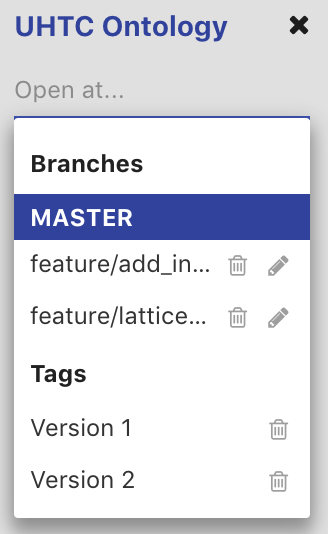
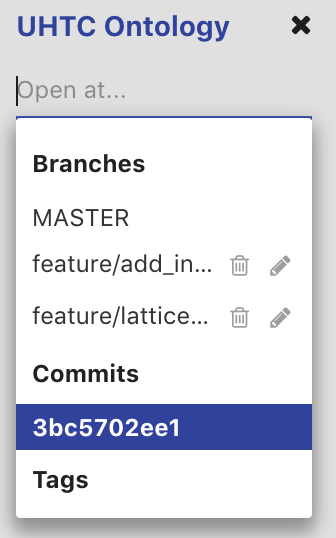
To delete a branch or tag, click on the delete icon next to the branch/tag in the drop-down menu. If a branch is deleted, all commits on that branch that are not part of another branch will be removed, as well as the branch itself. If a tag is deleted, the commit is not removed. Note that these actions cannot be undone.
Viewing Saved Changes
Every edit made to an entity within an ontology is automatically saved and an indicator is shown in the top right if the most recent changes have been saved successfully. The Changes Tab displays all saved and uncommitted changes in the opened ontology. Saving changes without committing allows a user to edit an ontology through a number of browser sessions before making any commits to the commit history. These changes are unique to the user, and are available to other users once a commit is performed.
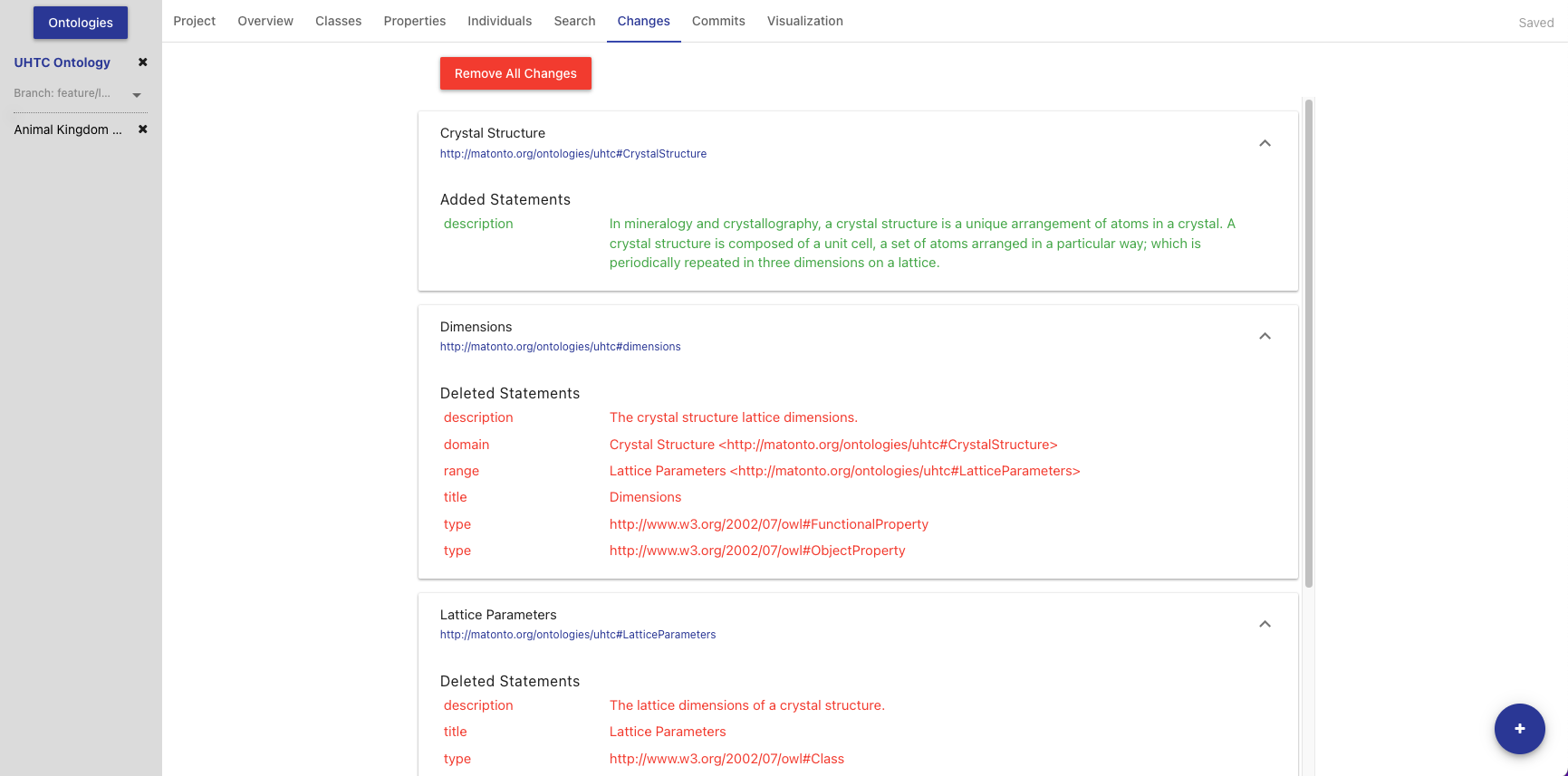
Within each collapsible block in the list are the added and deleted triples for a particular entity IRI. If there are no changes to the ontology, this page will be empty. To commit these changes, select the Commit Changes button in the Button Stack. To remove these changes, click Remove All Changes.
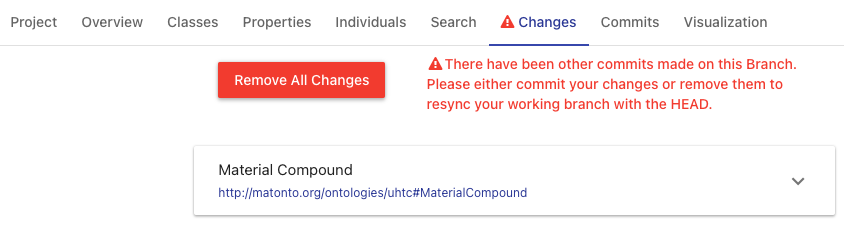
If new commits have been made to the branch by other users while you are editing or viewing an ontology, a warning symbol will be displayed in the section title and a message will be displayed in the section notifying you that there are new commits on the branch. If you have no saved changes, there will be a link to update the current ontology by pulling in the latest changes. If you have saved changes, there will be a message notifying you to either commit your changes or remove them. If you choose to commit your changes, you can still continue working and there will be a link to pull in the latest changes and re-sync with the branch.

Merging Branches
The Ontology Editor also supports merging the head commit of the branch you are currently viewing into the head commit of another branch. Two branches can only be merged if there are no conflicts between the head commits of each branch. To perform a merge, select the green Merge Branches button in the button stack.
The merge view displays the name of the current (source) branch, a select box for the branch (target) you want to merge into, and a checkbox for whether or not you want the source branch to be deleted after it is merged. The view also shows an aggregated view of all changes made in the source branch that will be merged into the target branch along with a list of all the commits that will be added to the target branch from the source branch.
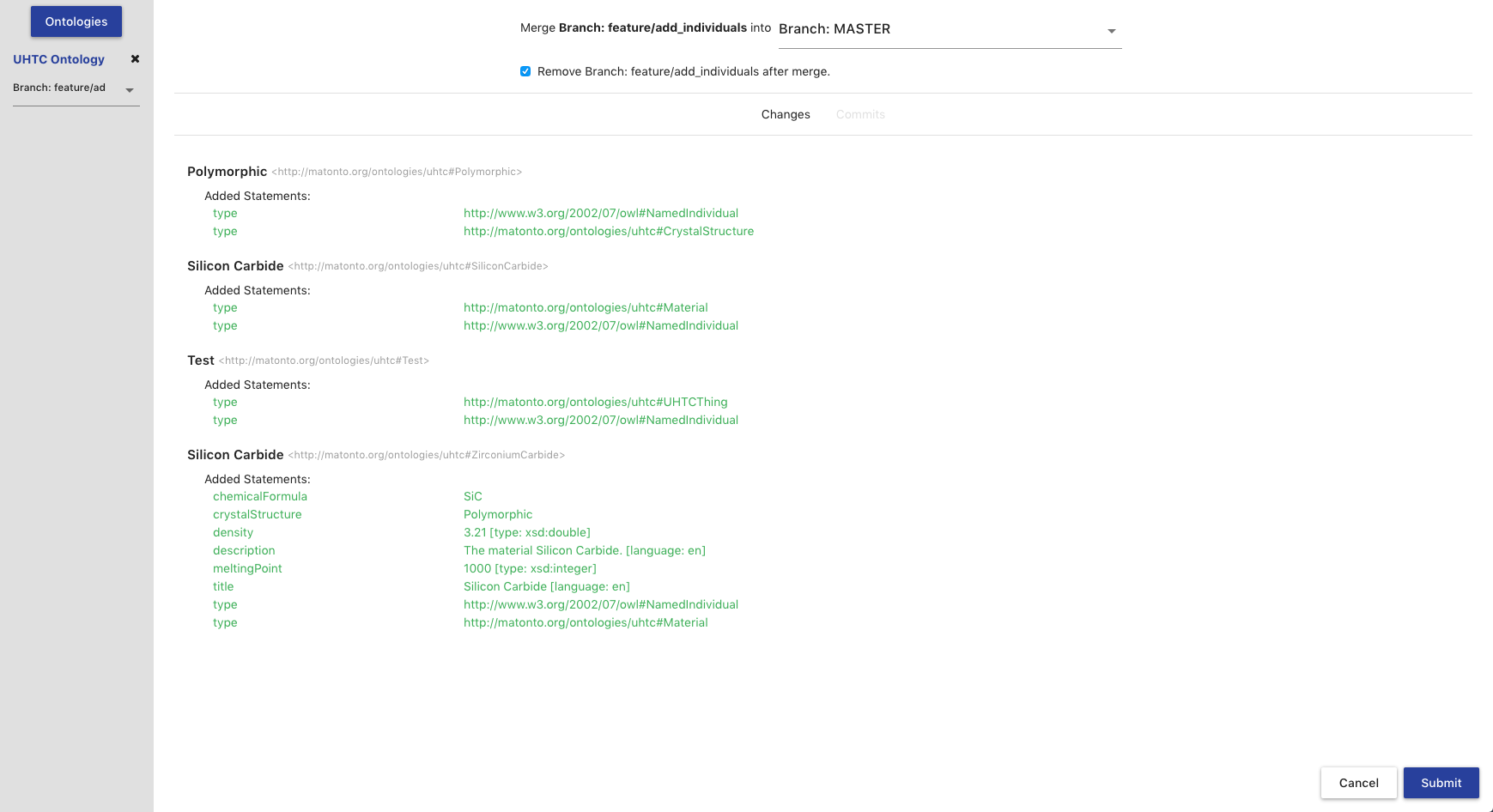
Clicking Submit will attempt to perform the merge. If there are no conflicts between the changes on both branches, a new commit will be created merging the two branches, and a success message will appear in the top right corner of the screen.
Conflicts arise when the application cannot determine how to automatically merge specific changes to entities between two branches. If conflicts exist between the two branches, the merge process will be halted and the screen will update to notify you of those conflicts and provide you a way to resolve them. Each conflict is listed by entity within the ontology and with a marker indicating whether or not it has been resolved. Click on a conflict in the list to start resolving them.

When resolving a conflict, the tool displays the changes to the entity from both branches. To resolve the conflict, select the version of the entity you wish to keep. You can either click the Back to List button to go back to the list of all the conflicts or the Previous or Next buttons to iterate through the list of conflicts.
|
Note
|
Currently the editor only supports accepting entire changes. We are working on improvements to give more flexibility in resolving conflicts during a merge operation. |
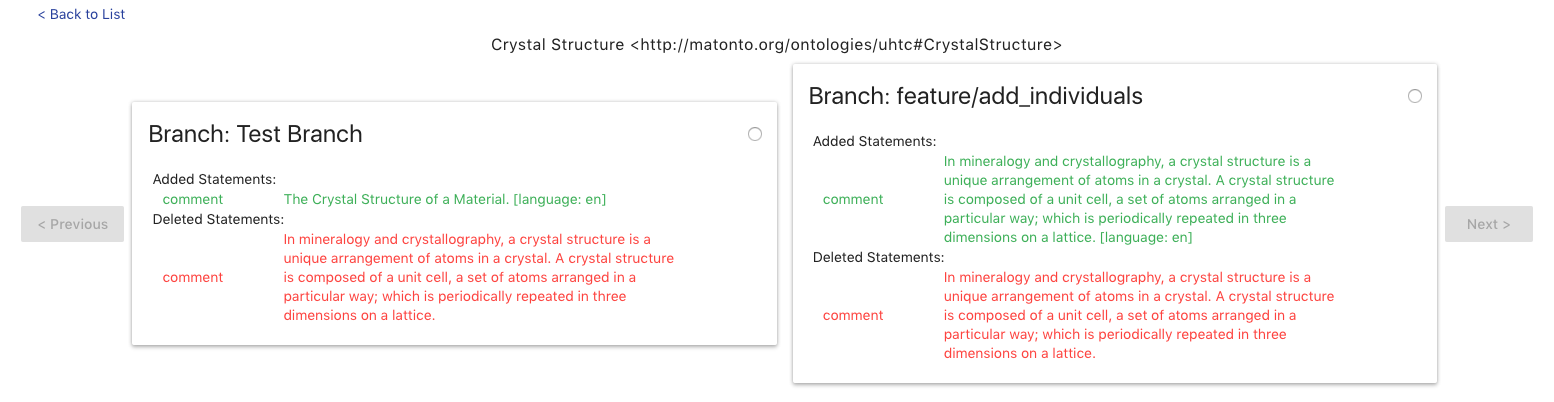
Once all conflicts have been resolved, the Submit with Resolutions button will become active and you can complete the merge operation. Completing the merge will create a new commit that incorporates your conflict resolutions into the target branch, and displays a success message in the upper right corner of the screen.
Commits Tab
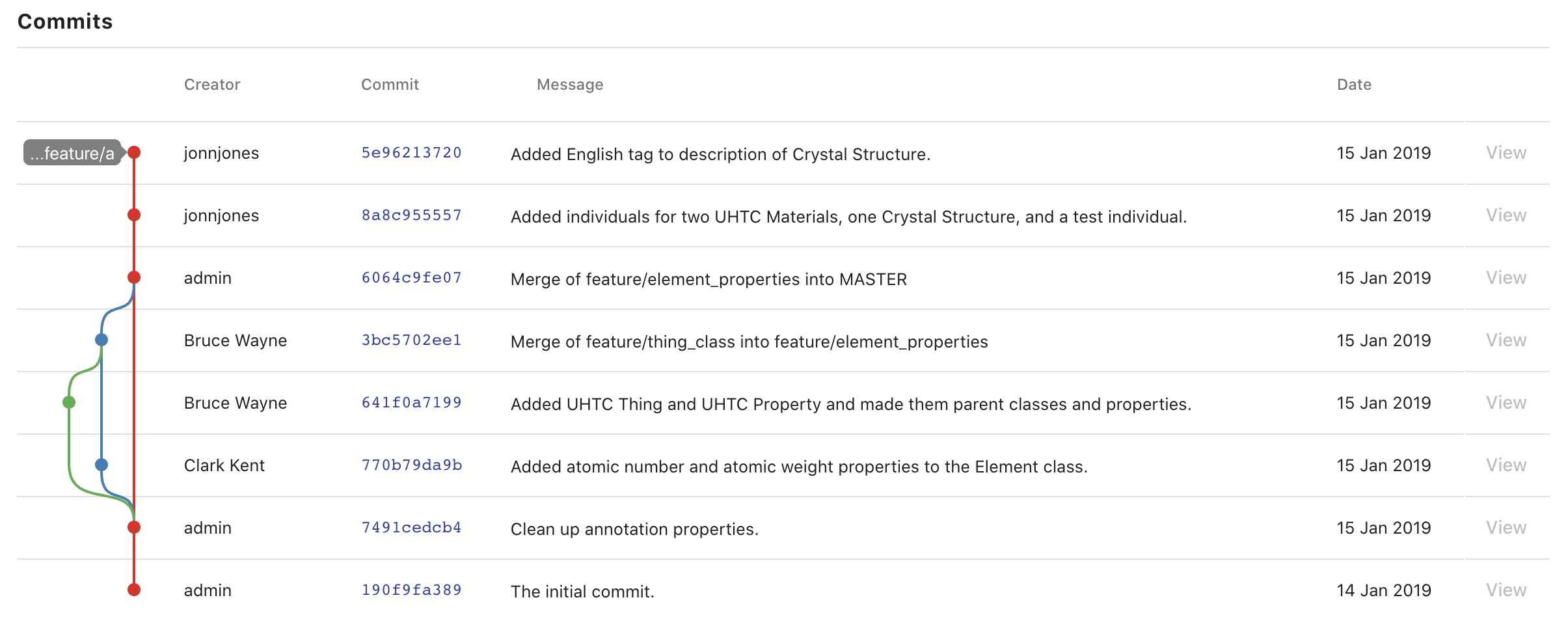
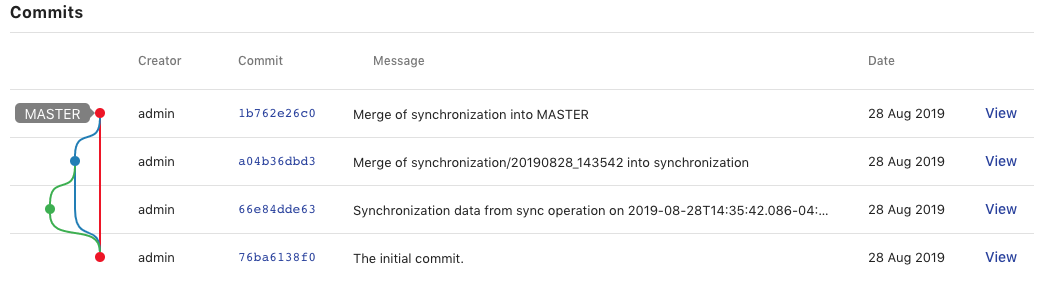
The Commits Tab provides a table and graph of all the commits made in the history of the branch you are currently viewing. The username of the creator, ID, message, and date for each commit are displayed within the table. The graph displays each commit connected to its parent commits continuing backwards until the initial commit. To view more information about a particular commit in the history, such as the added and deleted statements, click on its id or associated circle in the graph. The table also includes buttons for "checking out" a commit in the history. Clicking a View button will open the ontology at that commit in read-only mode. This is useful for creating tags to indicate versions on the ontology (see Button Stack and Checking Out Branches/Tags/Commits).
Entity History
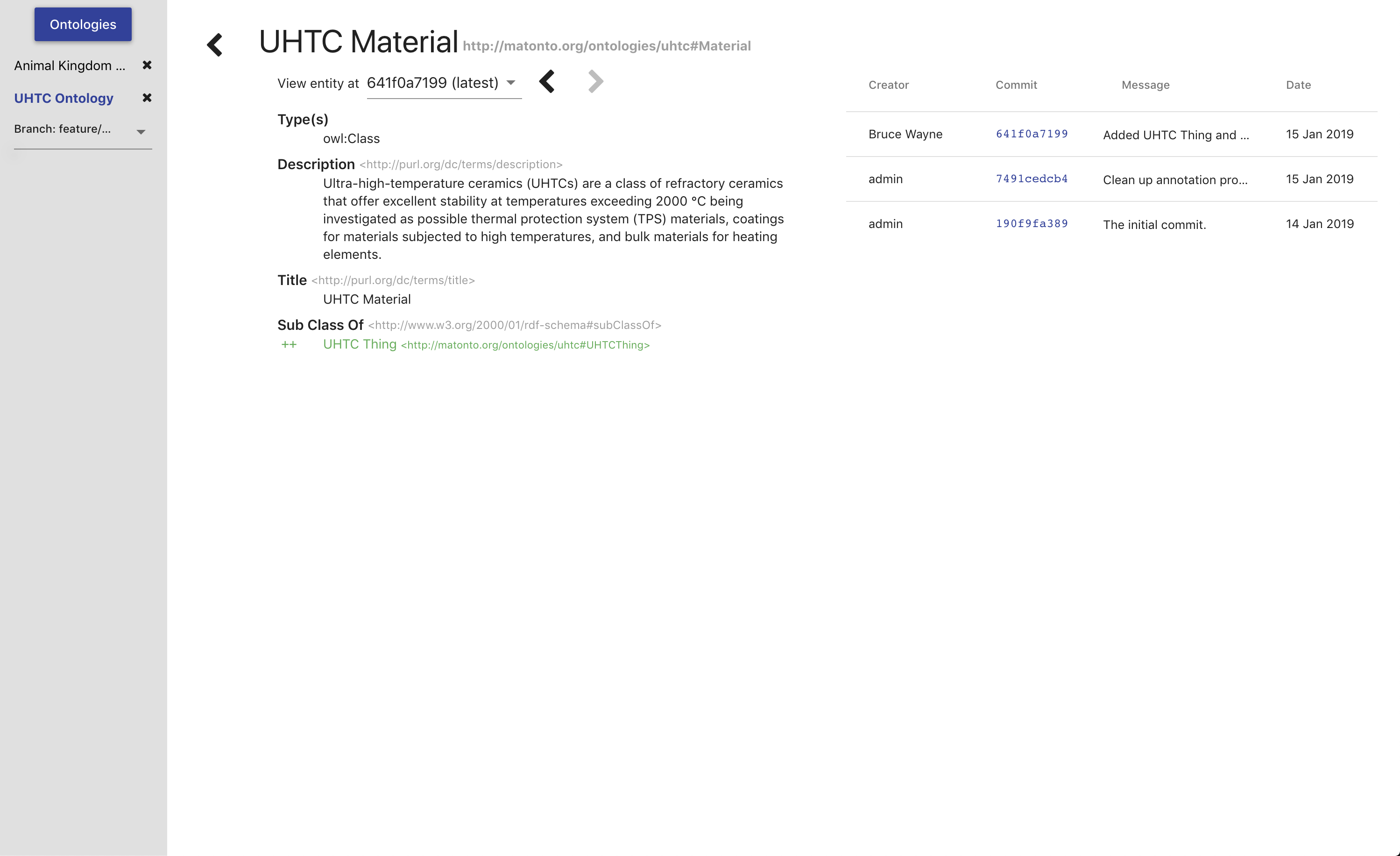
Clicking on a See History button next to a selected entity in one of the tabs will open a view containing the change history of that specific entity in the ontology. The view is split into two columns. The left side contains a dropdown containing all the commits where that entity was changed and defaults to the latest commit. Any added triples will be green and any deleted triples will be red. The right side contains a table of all the commits where that entity was changed. The table behaves the same as the table in the Commits Tab, just without the graph. To return to the main editor, click the back button in the top left.
Ontology Editor Reference
Edit IRI Overlay
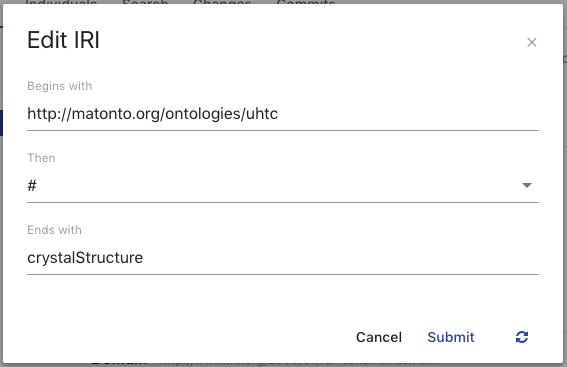
The Edit IRI overlay provides the user with a simple way to edit and create valid IRIs. The Begins with field (required) is the beginning of the IRI. This is more commonly known as the namespace. When editing the IRI of entities within an ontology, this value is typically the ontology IRI. The Then field (required) is the next character in the IRI. This value can be thought of the separator between the namespace and local name (described below). The provided values for the Then field are "#", "/", and ":". The Ends with field (required) is the last part of the IRI. This value is commonly known as the local name. It is used in the drop down lists in this application as the easiest way to identify what the IRI references. Clicking the refresh button on the left will reset the three fields to their original values. You cannot create/save an edited IRI that already exists within the ontology. Clicking Cancel will close the overlay. Clicking Submit will save the IRI with the entered values for the selected entity and update the ontology.
Axiom Overlay
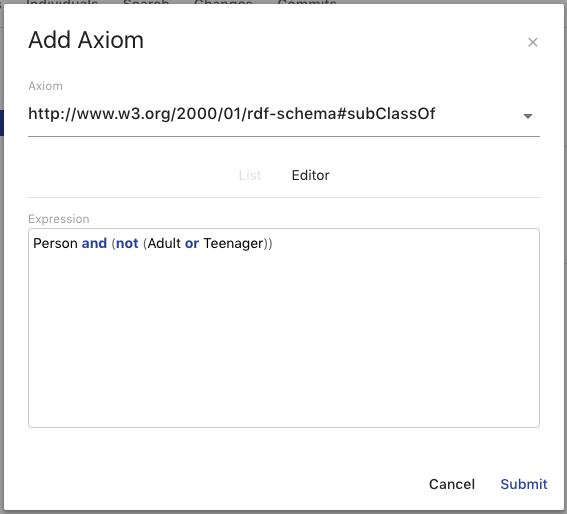
The Axiom Overlay is how you add new axioms to entities in your ontology. The Axiom dropdown provides a list of common axioms for the type of entity you have selected. Once selected, there are two ways to add a value. The first is choosing from a list of entities within the ontology and its imports. The second is writing out a class expression or restriction in Manchester Syntax in the Editor. Entities are referenced by their local name and must be present in the ontology or its imports.
Property Value Displays
Property Value Displays are a common way AVM displays multiple values for a property on an entity. These properties could be data properties, object properties, annotations, axioms, etc. The display consists of the title section and the values section. The title section includes a bold title and the property IRI. The values section lists all the values set for the displayed property along with the type, if the value is a literal, and edit and delete buttons when you hover over the value. The functionality of the edit and delete buttons for values differ depending on where the Property Value Display is being used. If a value of a property is a class restriction or expression, it will be represented in a simplified format or Manchester Syntax if it is supported. These values can be deleted, but not edited.
|
Tip
|
See the W3C Specification for information about blank nodes, class/property restrictions, and class/property expressions. |

Button Stack
The Button Stack is visible in any Ontology tab in the bottom right hand corner of the screen and holds a variety of buttons that are shown when the stack is hovered over.

To add a new entity to the ontology, click on the main Create Entity button in the stack. This will open an overlay with options for what kind of entity to create and once you have selected an option, an appropriate overlay will be shown for creating that type of entity. After creating the entity, a snackbar will appear at the bottom allowing you to navigate directly to your new entity.


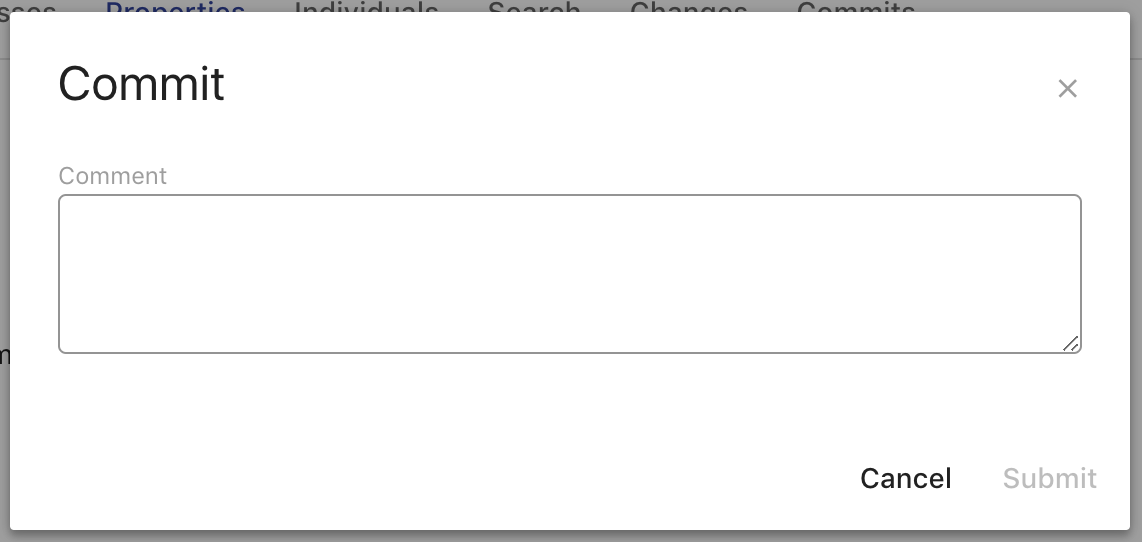
If you have made changes to an ontology, the Commit Changes button will become active. Clicking on this button will bring up the Add Commit overlay.

The Add Commit overlay provides a textarea for you to enter in a Comment that will be associated with that commit. This commit usually specifies what changes where made in the commit so that others can read the message and understand what happened at that point in time. You can still commit your changes if you are not currently viewing the head commit of the current branch. Clicking Cancel will close the overlay. Clicking Submit will add all your saved changes to a new commit object whose parent is the commit you were viewing and close the overlay.
See the Merging Branches section for details on how the merging branches works.

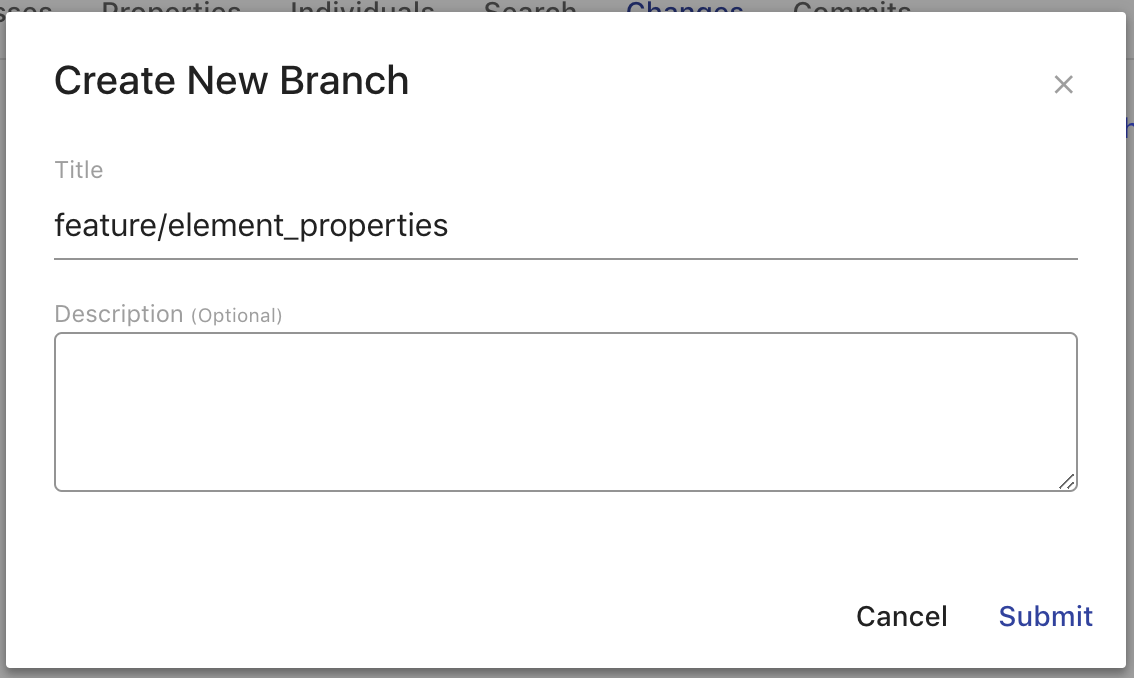
The Create Branch button allows you to create a new branch from the commit and branch you are viewing, including past commits. This action can be performed even if you have unsaved or saved changes. Clicking on the button will bring up the Create New Branch overlay.

The Create New Branch overlay provides fields for entering information about the branch as a whole. The Title field (required) will set the dcterms:title of the branch. The Description field will set the dcterms:description of the branch. Clicking Cancel will close the overlay. Clicking Submit will create a new branch with the entered information whose head commit was the commit you were viewing and close the overlay.
The Create Tag button allows you to create a human readable and persistent pointer to the commit you are currently viewing. Clicking this button will bring up an overlay where you can type in the title for the Tag and customize it’s IRI. Once the Tag is created, the ontology will open the ontology in read-only mode at the tagged commit.

The Upload Changes button allows you to upload a new version of your ontology from a file and apply the changes. Clicking this button will bring up an overlay where you can select the file with the changed ontology. Uploaded changes will not be automatically committed, but will allow you to review changes before making a new Commit.

Synchronize
The Synchronization tool in AVM allows you to pull vocabularies from a graphmart in AnzoGraph and create OntologyRecords in AVM for enhanced versioning and approval workflows. In order to synchronize a graphmart, you must create a Graphmart Configuration within AVM.
To reach the Synchronization tool, click on the link in the left menu.
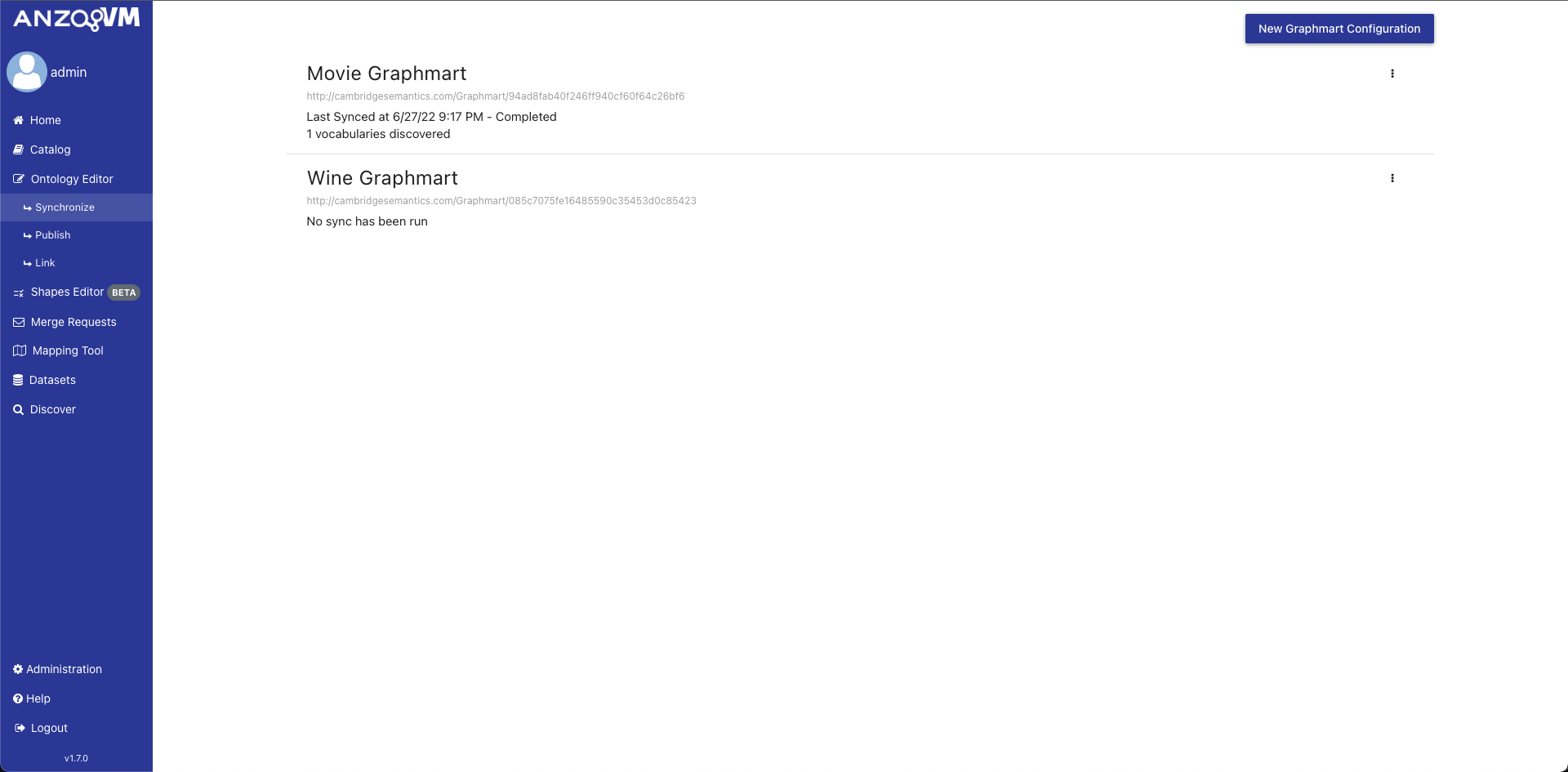
The initial view of the Synchronization tool shows a list of all the Graphmart Configurations in AVM. Each configuration is displayed with a title, the graphmart IRI, the status of the latest sync of the graphmart, how many vocabularies were discovered in the latest sync, and an action menu. To create a new Graphmart Configuration, click the "Create Graphmart Configuration" button in the top right and fill out the modal with a graphmart URI and a title.
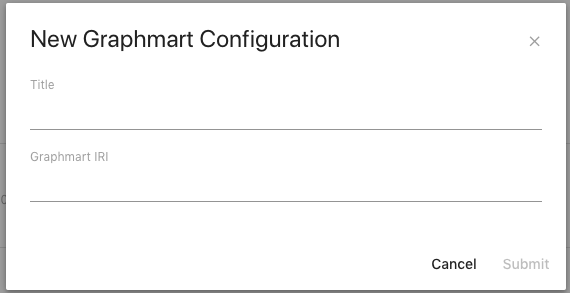
To view more information about a Graphmart Configuration, click on the item in the list. A new view will open with the full synchronization history of the graphmart.
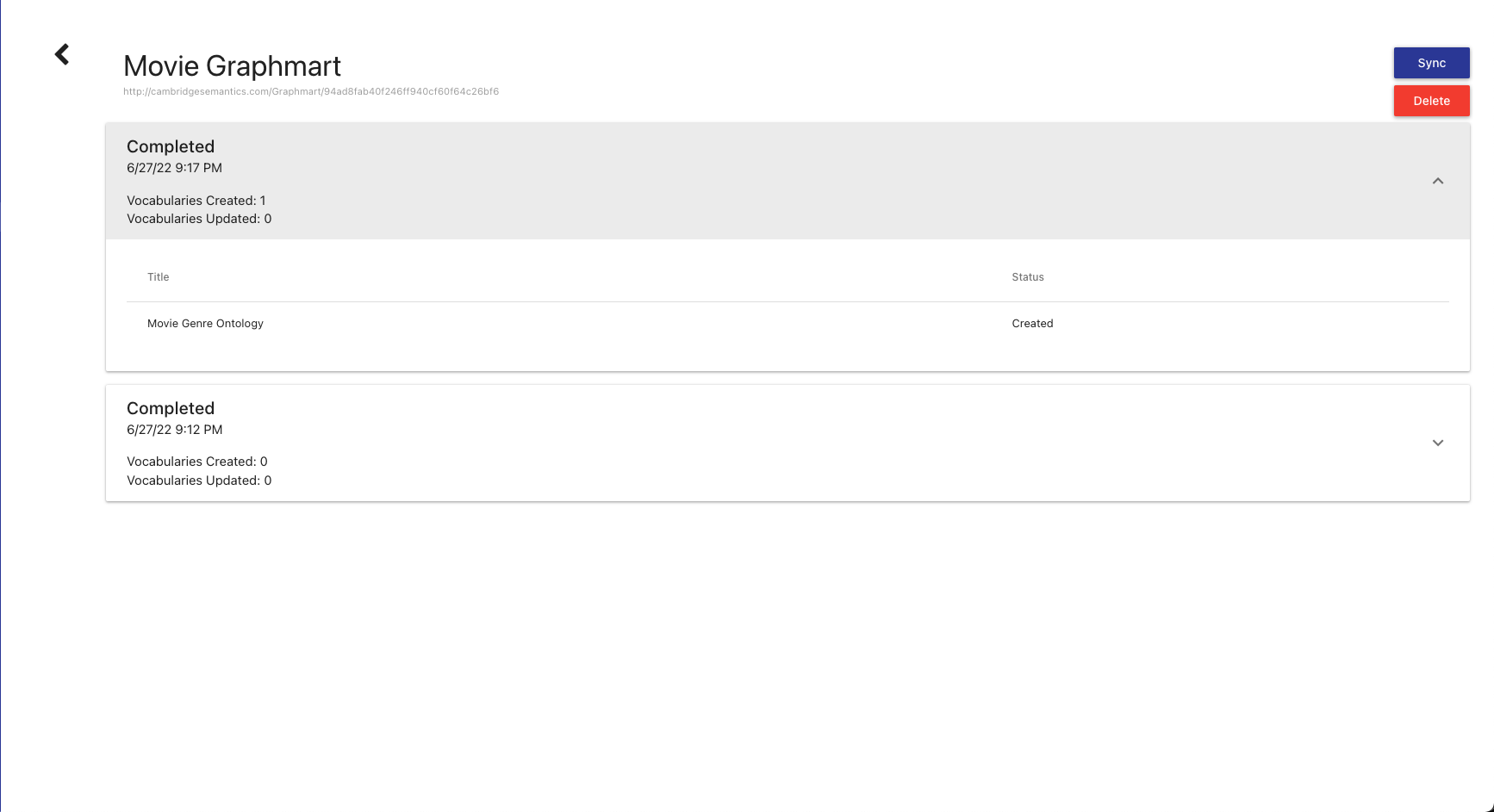
At the top is a button to go back to the list of Graphmart Configurations, the title of the Graphmart Configuration, the graphmart URI, and buttons to Sync and Delete. Below that is an expandable list of all the past synchronizations performed with the selected Graphmart Configuration. For each item, it displays the start and end time, the current status, the number of vocabularies that were discovered, and the number of vocabularies updated. If you expand an item in the list, a table will be shown with the title of each vocabulary discovered and whether it was created or updated.
To initiate a sync of a graphmart, open the action menu of the configuration for the graphmart and select Sync. Confirm the sync in confirmation modal and it will begin the process. Only one graphmart can be syncing at a time. Synchronization will query the graphmart for ontologies that contain SKOS entities. For each ontology discovered, an Ontology Record will be created in AVM with a specific branch structure to facilitate a review workflow. The branch structure is as follows:
| Branch Name | Description |
|---|---|
MASTER |
Contains the “main” version of the vocabulary. On initial sync, this branch will point to an initial commit containing all triples on the OWL ontology object discovered. On subsequent syncs, this branch will not be changed. |
synchronization |
Will contain the latest approved vocabulary data synchronized from the graphmart. On initial sync, this branch will point to the initial commit like the MASTER branch. On subsequent syncs, this branch will not be changed. |
synchronization/{TIMESTAMP} |
Called a “sync data” branch. Will contain the vocabulary data discovered in the sync performed at the timestamp in the branch name. On initial sync, a sync data branch will be created and point to a commit containing all data besides the triples on the OWL ontology object. On subsequent syncs, a new sync data branch will be created containing the differences found between the vocabulary on the synchronization and the data discovered in the graphmart. |
The recommended review workflow would be to create a merge request from the sync data branch into the synchronization for review of the data that was discovered. Once that merge has been completed, the synchronization branch would then be merged into MASTER to be combined with any manual changes made in AVM. The synchronization should not have any manually made commits since subsequent synchronizations will compare the state of that branch to the data discovered in the graphmart.
Publish
The Publish Page in AVM allows you to push Ontology Records found in AVM to Anzo as either referential datasets or models. Users can then consume specific versions of vocabularies as referential datasets in further processing in Anzo, such as linking with other data sources, unstructured processes, and Hi-Res Analytics. To reach the Publish Page, click on the link found under Ontology Editor in the left menu.

The initial view of the Publish Page shows a list of all the current Ontology Records in AVM. Each record is displayed with a title, the ontology IRI, and the provenance data of the latest publish successfully completed. To publish an ontology to Anzo, click the checkbox found on the corresponding Ontology Record and click the publish button, prompting a configuration modal to appear.


The publish configuration modal provides options for how to customize what data is published to the Anzo Catalog. The modal allows you to select whether to publish the concept hierarchy, the class hierarchy or both as SKOS vocabulary concepts. Additionally, by clicking the OWL tab, AVM users can publish vocabularies and ontologies to either an ANZO model or dataset. After selecting either the entity types or target location, click “Submit”, and AVM will trigger Anzo to query the version of the ontology at the head commit of the MASTER branch, bringing in the published data for consumption.
|
Warning
|
When publishing large ontologies, it’s recommended to publish as an ANZO dataset rather than an ANZO model as the ANZO Model Editor does not support ontologies at that scale. |


To view more details about the publish history of a particular Ontology Record, click on the record in the Publish Landing Page. The Publish History page displays each publish executed for the ontology as well as relevant metadata including the user who published, the head commit at the time of publishing, and the time of the publish.

Link
The AVM Vocabulary Linking Tool allows you to create semantic links between terms found in two different vocabularies. The tool uses the Levenshtein algorithm by default to determine the similarity of labels between terms
To reach the Vocabulary Linking tool, click on the link in the left menu.
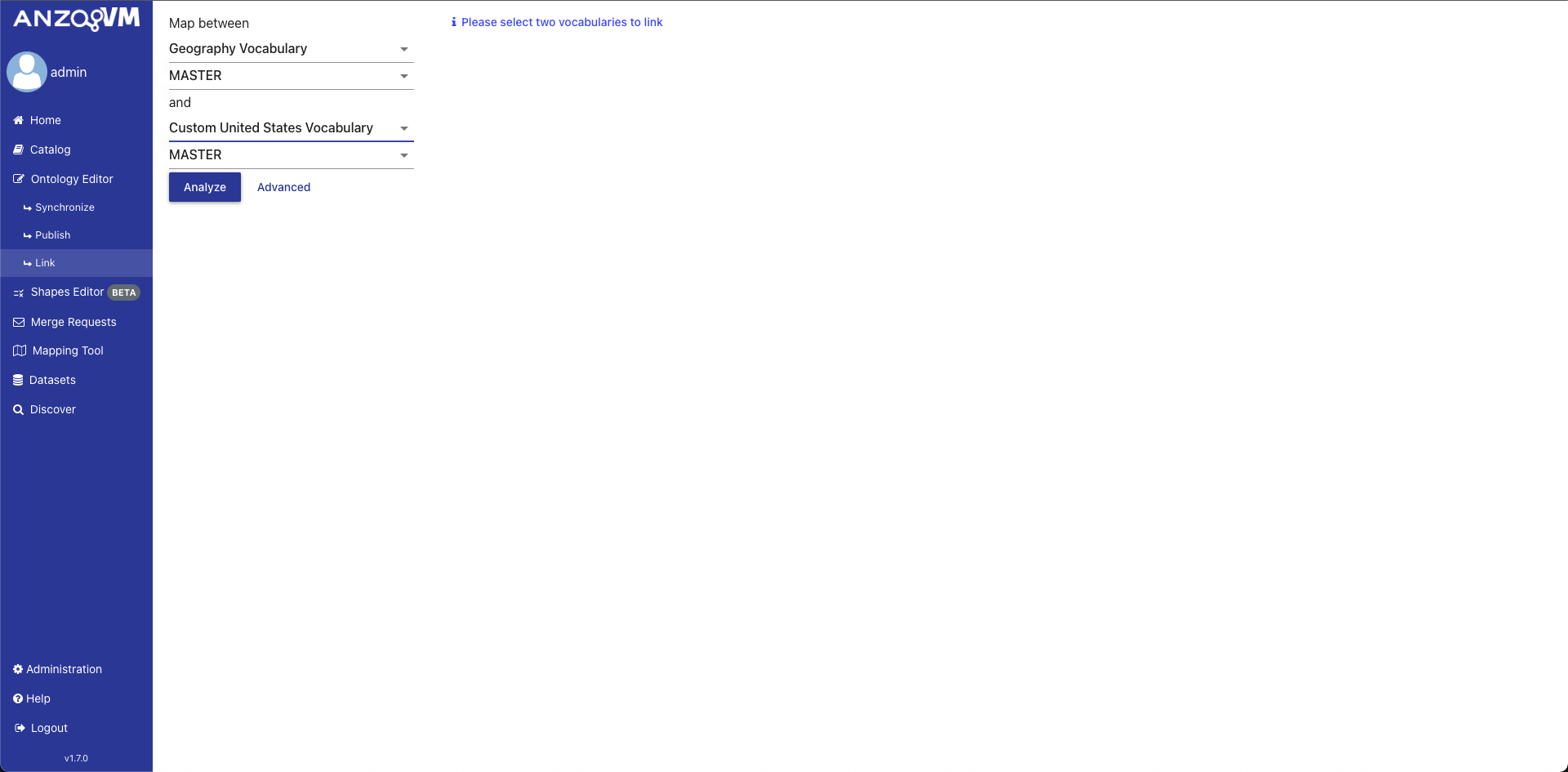
The initial view of the Vocabulary Linking Tool shows a form on the left for selecting the vocabularies and a space for matched terms to be displayed. To select a vocabulary, you must select the Ontology Record and a Branch. All selected semantic relations you wish to add will be committed to the selected branches for both vocabularies.
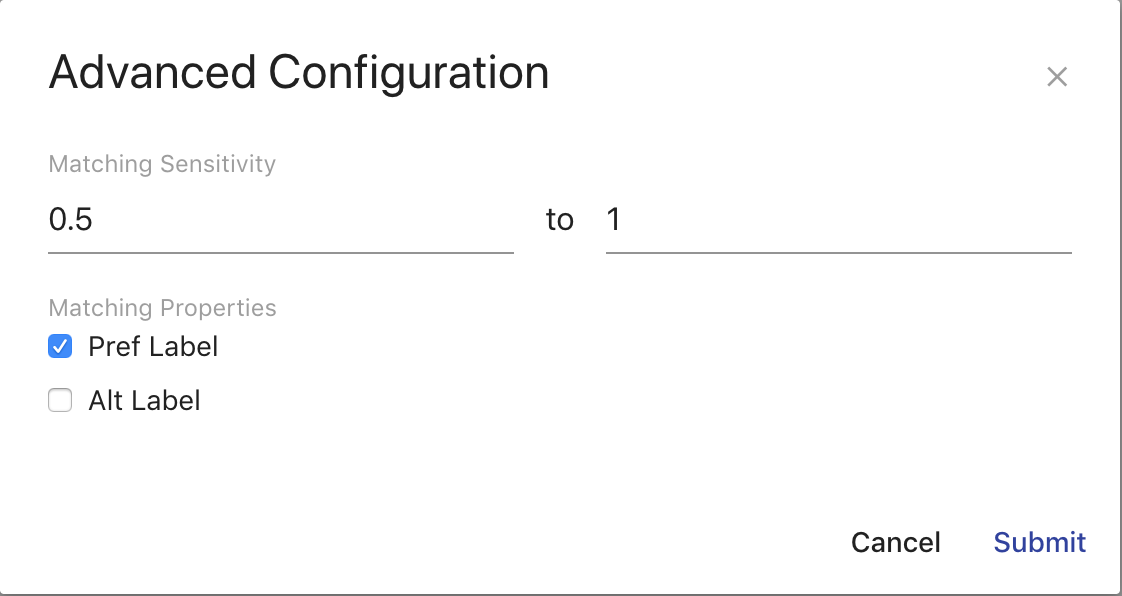
To adjust the configuration for the linking algorithm, click on Advanced and a configuration modal will appear. The modal contains fields for the “Matching Sensitivity”, which controls the range of percentages that matching results must be within to be returned, and the “Matching Properties”, which controls which properties are analyzed for similarity by the linking tool.
After you have selected 2 different ontologies, click on Analyze and the right section of the view will update with the matched terms in a paginated list.
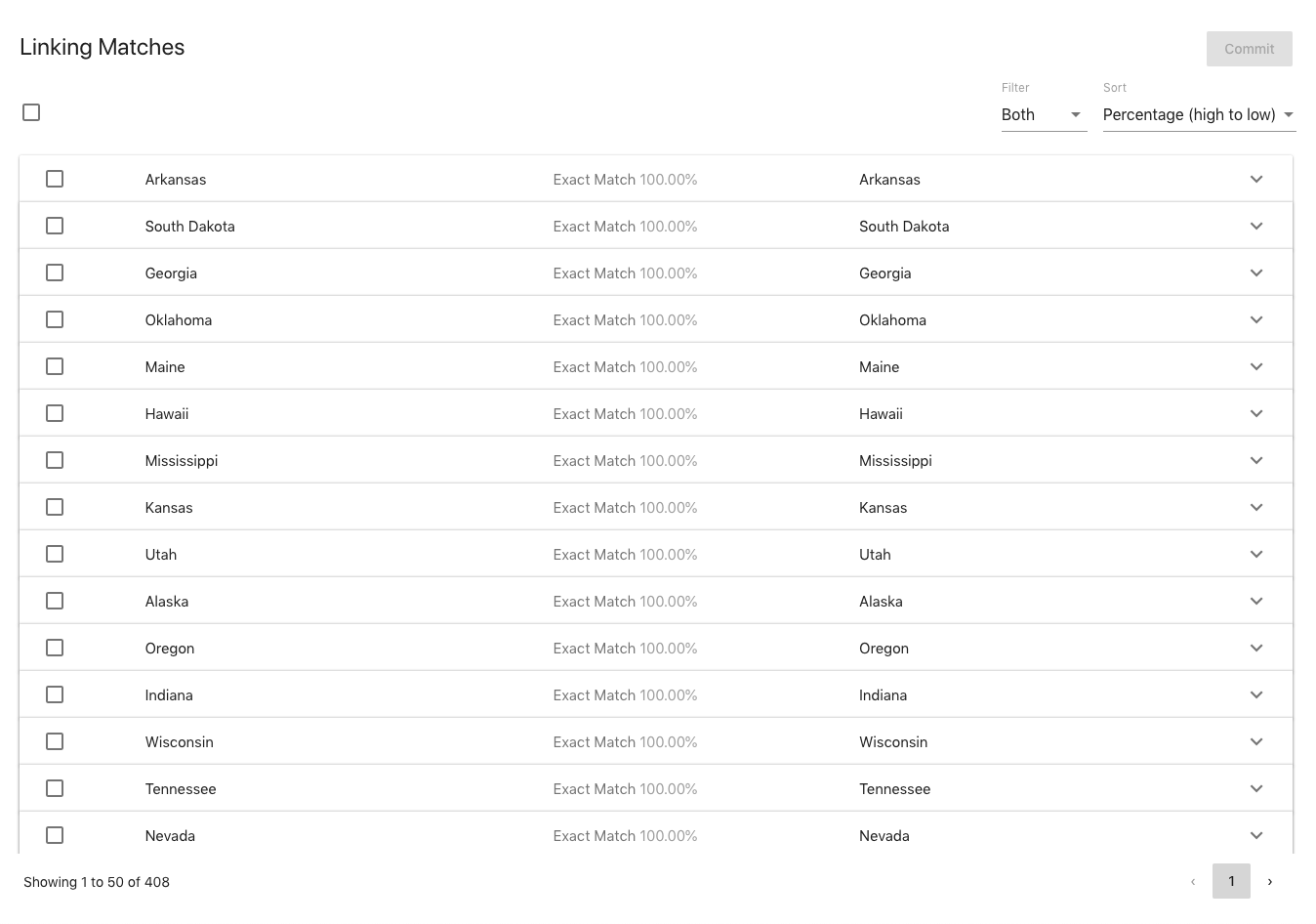
The top of the results section shows a checkbox for selecting or deselecting all the results in addition to two dropdowns. One is for filtering the results based on whether terms have already been semantically linked. The other is for sorting the results based on the highest matched percentage of all the labels of each matched term pair.
Each result in the display shows the display name for each term, which semantic relation will be committed, and the highest matched percentage between labels of both the terms. Each result is also expandable to show all the properties for each term in the pair along with a select for which semantic relation to use. If the terms in a matched pair are already semantically linked, they will be marked as such and the checkbox on the row will be disabled.
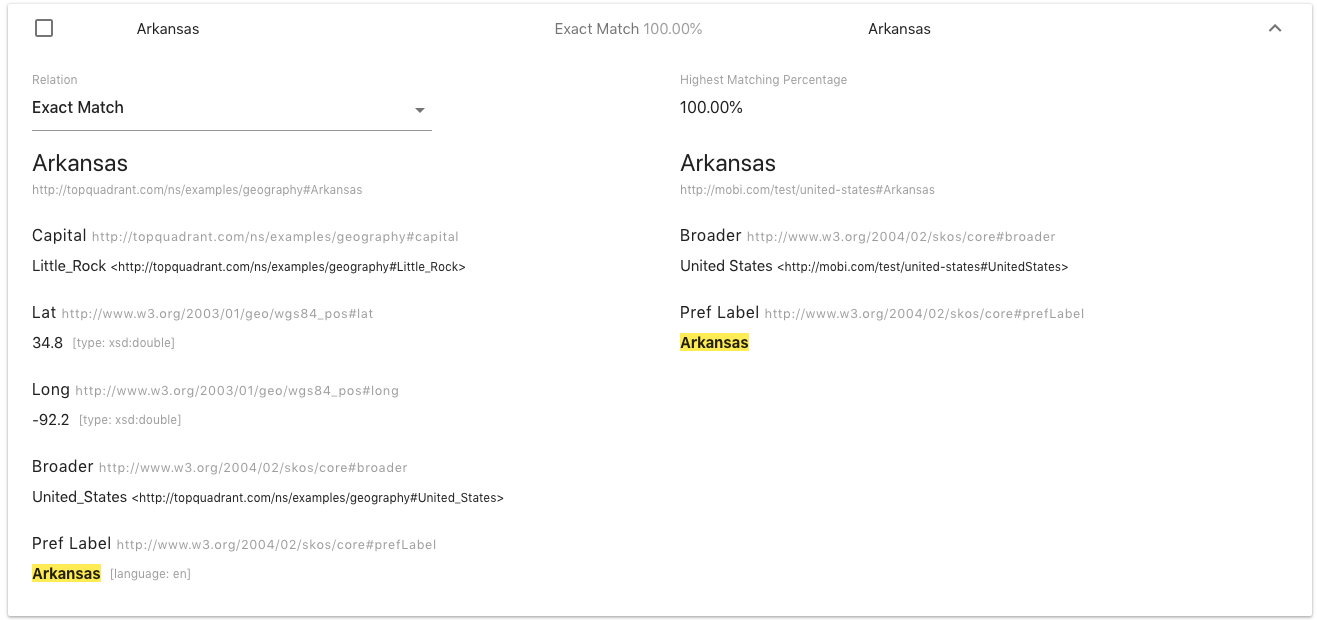

To mark which terms you wish to link, select which relation you wish to use from the select in the expanded section and check the box next to the pair. The options are “Exact Match”, “Close Match”, or “Related”. Use the following as a reference for what each type of relation means:
- Exact Match
-
Used to link two concepts that can always be used interchangeably.
- Close Match
-
Used to link two concepts that can sometimes be used interchangeably depending on the application. Not as strong of a link as “Exact Match”.
- Related
-
Represents associative (non-hierarchical) links.
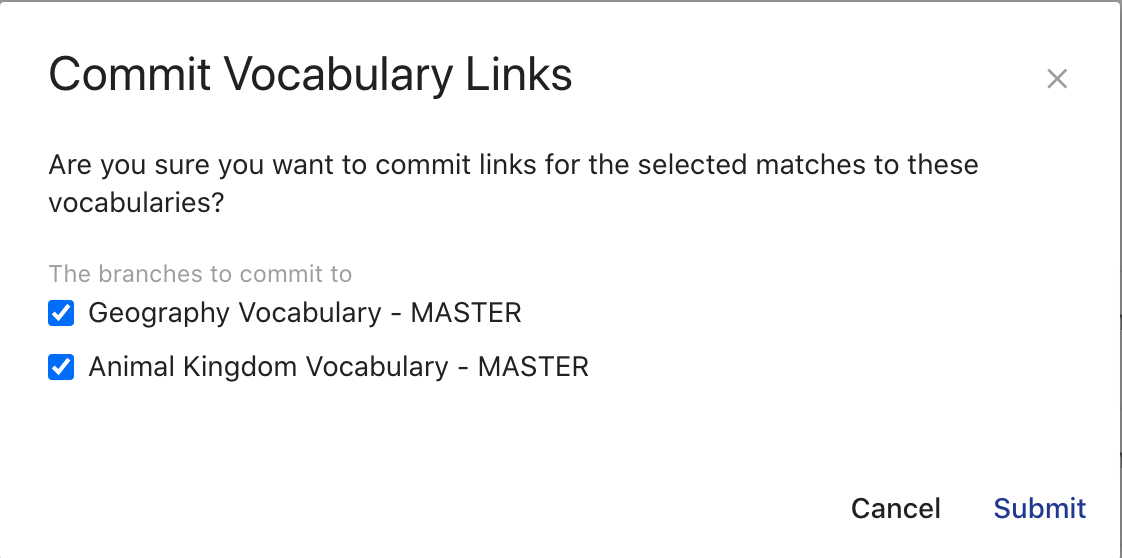
After you have selected the type of link you would like to make and checked the checkbox for the row, repeat this process for all the terms that you want linked. To commit the links, click on Commit in the top right corner of the page, above the “Sort” dropdown. You should then see a modal open with options for how to commit the selected linking to the ontologies. You have a choice of committing to one ontology or both. Once you have selected which ontology(s) to commit to, click on Submit.
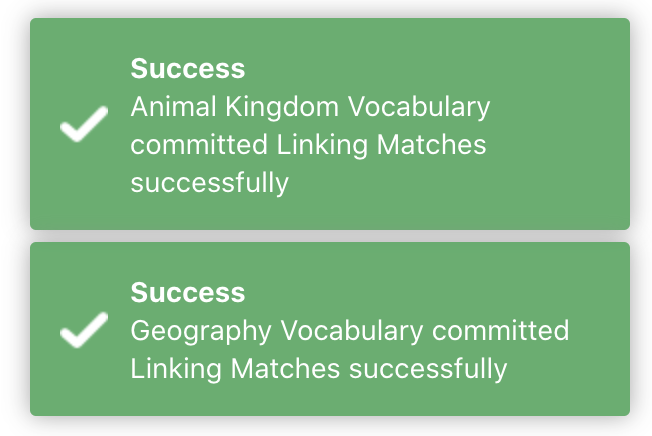
You should then get a message saying that the Linking Matches were successfully committed for each ontology.
Shapes Editor (BETA)
The AVM web-based shapes graph editor is an experimental feature that provides users with a Distributed Management System for local and community development of (SHACL Shapes). The Shapes Editor features a customizable user interface, constraint capture, collaboration, shapes graph reuse, and extensibility.
To reach the Shapes Editor, click on the link in the left menu.

The main Shapes Editor page includes a new action-bar where all the action buttons for a shapes graph record are located. From the action-bar, users can create, filter, and open different shapes graph records, branches, and tags.

When opening a shapes graph record, the editor will load the previous branch and/or commit you were viewing. If you have not previously opened the record or in the case that the branch you were viewing no longer exists, the editor will load the HEAD commit of the shape graph’s master branch. For an explanation of commits and branches, see the section on Shapes Graph Versioning.
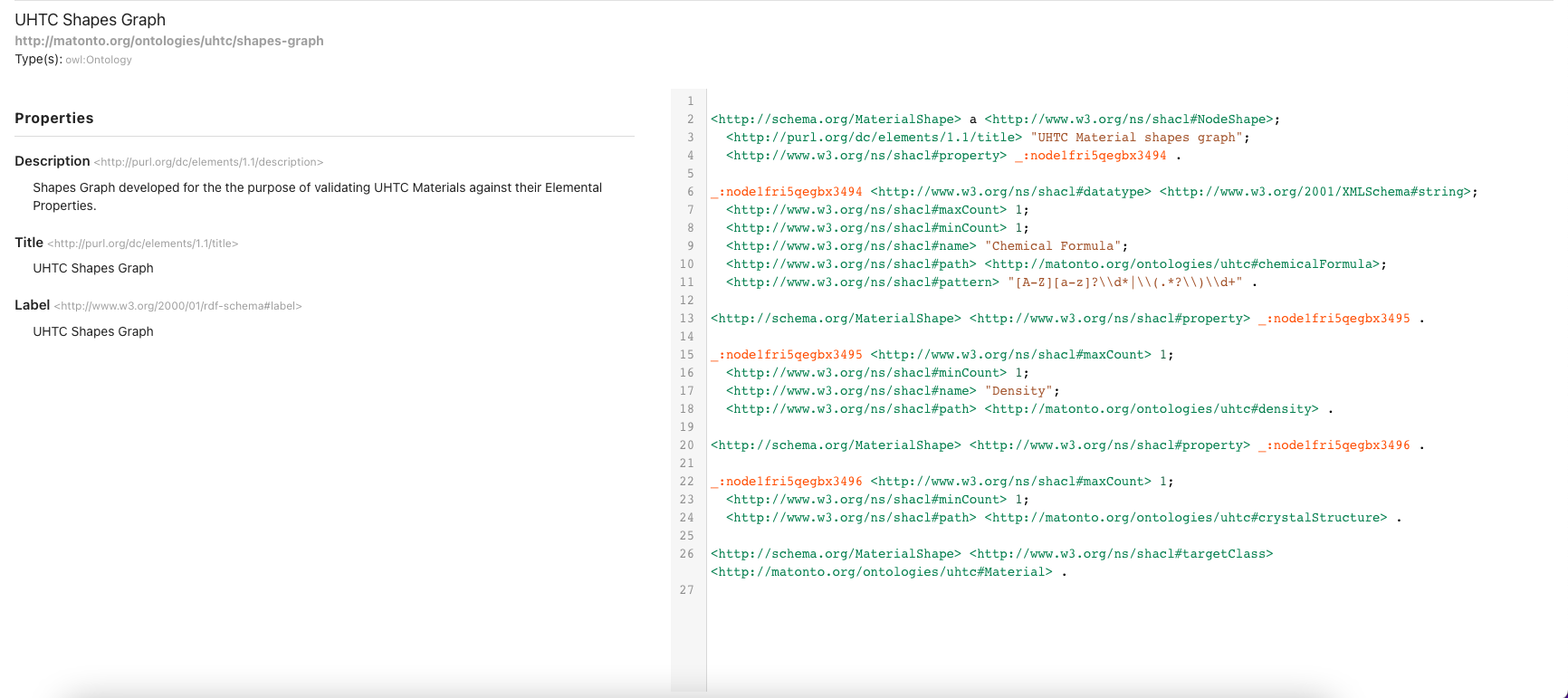
Once a shapes graph record has been opened, The overview page displays a list of high-level information surrounding the shapes graph. This includes a shapes graph’s annotations, properties, imports, and a preview of the shapes graph serialized as RDF in Turtle syntax. AVM will capture this high level information about a shapes graph with an OWL ontology object, following best practices from the SHACL W3C specification (see this section as an example).
Creating New Shapes Graphs
To create a shapes graph, select the Create Shapes Graph button found in the dropdown for selecting a record. In the creation dialog, you are required to provide a title for the record and a file providing the initial shapes graph data (accepts all standard RDF formats). Users can also optionally provide a description and keywords which will be used to describe the shapes graph record in the local catalog.
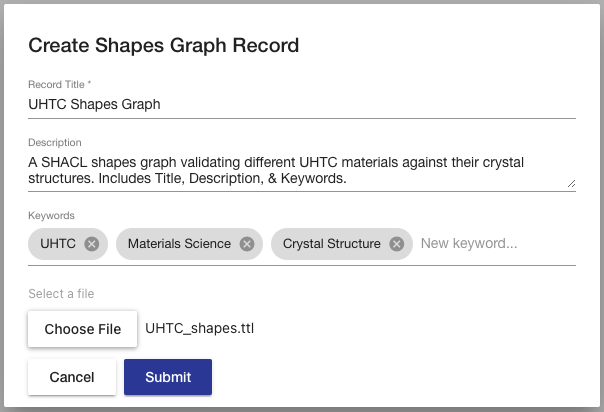
The Title field populates the dcterms:title annotations of the new shapes graph record and the Description field populates the dcterms:description annotations of the new shapes graph record. The keywords field will attach the entered values as keywords to the new record.
Editing a Shapes Graph
|
Note
|
In-app shapes graph editing features are coming soon. In this BETA version, updates can be uploaded using the Upload Changes feature |
Shapes Graph Versioning
Each shapes graph in AVM is versioned similarly to the Git Version Control System, whereby all changes to a shapes graph are collected into a chain of "commits" which form a commit history called a "branch". Thus, every version in the history of a shapes graph can be generated by selecting a commit and applying all the changes in the branch back to the initial commit.
Every shapes graph is also initialized with a MASTER branch that contains the initial commit. Changes to the shapes graph can be uploaded to the MASTER branch or can be uploaded into separate branches. Changes uploaded on these branches exists in isolation until they are merged into the MASTER branch, joining any other changes committed in the meantime. When merging two branches, the Shapes Editor does its best to combine any changes made on both branches. If a conflict occurs, the editor allows the user to resolve them manually. More information on merging branches can be found in the section on Merging Branches.
Branches & Tags
In order to create a branch or tag, click the corresponding button in the action bar.
|
|


The branches dropdown provides a searchable list of branches and tags which can be checked out. To checkout a branch or tag, simply select the branch in the drop-down menu. Checking out a tag will open the ontology at the tagged commit in read-only mode. If you have checked out a commit from the commit history table, the commit will be in the dropdown list and show as selected. Note that the ability to check out a branch or tag will be disabled if you have any uncommitted changes on the current branch.
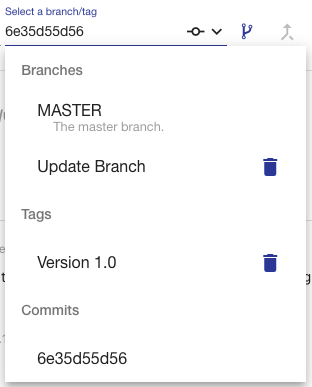
To delete a branch or tag, click on the delete icon next to the branch/tag in the drop-down menu. If a branch is deleted, all commits on that branch that are not part of another branch will be removed, as well as the branch itself. If a tag is deleted, the commit is not removed. Note that these actions cannot be undone.
Viewing Saved Changes on Shapes Graphs
Changes that have been uploaded to a shapes graph record are automatically saved and an indicator is shown in the action-bar. Users are able to reach the changes page by clicking the Show Changes button found in the right-hand side of the action bar.
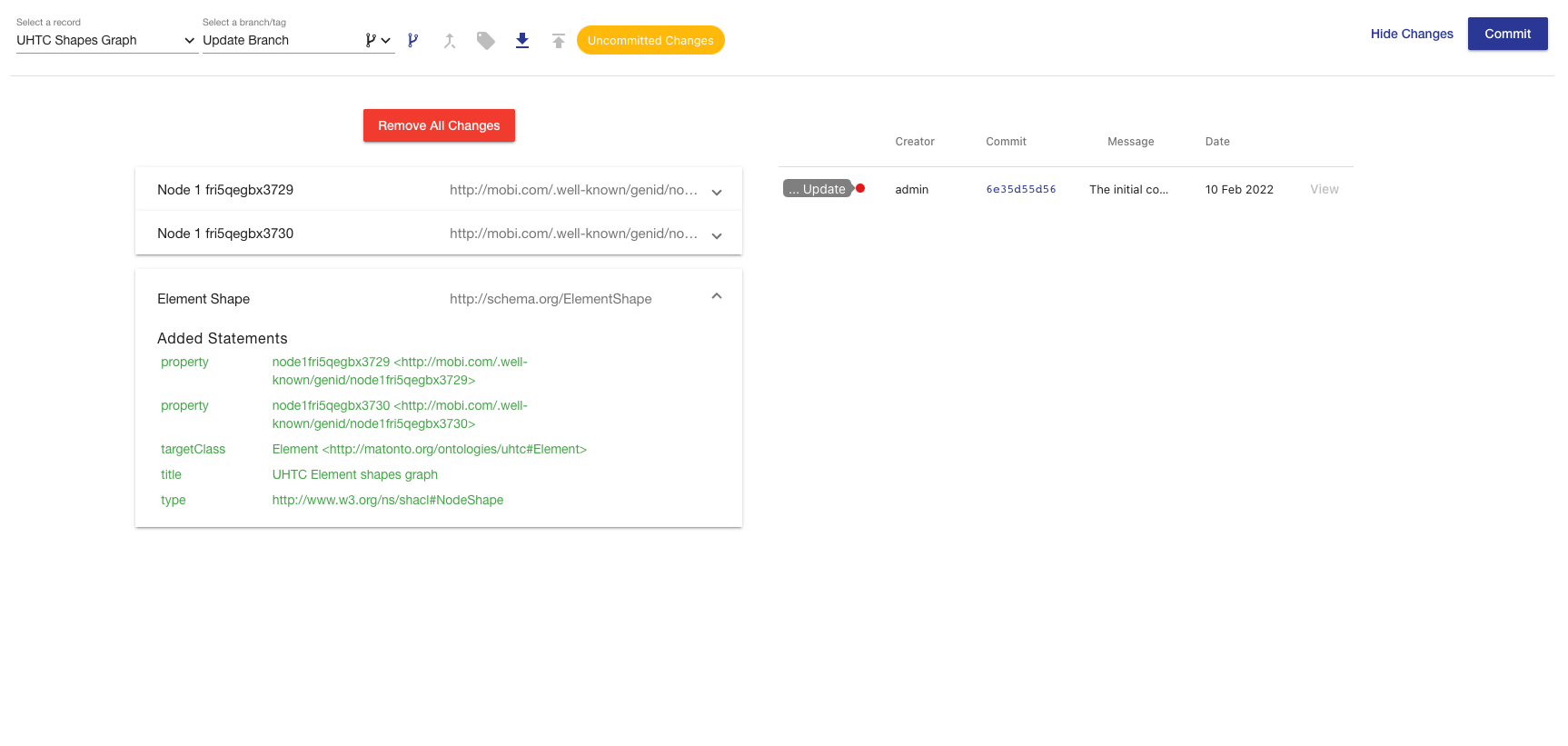
The Changes Page displays all the uncommitted changes and the commit history table for the opened shapes graph record. This provides users the ability to upload changes without committing and allows a user the opportunity to review proposed changes to a shapes graph in a more digestible manner before adding any commits to the commit history. Clicking the Remove All Changes button will clear all the changes uploaded into the shape graph, resetting to the state of the current commit.
Users can also view a shapes graph record at a specific commit in time by clicking the View button next to the corresponding commit in the commit history table.
Merging Branches on Shapes Graphs
Merging branches works much the same as the Ontology Editor. By clicking the Merge Branch button found in the action-bar, users are brought to the merge view of the Shapes Editor.

The merge view displays the name of the current (source) branch, a select box for the branch (target) you want to merge into, and a checkbox for whether or not you want the source branch to be deleted after it is merged. The view also shows an aggregated view of all changes made in the source branch that will be merged into the target branch along with a list of all the commits that will be added to the target branch from the source branch.

Clicking Submit will attempt to perform the merge. If there are no conflicts between the changes on both branches, a new commit will be created merging the two branches, and a success message will appear in the top right corner of the screen.
Uploading Changes to Shapes Graphs
The Upload Changes button in the action-bar allows you to upload a new version of your shapes graph from a file and apply the changes. Clicking this button will bring up an overlay where you can select the file with the changed shapes graph. Uploaded changes will not be automatically committed, but will allow you to review changes before making a new Commit.

Merge Requests
The AVM Merge Requests module allows users to create long lived representations of a merge between two branches of a record to provide checks and balances before including changes into the object the record represents. Each merge request is connected to a particular Record in the local Catalog and specifies a "source" and "target" branch. The request represents what would occur if the "source" branch were merged into the "target" branch.
To reach the Merge Requests module, click on the link in the left menu.
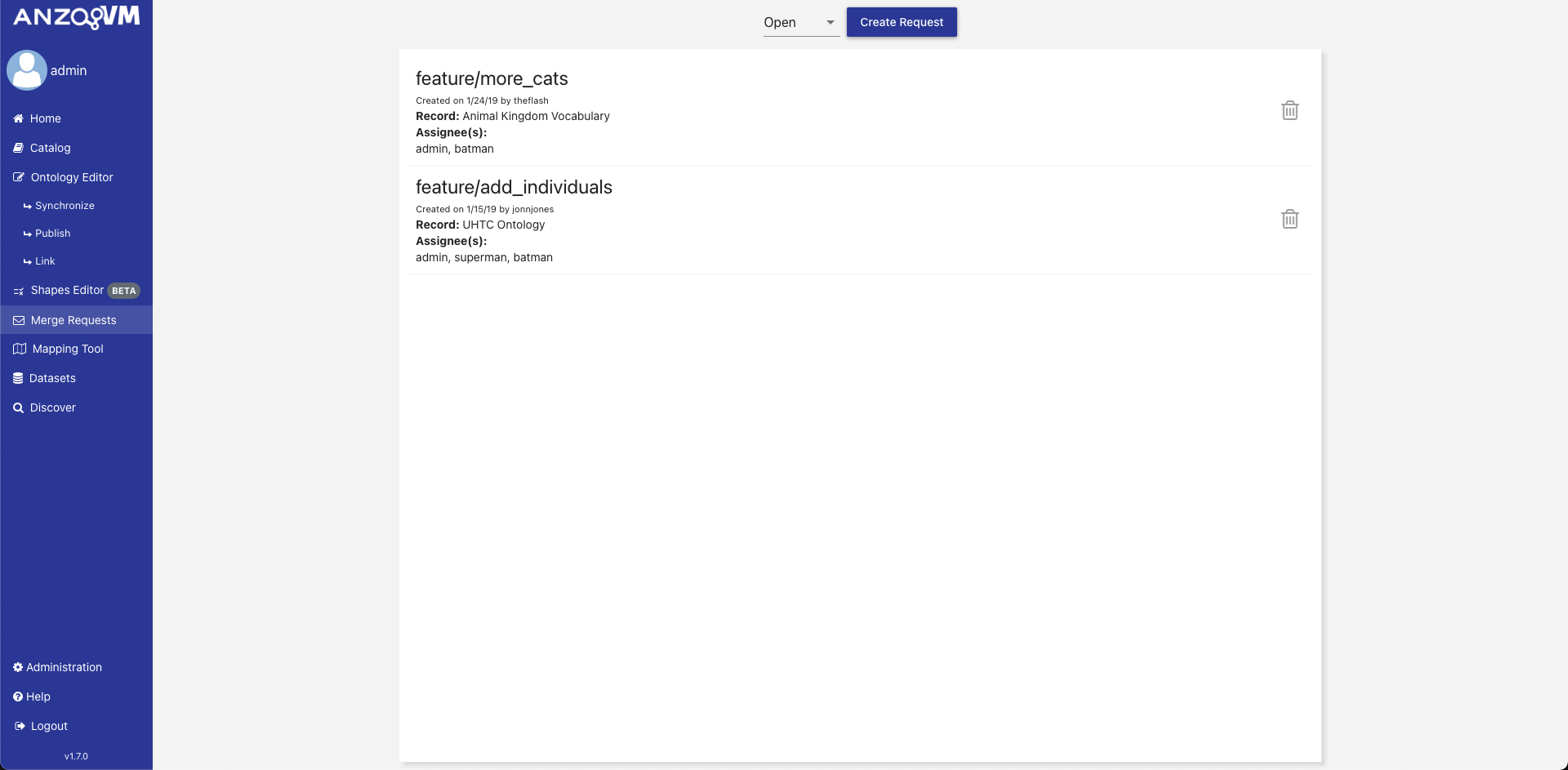
The initial view of the Merge Requests module displays a list of all currently open merge requests within the application sorted by created date descending along with a button to create a merge request. To view all accepted merge requests, change the selected filter next to the search bar. Each merge request in the list displays a preview of the request metadata and a button to delete the request. Clicking on a merge request in the list opens a display of the individual merge request.

The individual merge request view displays all information regarding the merge request. The top displays more metadata about the request including the request’s description and whether the source branch will be removed once the request is accepted. Below the metadata are a series of tabs containing the discussion on the request, the changes between the source and target branch, and commits that will be added from the source to the target branch. The bottom of the view contains a button to delete the request, a button to accept the request if it not already accepted, and a button to go back to the main list of merge requests.
The discussion tab allows users to comment and discuss the changes within the request to facilitates more collaboration in a distributed environment. You can create new comments to start new threads of communication or you can reply to existing comments and further the discussion. Comments can only be removed by the creators of the comment.
|
Note
|
The comment editor supports GitHub flavored Markdown which you can find more information about here. |
The metadata of a request can be edited by hovering over the area and clicking the pencil button. In the resulting overlay, you can change the Title, Description, target branch, Assignees, and whether the source branch should be removed on acceptance.
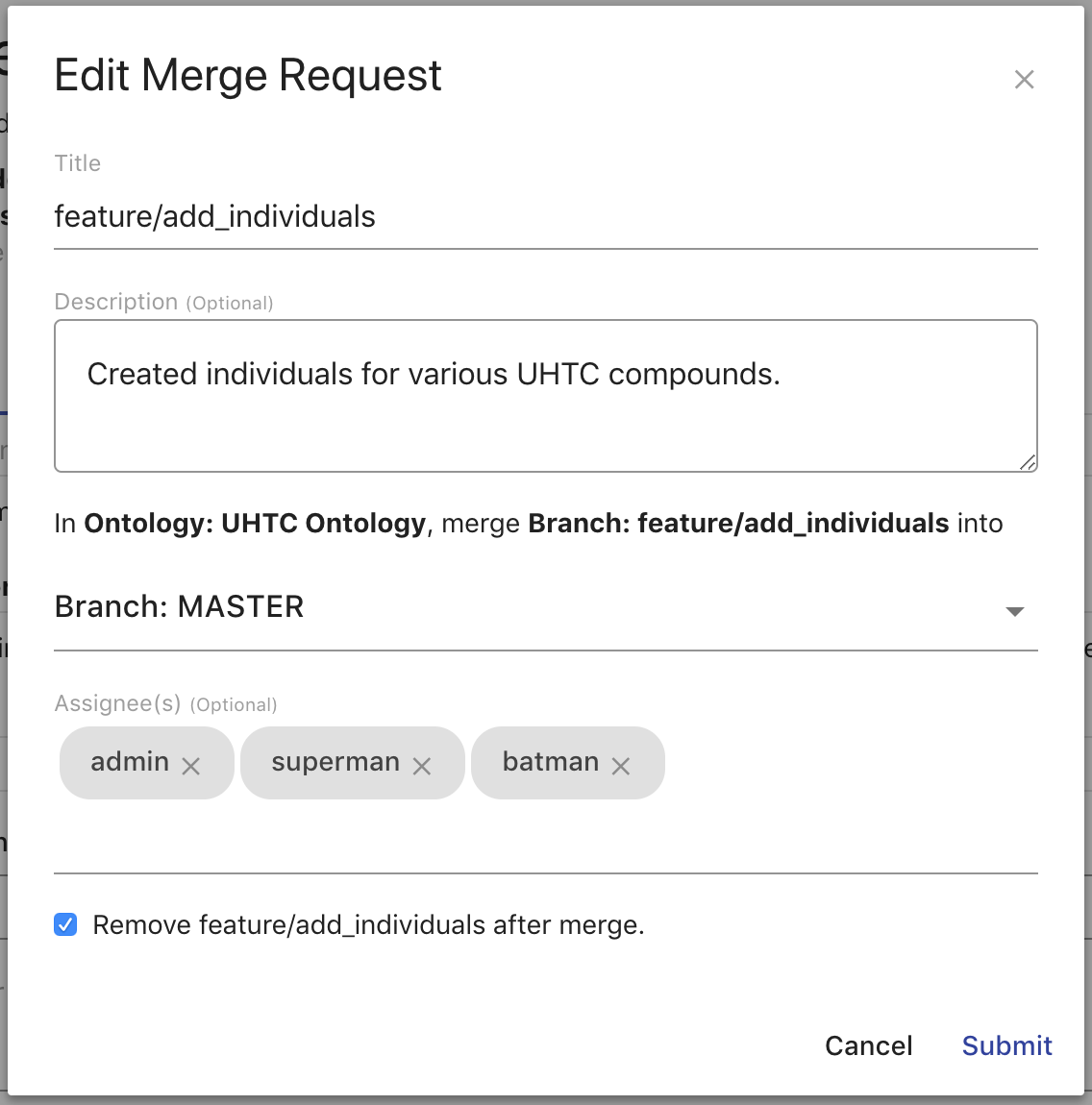
Create a Merge Request
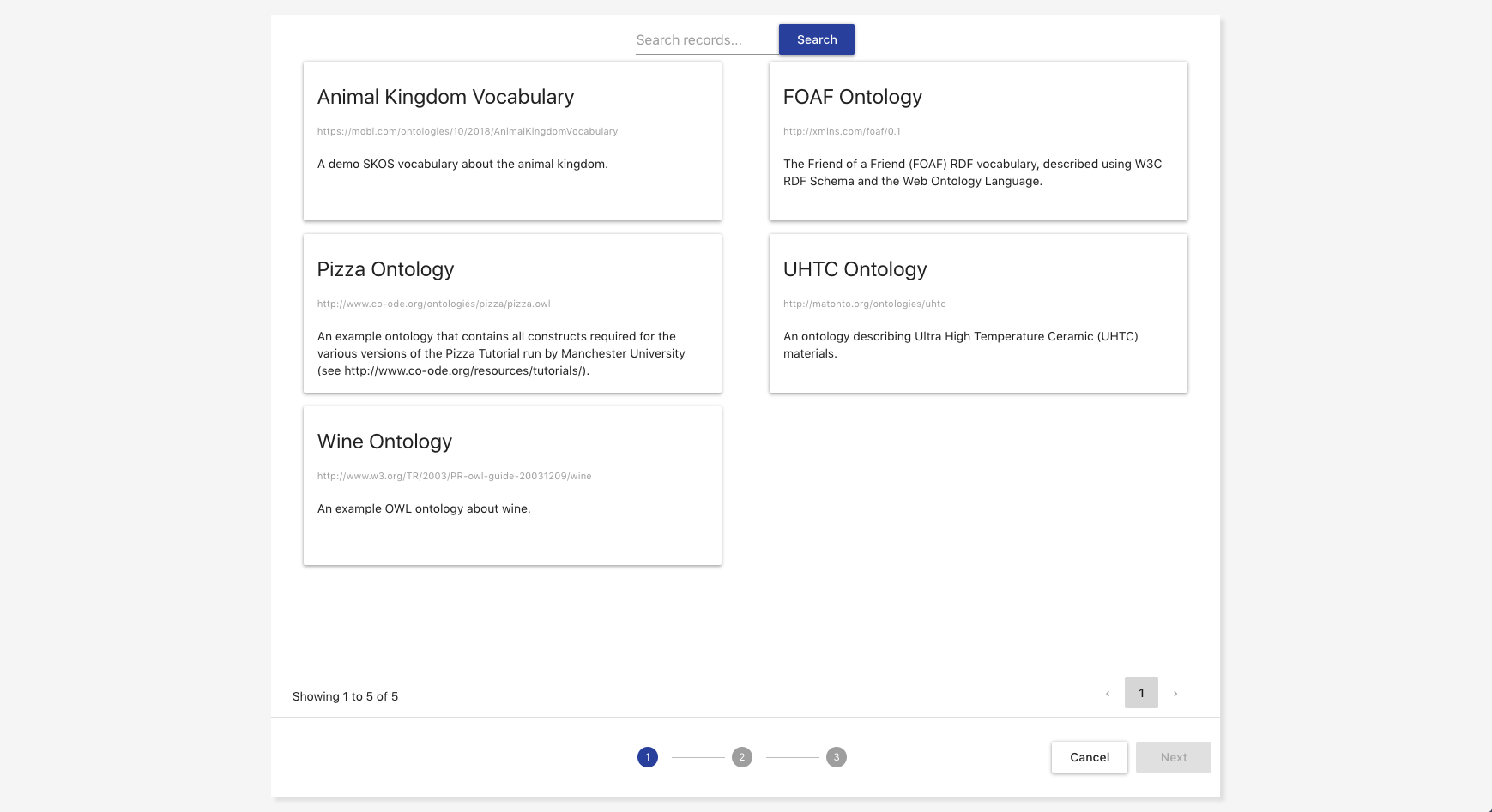
To create a merge request, click Create Request on the initial view of the Merge Requests module. Creating a merge request is a three part process. The first step is to select which record in AVM that request should be attached to by searching within the displayed paginated list of records. Once you have selected a record, click Next.
|
Important
|
If the record a request is attached to is deleted, that request is removed. If the source branch of a request is removed, that request will also be removed. |
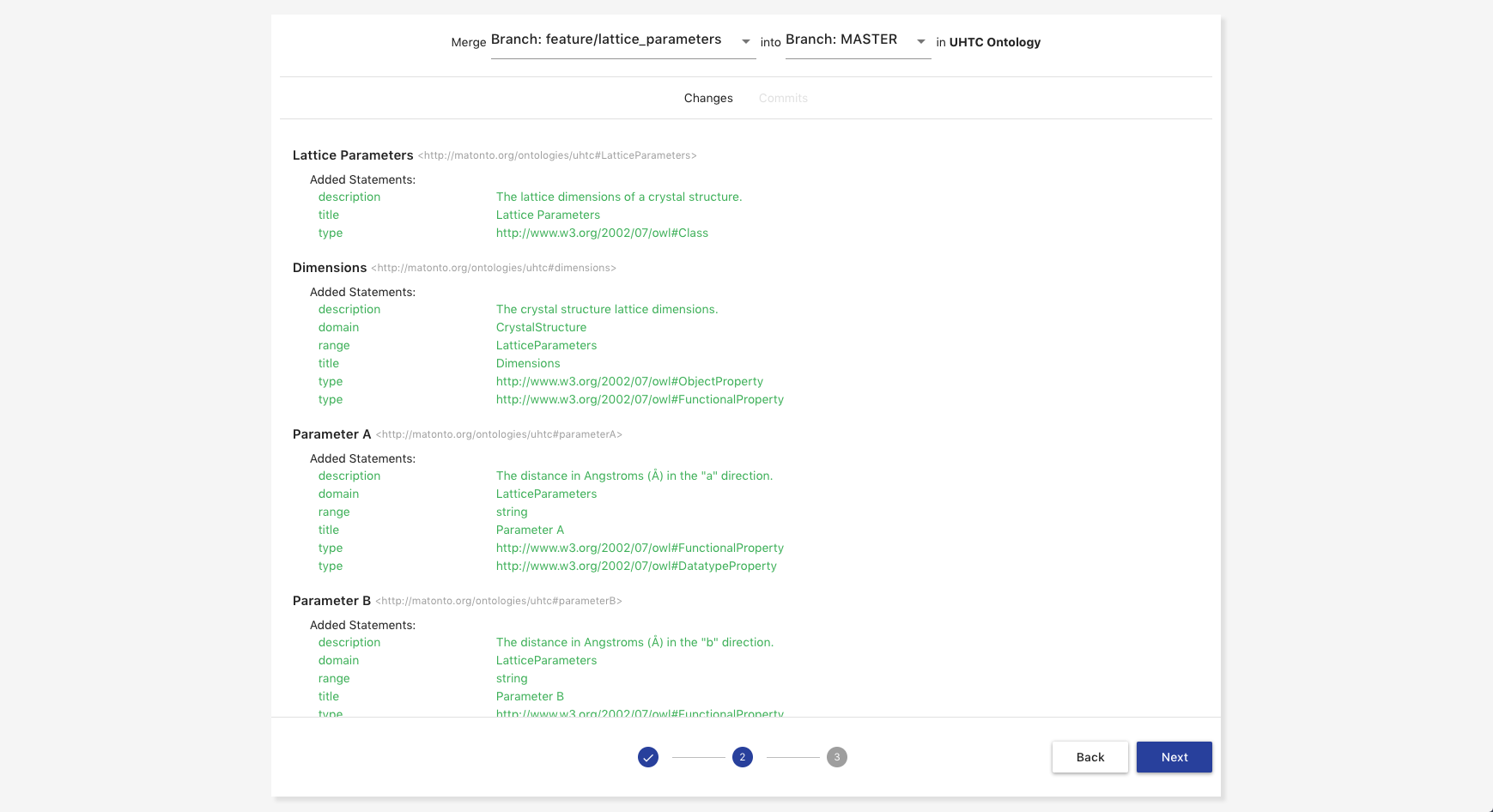
The second step of creating a merge request is to pick the "source" and "target" branch from the attached record. The source branch will be the branch in the first select box and the target branch will be in the second select box. Once both are selected, you will see an aggregated view of all changes made in the source branch that will be merged into the target branch along with all the commits from the source branch that will be included in the target branch. Once you have selected the branches you want to merge, click Next.
The third step of creating a merge request is to provide any metadata you want to include about the request. This includes the required Title, optional Description, any Assignees of the request, and whether the source branch should be removed when the request is accepted. Once you have provided the metadata you wish to include, click Submit and a new Merge Request with your selections will be created.
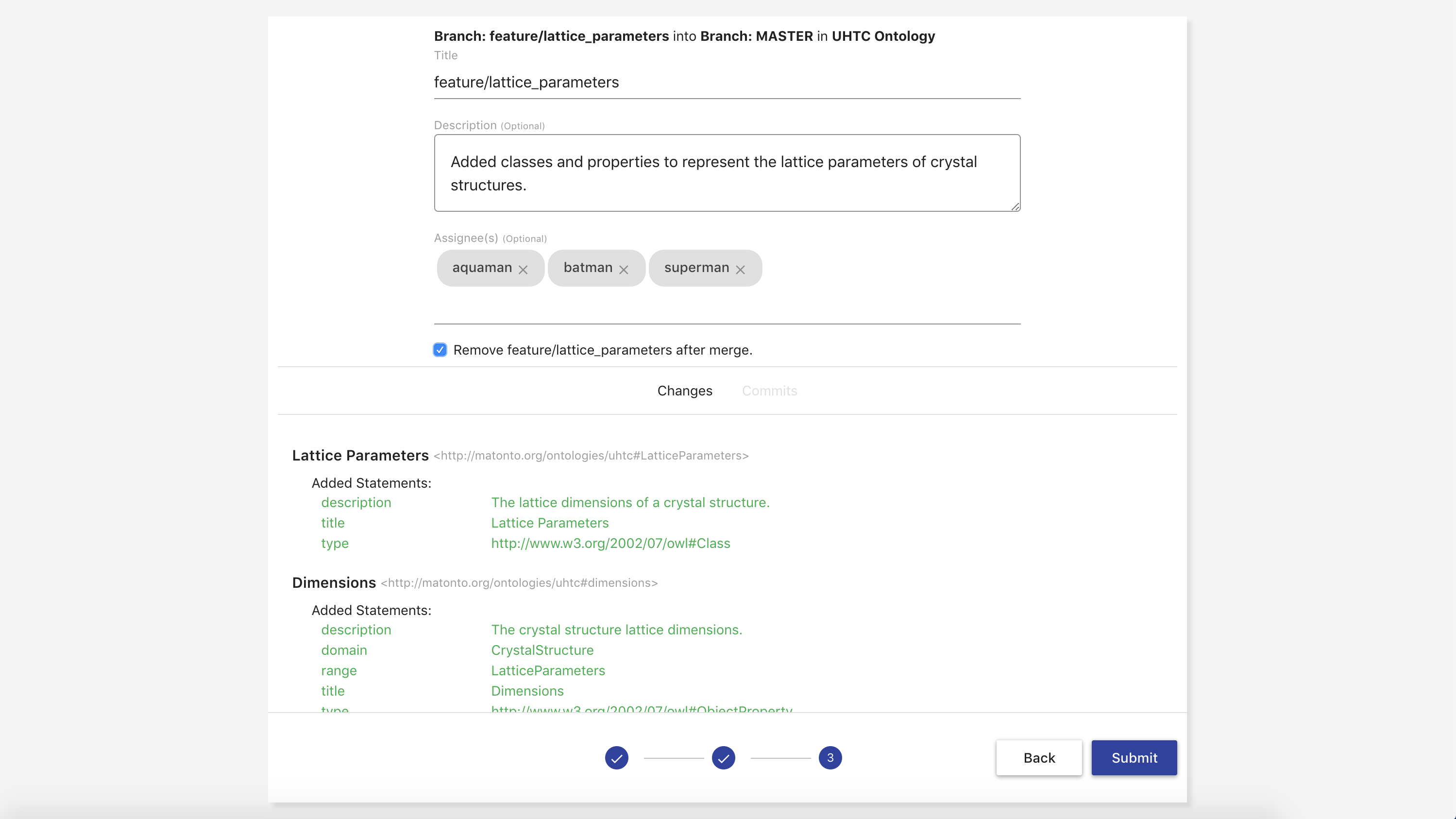
Accepting a Merge Request
A merge request can be accepted only if there are no conflicts between the source and target branch and the user accepting the request has permission to modify the target (see [Ontology Managing]). If there are conflicts between the source and target branches, a notification will be shown with the option to resolve the conflicts from within the Merge Requests module. Resolving conflicts behaves the same as in the Ontology Editor, except that the resolution will become a commit on the source branch.
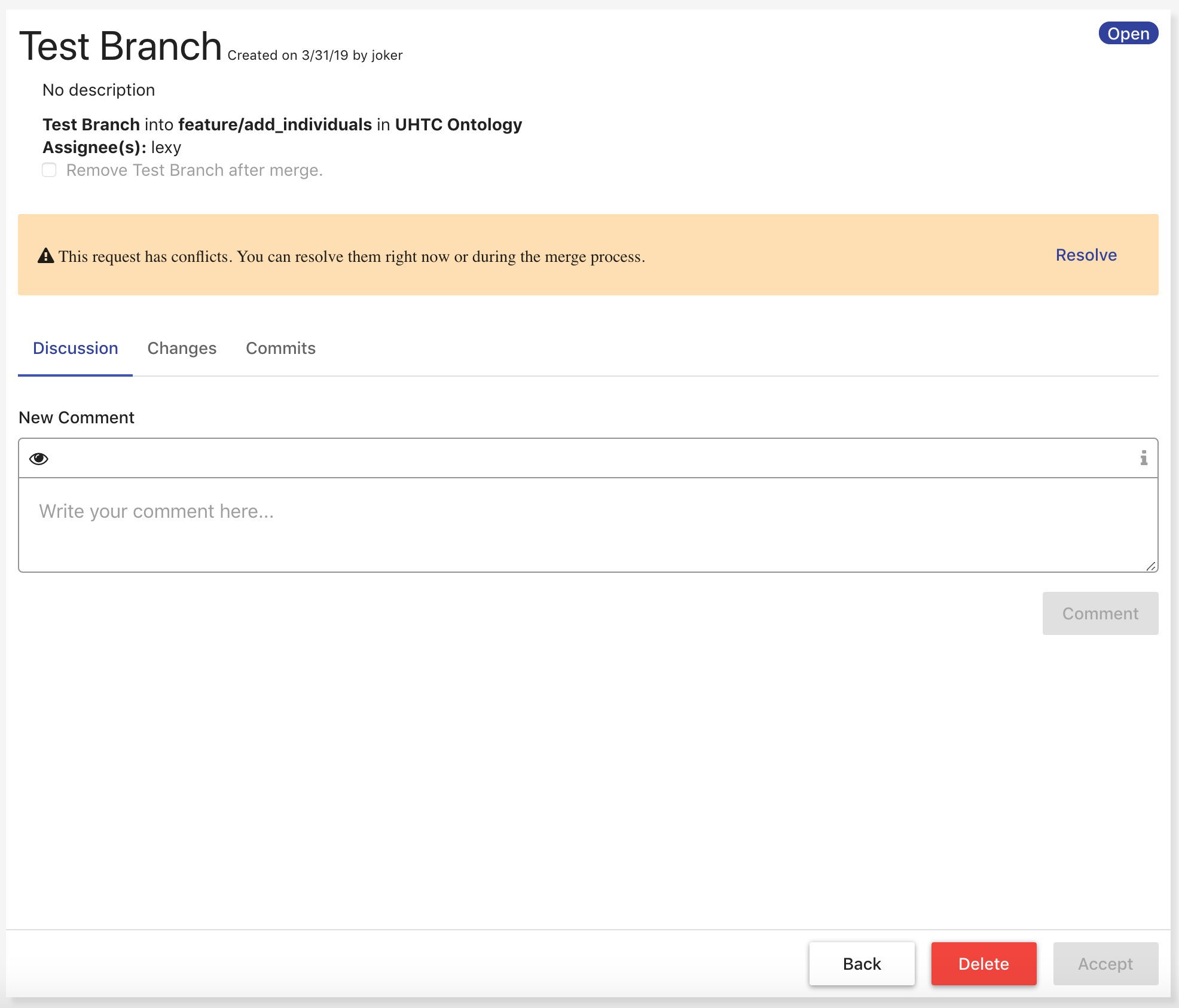
If a merge request is accepted, the merge will be preformed from the source into the target and the request will be moved into an Accepted state. All accepted merge requests are saved within the application for provenance.
Mapping Tool
The AVM web-based Mapping Tool allows users to define custom, ontology-driven definitions to control and execute input data transformations to the Resource Description Framework (RDF) semantic data model. User-defined mappings load semantic data into the AVM store for analysis, sharing and linking.
To reach the Mapping Tool, click on the link in the left menu.
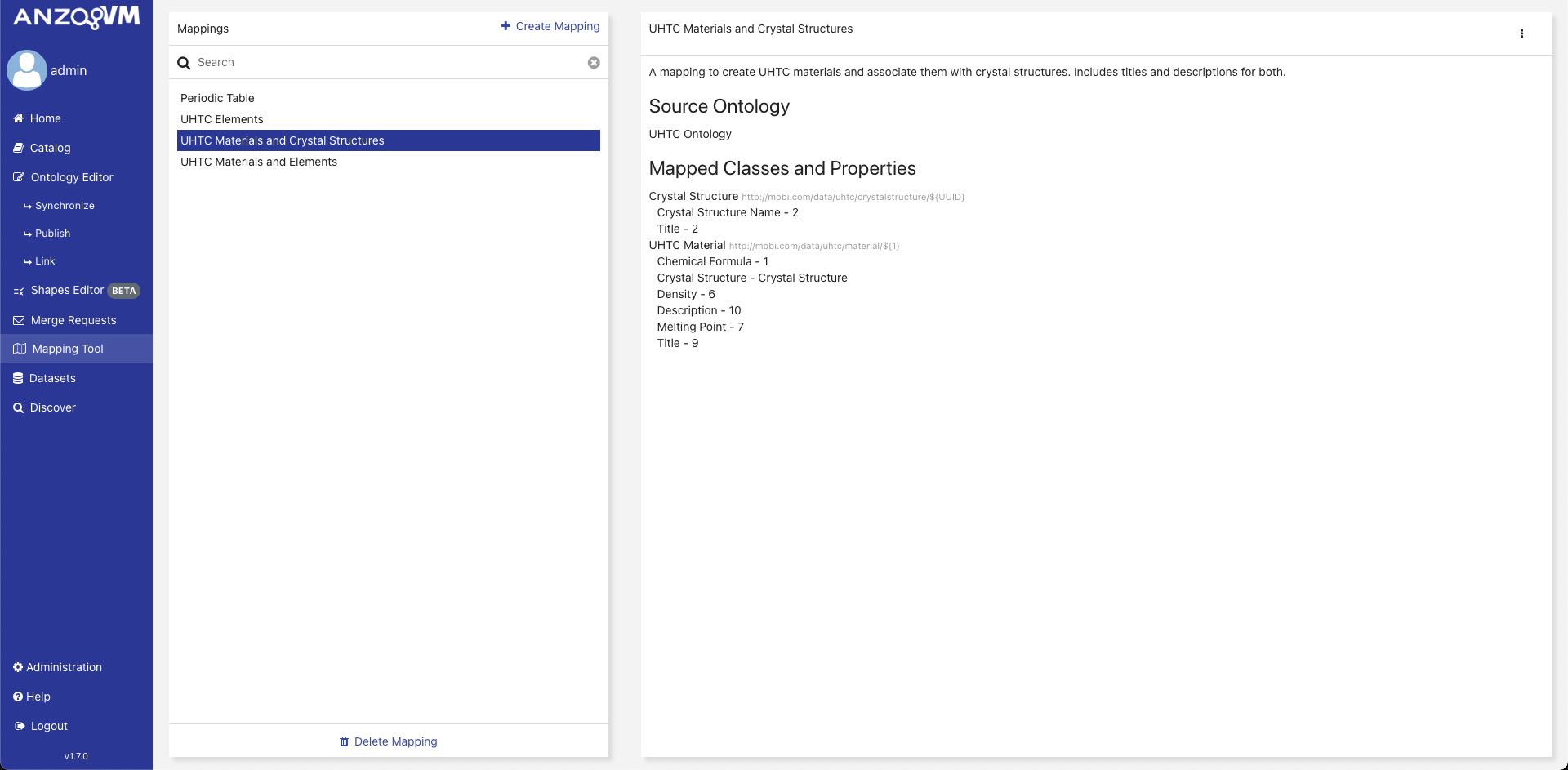
To use the Mapping Tool to map data, an ontology must be in the AVM repository, but it does not have to be opened to access it. If there are no available ontologies, you will not be able to map delimited data. To upload an ontology go to the Ontology Editor and follow the steps for uploading ontologies or creating a new ontology.
The initial view of the Mapping Tool shows the Mapping Select Page. The left side displays a searchable list of all the mappings within the local AVM repository along with buttons to create and delete mappings. Clicking on a mapping in this list loads its information into the right side of the page. The preview of the mapping includes its description, the classes and properties it maps, and the title of the source ontology along with a dropdown menu with options for editing, running, duplicating, and downloading the mapping. If the selected source ontology no longer exists in the local AVM repository, you will not be able to edit, run, or duplicate the mapping.
Creating a Mapping
To create a new mapping, click Create Mapping on the Mapping Select Page. The creation overlay requires you to enter a Title which will populate the dcterms:title annotation of the new mapping record. The Description field populates the dcterms:description annotation of the new mapping record. The Keywords field will attach the entered values as keywords to the new mapping record.

Clicking Submit brings you to the File Upload Page to continue the process of creating a mapping. You must upload a delimited file to use as a standard for the mapping. You can also check whether or not the file contains a header row and select the separator character if the file is CSV. The accepted file formats are .csv, .tsv, .xls, and .xlsx. Selecting a file in the form on the left loads a preview of the first 50 rows and columns of the delimited file into the table on the right. Clicking Continue brings you to the Edit Mapping Page.

The Edit Mapping Page contains two tabs, Edit and Preview. The Edit tab contains a section for displaying the currently selected source ontology, the list of class mappings, and a list of property mappings for a particular class. For every row in the delimited data, an instance of a mapped class will be made according to each class mapping. Each created class instance will have a set of properties as defined by the property mappings associated with each class mapping. The values of data properties will have assigned datatypes based on the range of the mapped data property unless otherwise specified. The Preview tab allows you to map the first 10 rows of the selected delimited file using the current state of the mapping in a variety of different RDF serializations.
|
Tip
|
To learn about the structure of a mapping, refer to the [AVM Mappings] Appendix. |
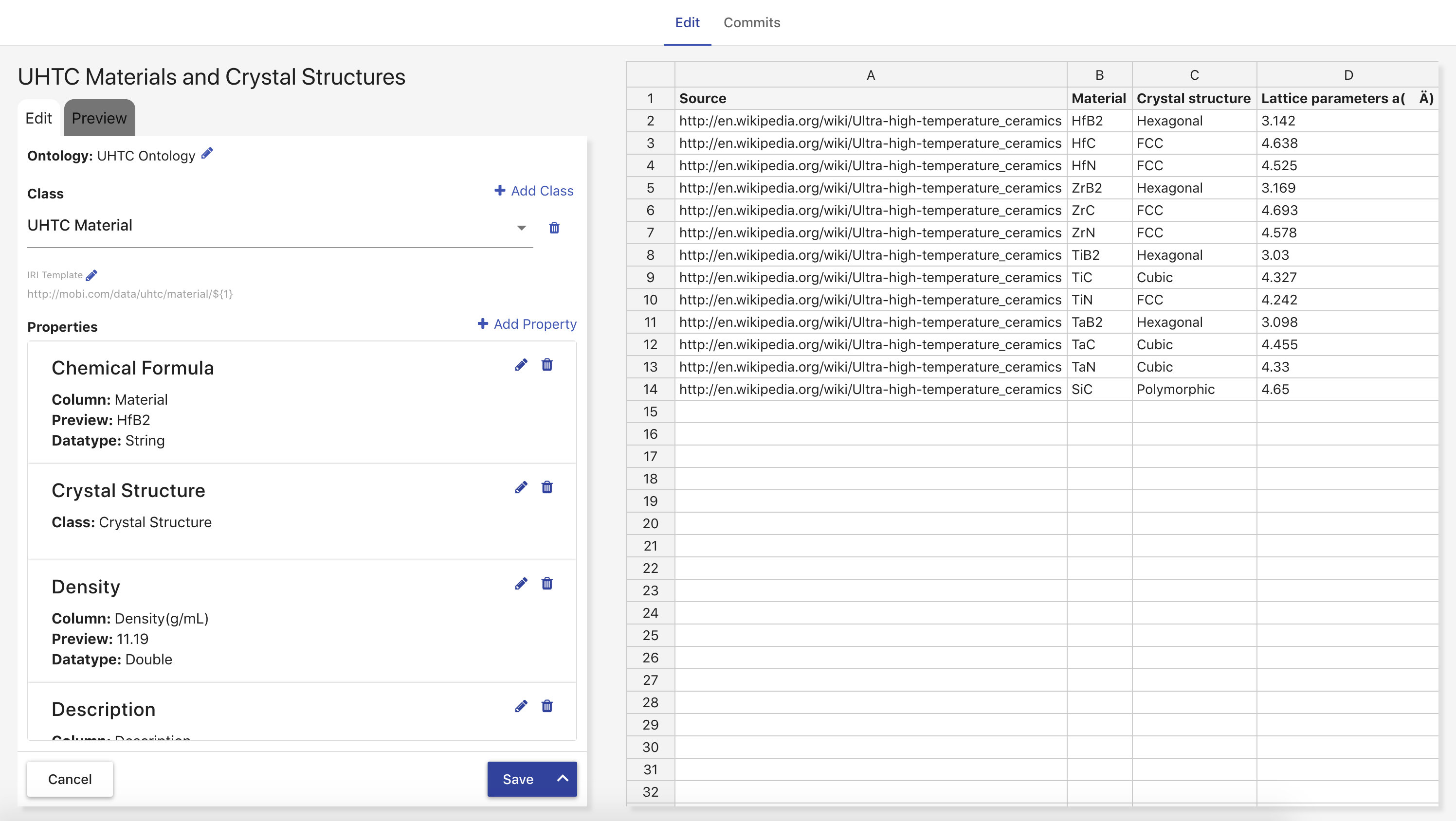
When creating a mapping, the first thing you will see is the Source Ontology Overlay. This setting can always be changed by clicking the pencil button next to the ontology name in the Edit form. The Class section contains a select box with all the class mappings, a button to delete a specific class mapping, and a button to create a new class mapping. Clicking Add Class opens an overlay where you can select a class in the imports closure of the source ontology that has not been deprecated.
The IRI Template section displays the template AVM will use when generating IRIs for the created class instances from the selected class mapping. The value within the ${} indicates what will be used for the local name of each class instance’s IRI. "UUID" means that a unique identifier will be generated for each class instance. An integer means that AVM will grab the value from the column with that index (zero-based) for each row and use each value with all white space removed as the local name for the class instance. This template can be edited by clicking the pencil button next to the section title and filling in the fields in the IRI Template Overlay.
The Properties section lists all the property mappings for the selected class mapping with a button to add a new property mapping. Object property mappings are displayed with the name of the class mapping whose instances will be used as the range of the property. Data or Annotation property mappings are displayed with the name of the column whose values will be used as the range of the property, a preview of what the first value would be, the datatype for the mapped value, and the language for the values if specified. Each property mapping also provides a button to edit and delete. If a data property mapping is invalid, meaning it points to a column that does not exist in the delimited file, it must be handled before the mapping can be saved or run.
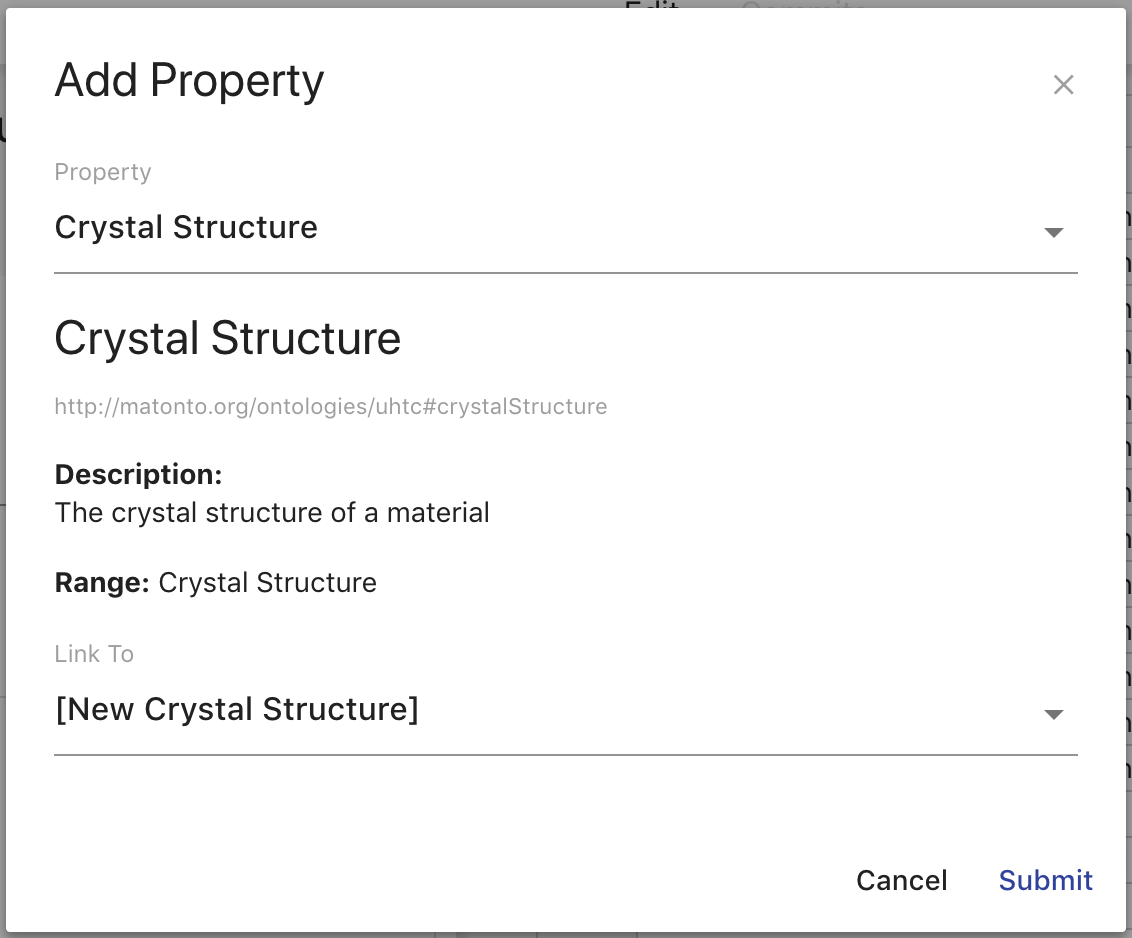
Clicking Add Property opens an overlay where you can select a property in the imports closure of the source ontology that has not been deprecated or a common annotation. The common annotations that can be mapped are rdfs:label, rdfs:comment, dcterms:title, and dcterms:description. If you select a data property or an annotation, a select box appears containing identifiers for each column in the delimited file along with a preview of the first value of the selected column. At this point, you can also specify a manual datatype override which the mapper will use over the range of the property if set. You can also specify the language for the property values by selecting rdfs:langString as the type and then a language select will appear underneath. If you select an object property, a select box appears containing the titles of all class mappings of the appropriate type along with an option to create a new class mapping.


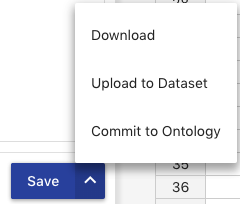
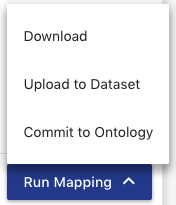
Clicking the main Save button at the bottom of either the Edit or Preview tab saves the current state of the mapping and brings you back to the Mapping Select Page. Clicking on the arrow to the right of the Save button provides you options for running the mapping in addition to saving it. These options are downloading the mapped data, uploading the mapped data into a data within a AVM repository, or committing the mapped data to a specific branch of an ontology. Each option will bring up an appropriate overlay for choosing a RDF format and file name, a dataset, or an ontology and branch respectively. Clicking Submit in an overlay will save the current state of the mapping and run it.
|
Tip
|
To learn about datasets in AVM, refer to the Datasets Manager. |
|
Note
|
For more information about running a mapping into an ontology, refer to Mapping into an Ontology. |
Editing a Mapping
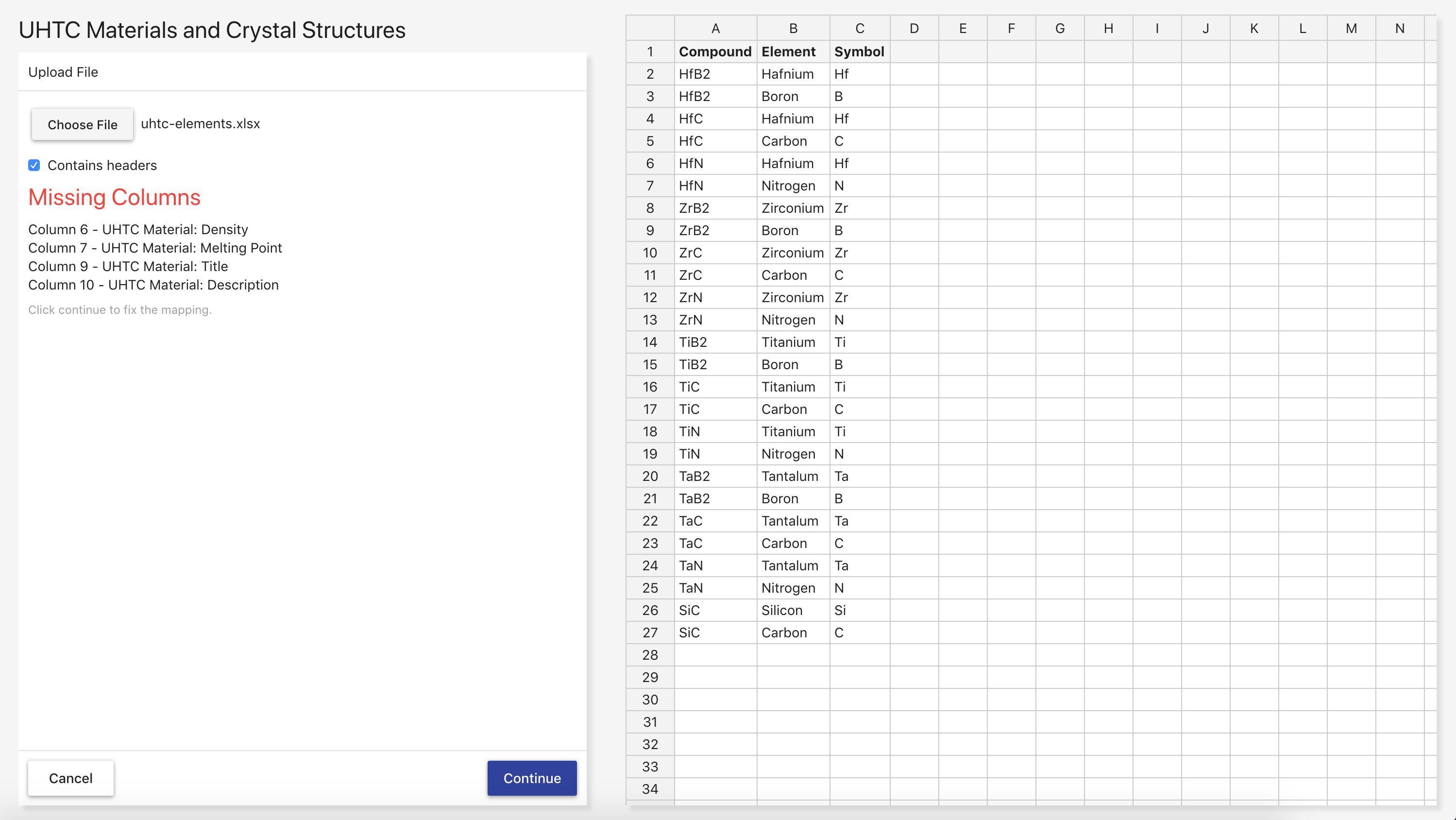
To edit a mapping, click Edit on the Mapping Select Page. The application performs a quick check to see if the source ontology or its imported ontologies changed in such a way that the mapping is no longer valid. If this check does not pass, an overlay is displayed informing you of the error. If it passes, you are brought to the File Upload Page where you must upload a delimited file to use as a standard for the mapping. If the delimited file you choose does not contain enough columns for the mapping’s data property mappings, a list of the missing columns are displayed under the file select. However, you can still edit the mapping as long as those data properties are fixed. From there, editing the mapping works the same as creating a mapping.

Duplicating a Mapping
To duplicate a mapping, click Duplicate on the Mapping Select Page. The application performs a quick check to see if the source ontology or its imported ontologies changed in such a way that the mapping is no longer valid. If this check does not pass, an overlay is displayed informing you of the error. If it passes, the Create Mapping overlay will appear allowing you to choose new values for the Title, Description, and Keywords. The rest of the process is the same as editing a mapping including how missing columns are handled.
Running a Mapping
To run a mapping against delimited data without editing it, click Run on the Mapping Select Page. The application performs a quick check to see if the source ontology or its imported ontologies changed in such a way that the mapping is no longer valid. If this check does not pass, an overlay is displayed informing you of the error. If it passes, you are brought to the File Upload Page where you must upload a delimited file to be used when generating RDF data. You can also check whether or not the file contains a header row and select the separator character if the file is CSV. The accepted file formats are .csv, .tsv, .xls, and .xlsx. The classes and properties that will be created using the mapping are displayed under the file select. The columns that must be present in the delimited file are highlighted in the table on the right. Selecting a file in the form on the left loads a preview of the first 50 rows and columns of the delimited file into the table. If the delimited file you choose does not contain enough columns for the mapping’s data property mappings, the properties that are missing columns turn red and you will not be able to run the mapping.
|
Tip
|
To learn about datasets in AVM, refer to the Datasets Manager. |
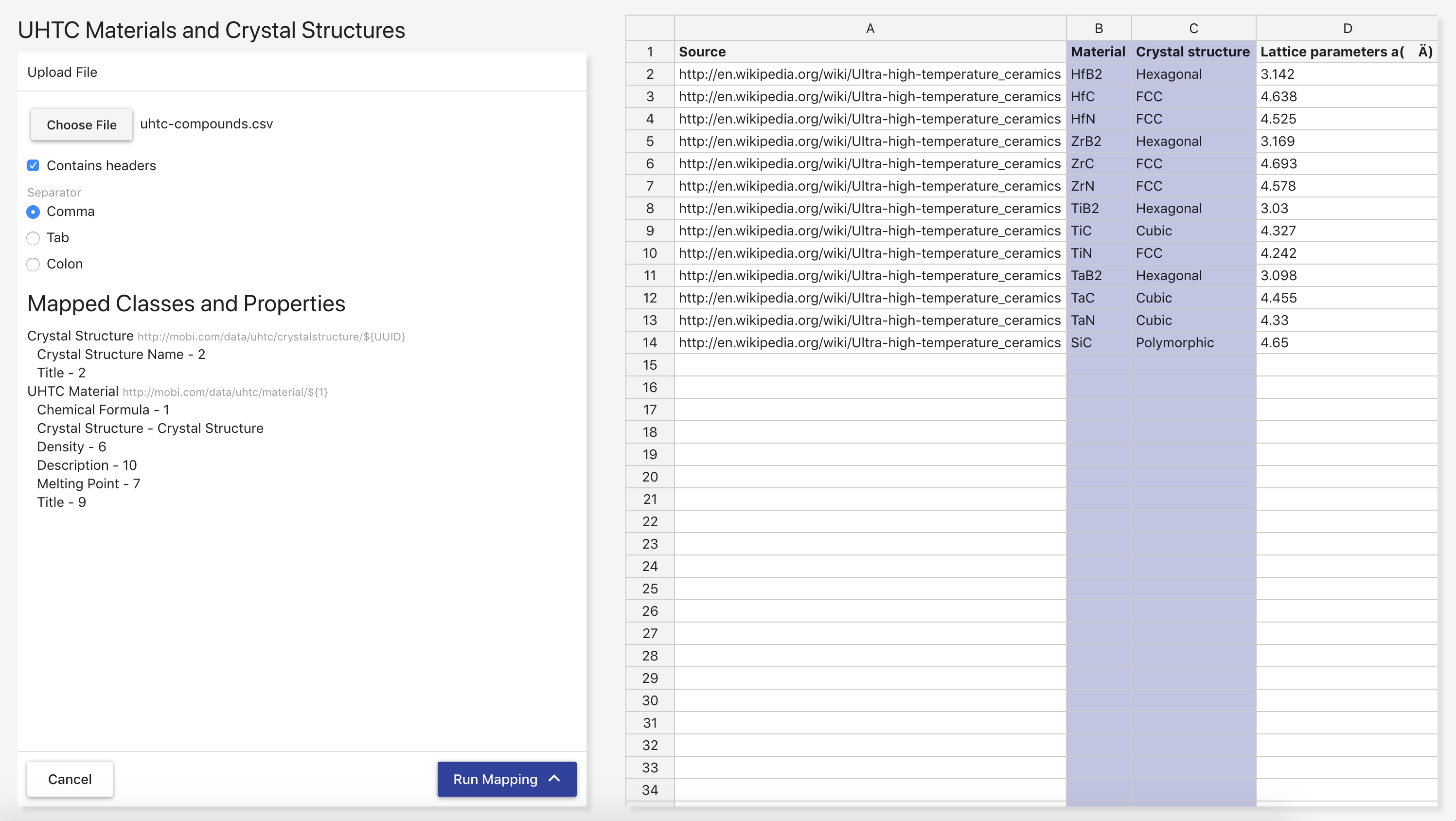

Clicking Run Mapping will provide you with options for downloading the mapped data, uploading the mapped data into a data within a AVM repository, or committing the mapped data to a specific branch of an ontology. Each option will bring up an appropriate overlay for choosing a RDF format and file name, a dataset, or an ontology and branch respectively.
|
Note
|
For more information about running a mapping into an ontology, refer to Mapping into an Ontology. |
Mapping Tool Reference
Source Ontology Overlay
The Source Ontology Overlay allows you to select the source ontology for the mapping from all uploaded ontologies in the local AVM repository.
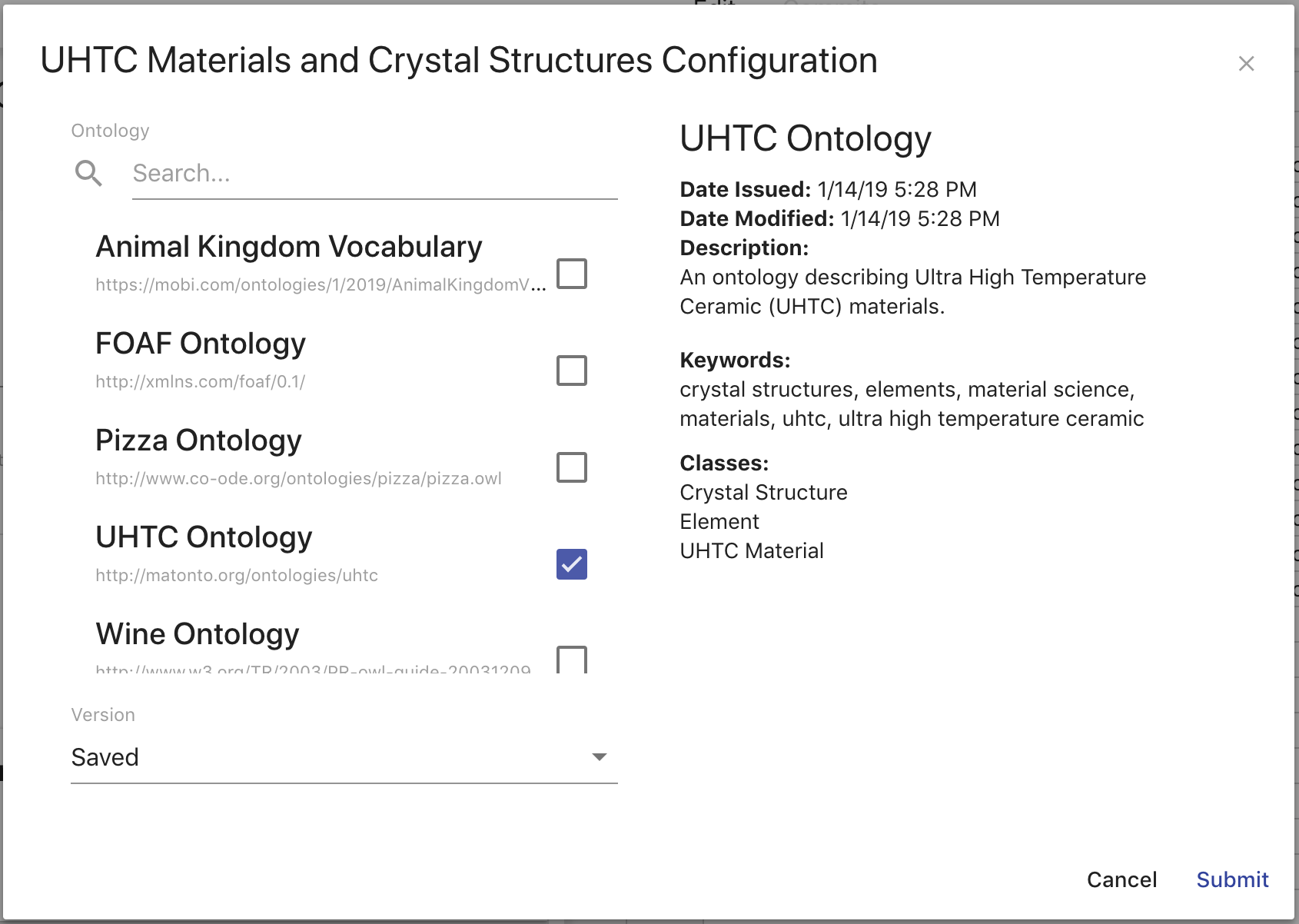
The left side of the overlay contains a searchable list of all the ontologies in the local AVM repository and a select for the version of the ontology to use. For most ontologies, this will only contain the "Latest" value. However, if an ontology was previously selected for a mapping and that ontology has changed since then, there will be an option for the "Saved" version of the ontology. The right side of the overlay displays information about the ontology from its record in the Catalog and a sample of the classes in that ontology. Setting the source ontology will remove any class and property mappings in the mapping that are incompatible. Class mappings and property mappings are incompatible if the class or property that is referenced no longer exists in the imports closure of the source ontology. Property mappings are also incompatible if they are a different type or have a different range.
IRI Template Overlay
The IRI Template overlay provides you a way to edit each portion of the IRI template of a class mapping. The template will be used to generate the IRIs for each instance created by a class mapping.
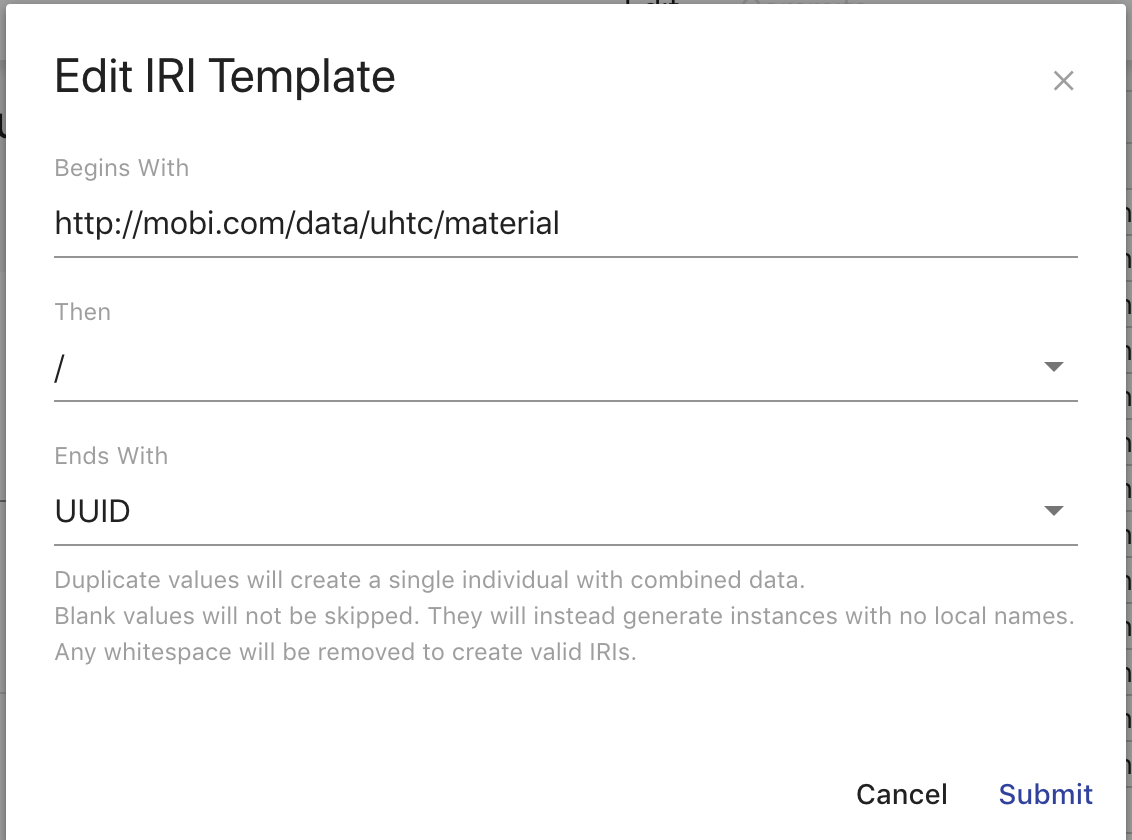
The Begins with field (required) is the beginning of the IRI. This is more commonly known as the namespace. The Then field (required) is the next character in the IRI. This value can be thought of the separator between the namespace and local name (described below). The provided values for the Then field are "#", "/", and ":". The Ends with dropdown field (required) is the last part of the IRI. This value is commonly known as the local name. The values in this dropdown are "UUID", which represents generating a unique identifier as the local name for each generated instance of each row, and the title of each column, which represents using the value of that column as the local name for each generated instance of each row. Clicking Cancel will close the overlay. Clicking Submit will save the IRI template.
Mapping into an Ontology
The overlay for mapping into an ontology contains several configurations on how the mapping result data will be committed. First, you must select the Ontology and Branch that will receive the new commit. After that, there are radio buttons that will determine how the mapping result data will be treated when the commit is made. The first option will treat all the mapping result data as new data, meaning no existing data in the ontology branch will be removed. The second option will treat all the mapping result data as changes to the existing data on the ontology branch. This means that if there are entities or properties on entities in the ontology that are not present in the mapping result data, they will be removed.
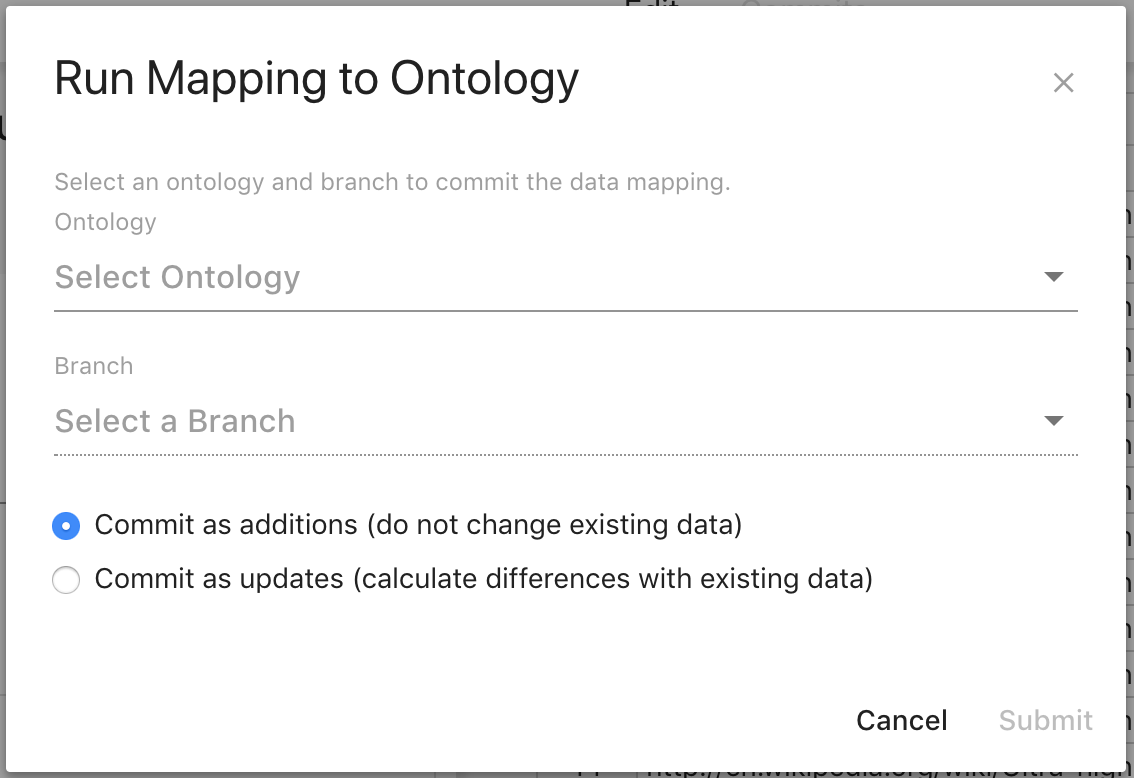
A sample workflow using this tool would be to create an ontology in the Ontology Editor and create a branch that will received all mapped data commits. Then run your mapping from the Mapping Tool, committing to the new branch as additions. Finally in the Ontology Editor, merge that branch with the mapped data commit into the MASTER branch. Then any subsequent runs of the mapping with updated data would be committed as changes to the mapped data branch and merged into the MASTER branch.
Datasets Manager
The AVM Datasets Manager allows users to create, edit, clear, and delete datasets within the application to group and store Resource Description Framework (RDF) semantic data into various graphs for enhanced query isolation, data segmentation, and management.
To reach the Datasets Manager, click on the link in the left menu.
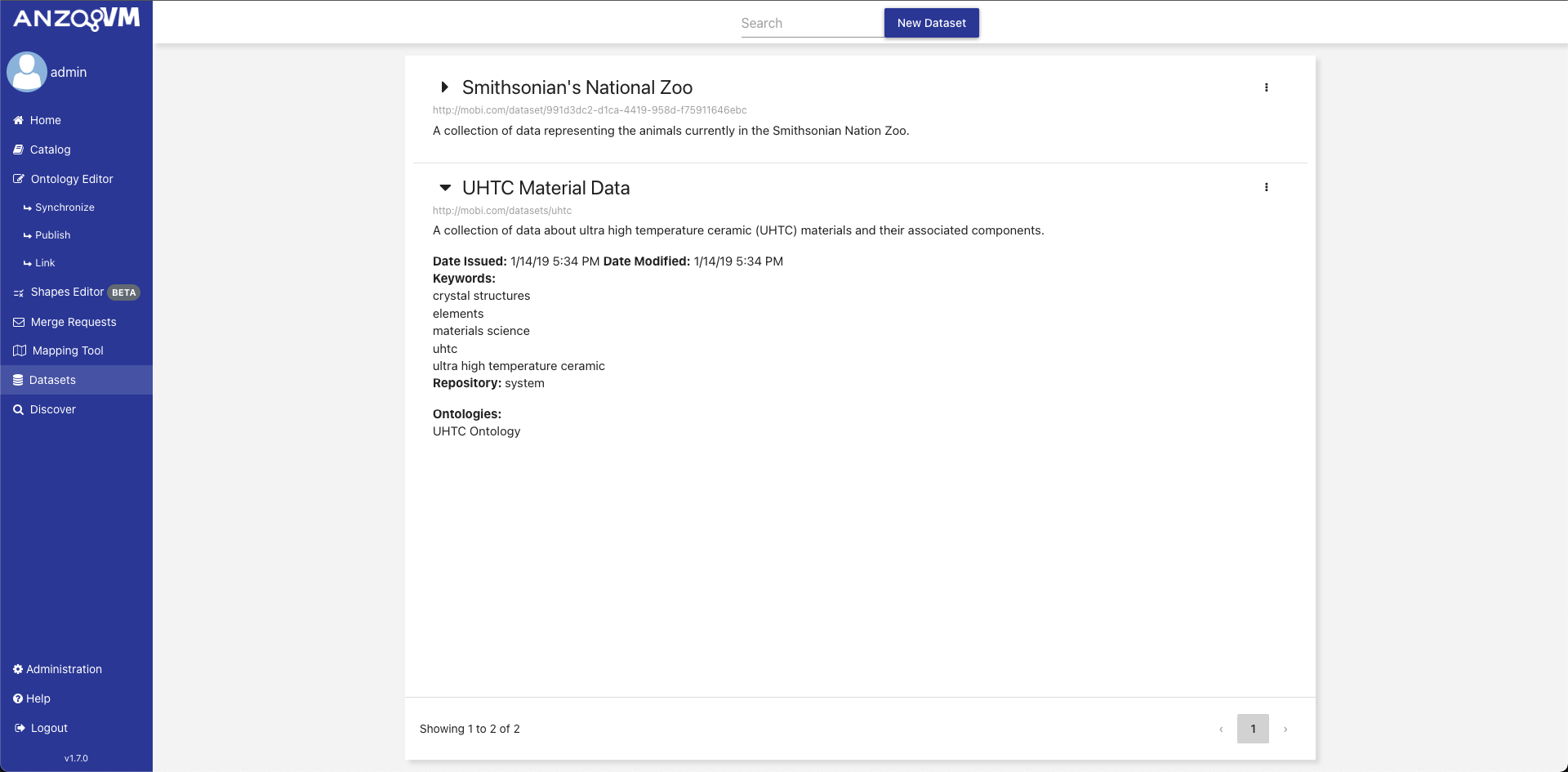
The page displays a paginated list of all the datasets within the local AVM repository. Each dataset in the list displays a preview of the dataset metadata, and a dropdown menu with edit, clear, and delete buttons. Clicking on a dataset displays the rest of the dataset metadata. Deleting a dataset deletes the dataset, catalog record, and all associated data graphs. Clearing a dataset removes all associated data graphs except the system default named graph. Clearing a dataset does not remove the dataset or the catalog record. Editing a dataset allows to you to change some information about the dataset. This list can also be filtered with search text.
To create a new dataset, click New Dataset and fill out the information in the creation overlay.
Create Dataset

The Create New Dataset overlay contains several sections. The Title field populates the dcterms:title annotation of the new dataset record. The Dataset IRI field allows you to specify what the IRI of the new dataset should be. If not provided, the system will create a unique one for you. The Description field populates the dcterms:description annotation of the new dataset record. The Keywords field will attach the entered values as keywords to the new dataset record. The Repository ID field displays the identifier of the repository registered within AVM where the dataset and all associated named graphs will be stored. For now, this is defaulted to the system repository. Finally, you can select which ontologies should be used as the basis for the data. Select an ontology from the searchable list of ontologies to add it to the dataset. To remove a selected ontology, click the x next to the ontology name. Clicking Cancel will close the overlay. Clicking Submit will create the dataset with the provided metadata.
|
Note
|
The ability to create new repositories in AVM is coming soon! |
Edit Dataset
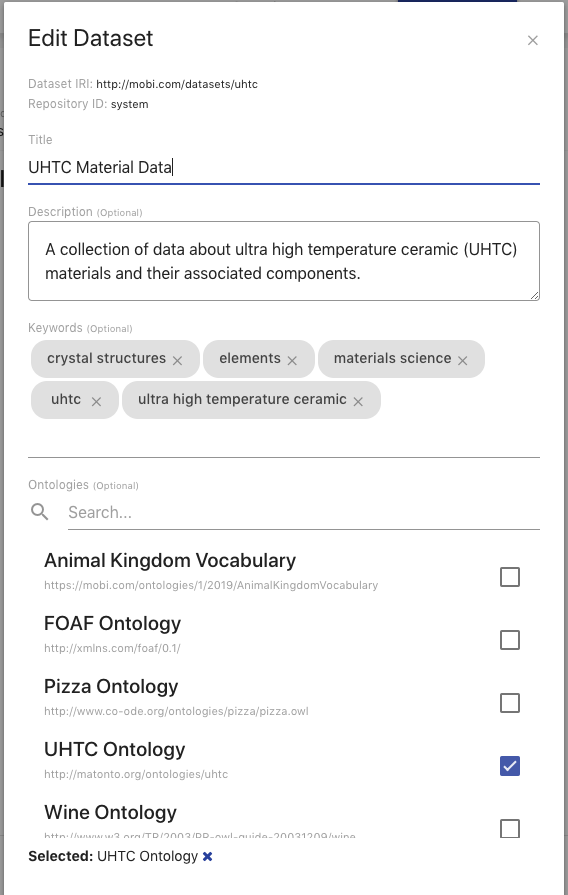
The Edit Dataset overlay allows you to modify information about the dataset. The Title field modifies the value of the dcterms:title annotation of the dataset record. The Description field modifies the value of the dcterms:description annotation of the dataset record. The Keywords field allows you to add/remove keywords attached to the dataset record. The ontologies area allows you to modify the ontologies associated with the dataset record; just as during creation. Clicking Update will update the dataset record with the new metadata.
|
Caution
|
Datasets are associated with specific versions (commits) of an ontology record. In order to update a dataset to the latest version of an ontology record, you’ll need to remove the ontology, click Submit, then add that ontology back to the dataset. |
Discover
The AVM web-based Discover module allows users to quickly search and explore their knowledge graphs. The Explore tab provides an intuitive interface for quickly navigating through ontology-defined entities. The Search tab enables quick data filtering based on keywords and ontology properties. The Query tab allows users to develop and execute SPARQL queries.
|
Tip
|
To learn more about SPARQL queries, see the W3C Specification. |
|
Note
|
The ability to save, publish, share and reuse SPARQL queries as part of applications or larger workflows is coming soon! |
To reach the Discover page, click on the link in the left menu. The first tab shown is the Explore tab.
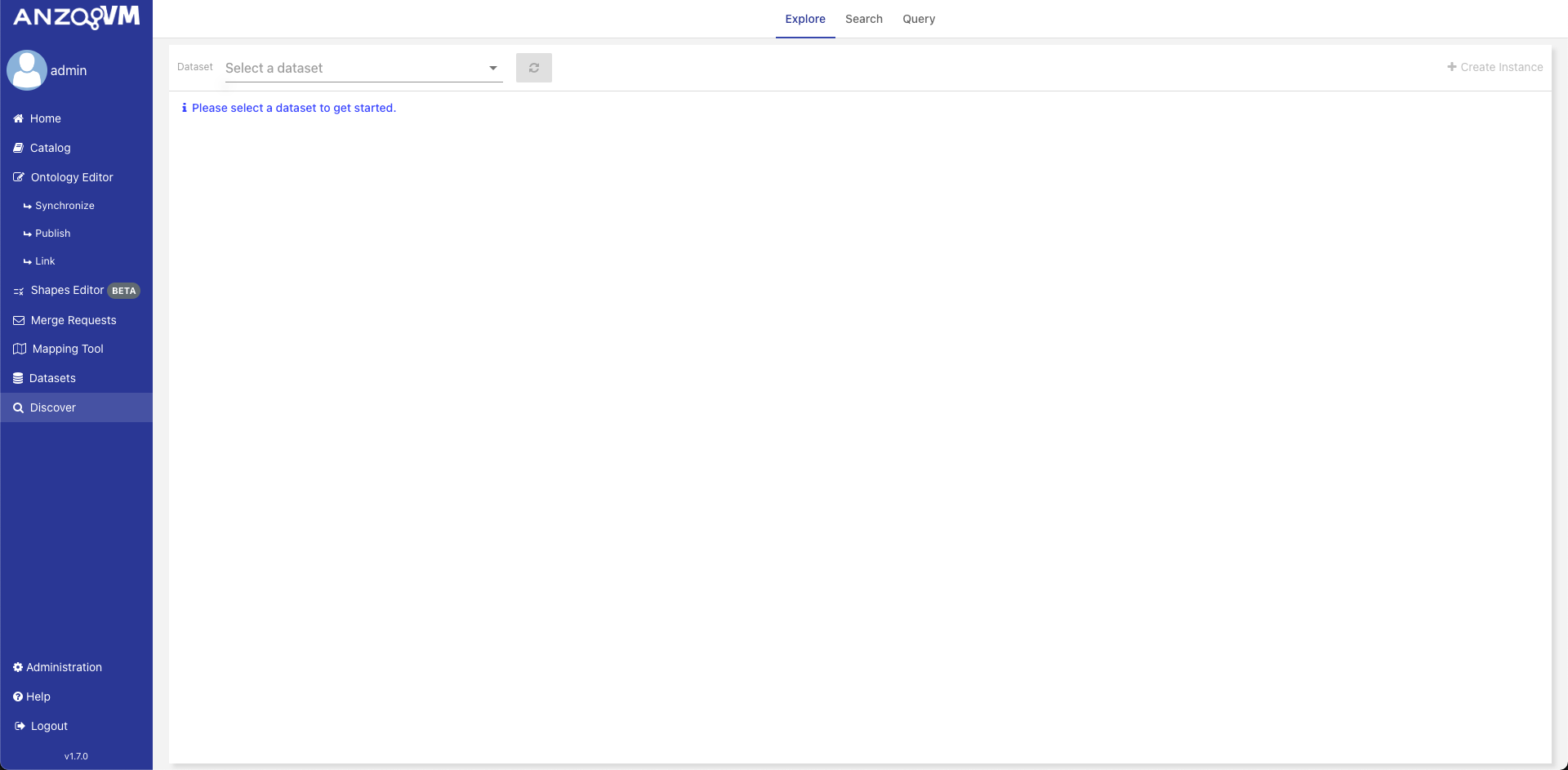
Explore
The Explore tab of the Discover page allows you to get a high-level overview of the structure of your data within a dataset.
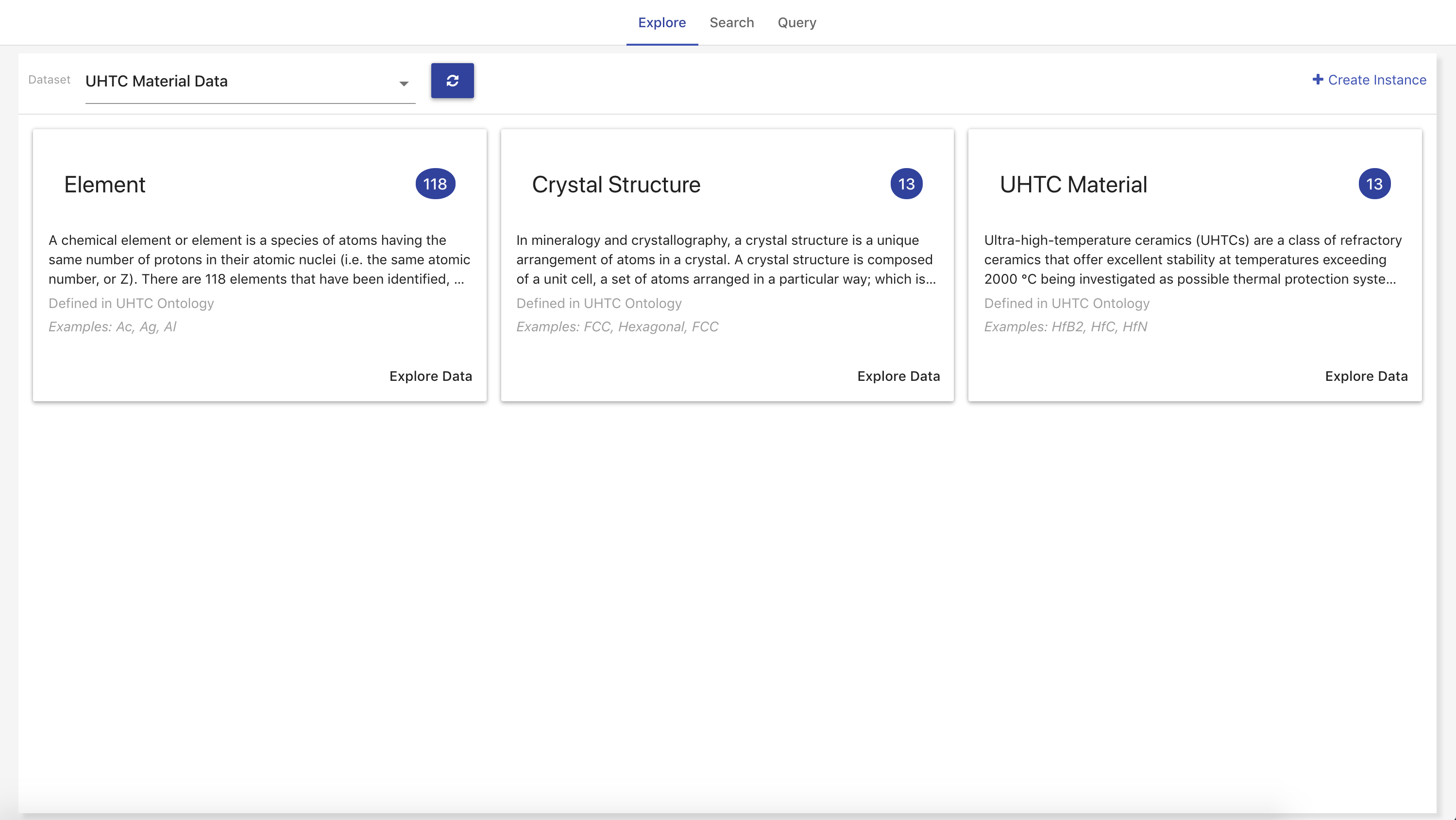
The Explore tab opens with a view of all the classes found within the selected dataset and a button to create a new instance. Each card displays the label and a brief description about a class, the number of instances defined as that class, a few of those instances, and a button to explore the instances themselves. Clicking Explore Data opens the instances view.
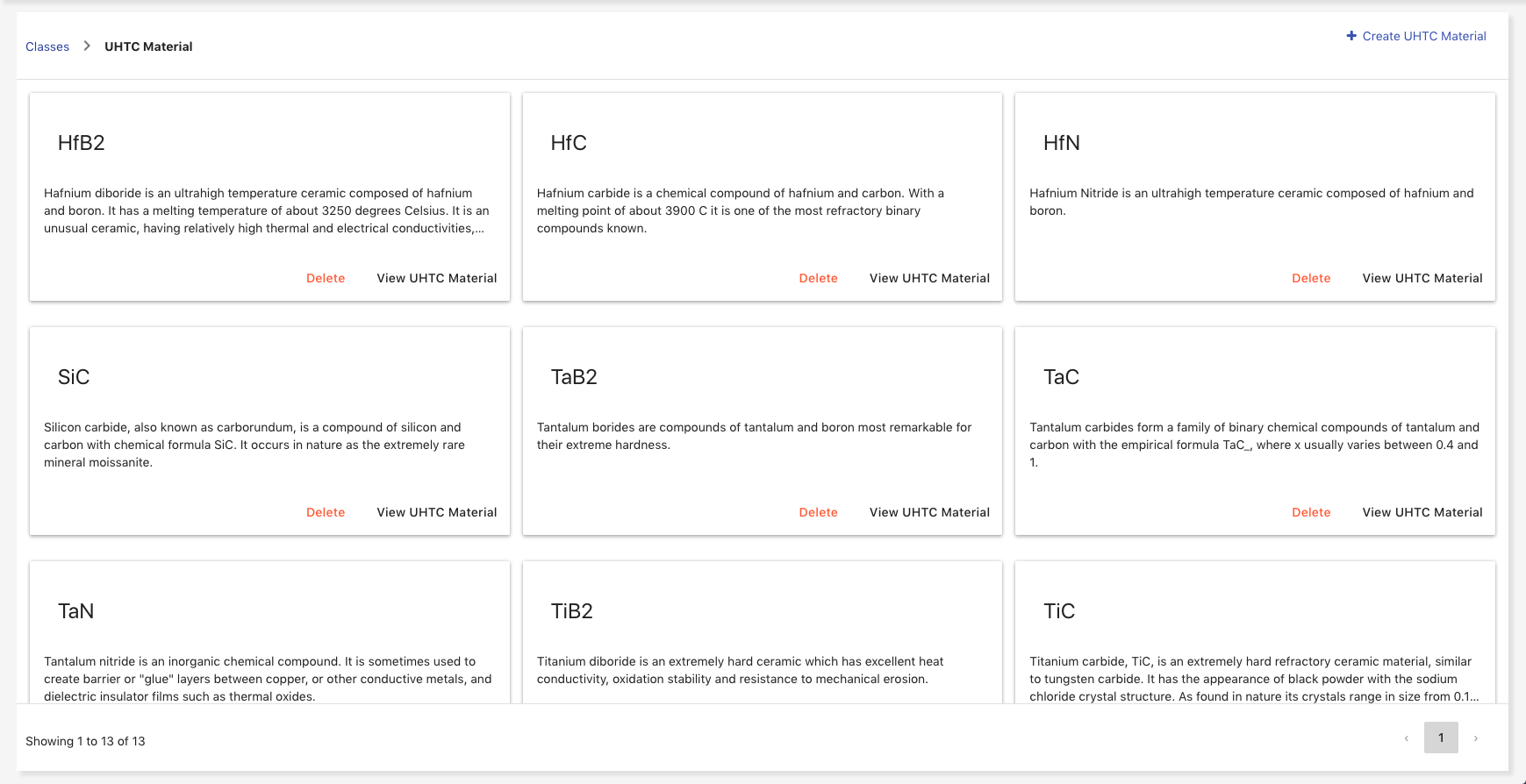
The instances view contains a paginated list of all the instances defined as a particular class. Each card displays the label, brief description about an instance, a button to explore the instance itself, and a button to delete the instance. The label is determined based on the values of the rdfs:label, dc:title, or dcterms:title properties on the instance. The description is based on the values of the rdfs:comment, dc:description, or dcterms:description properties on the instance. You can navigate back to the classes view using the breadcrumb trail in the top left. Clicking View Class Name opens the single instance view. Clicking Create Class Name opens the single instance editor. If the particular class has been deprecated in the ontology, you will not be able to create a new instance.
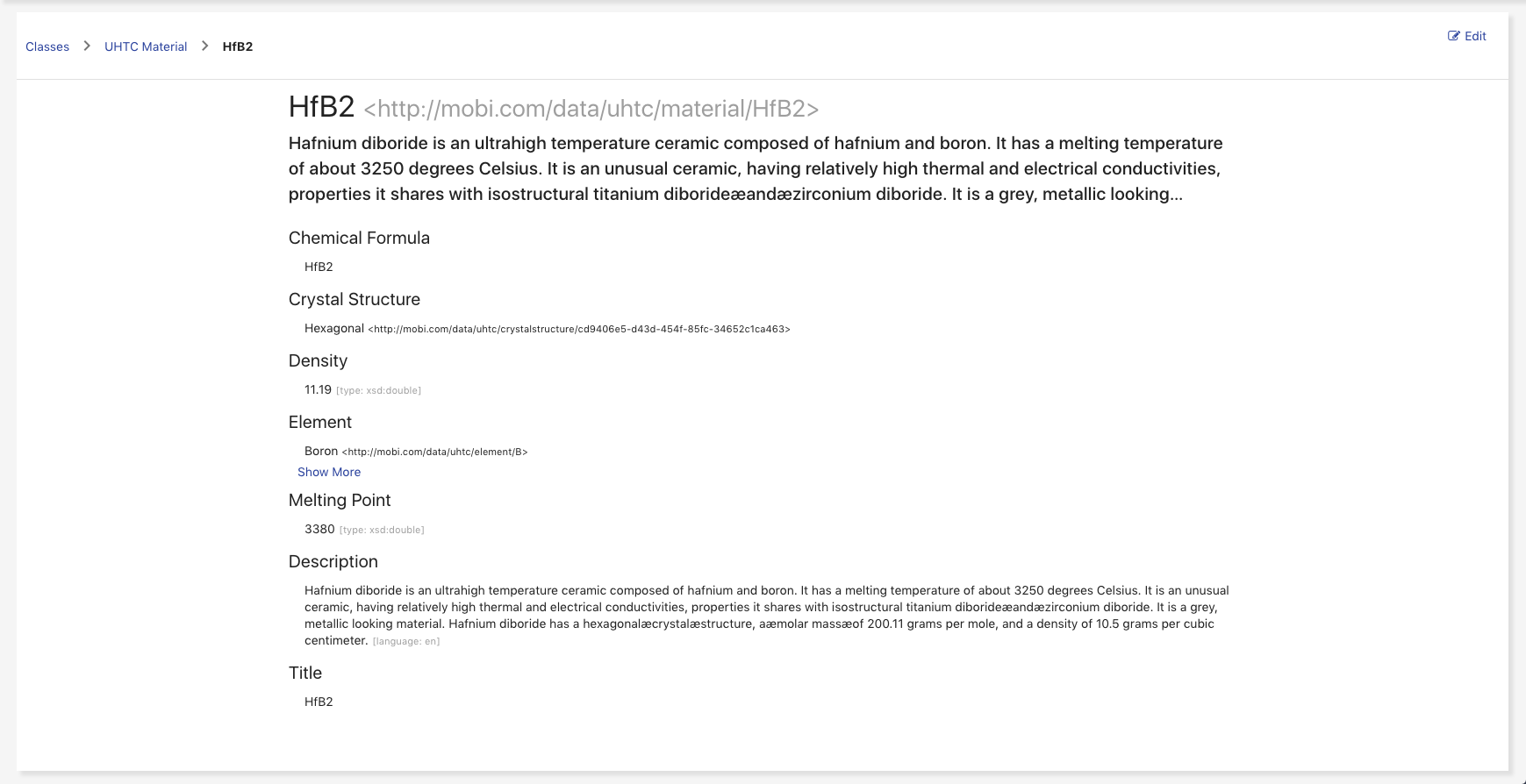
The single instance view displays the IRI, label, brief description, and list of all properties associated with the selected instance. Each property will only show one value by default; however, you can view more values, if there are any, by clicking the "Show More" link for that property. The instance view can also display any assertions on a reification of a property value statement by clicking on the small downward arrow on the right side of a property value. Clicking Edit opens the single instance editor.
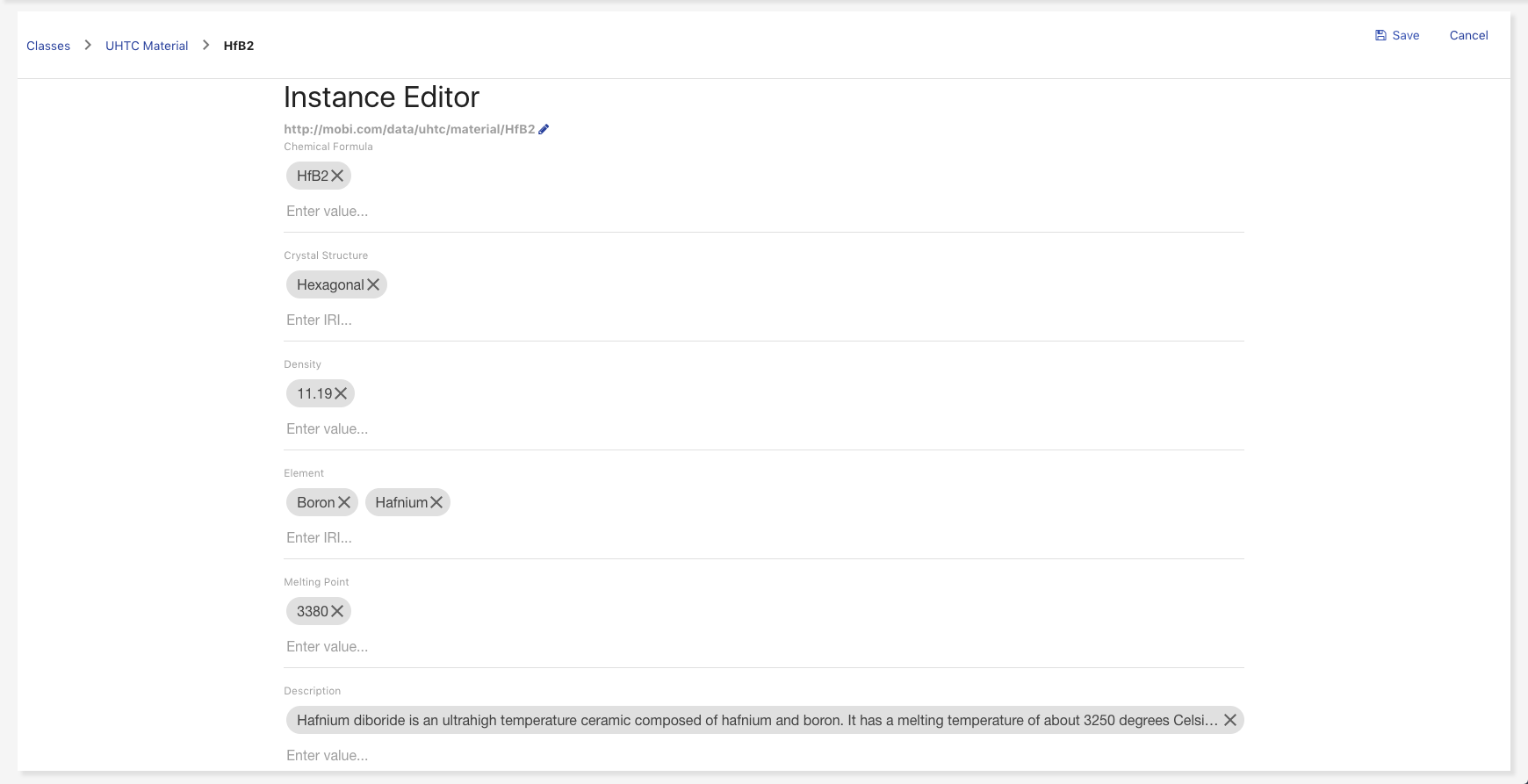
The single instance editor displays the IRI and a list of all properties associated with the selected instance in an editable format. The IRI can be edited by clicking the pencil button next to the IRI which will open the Edit IRI Overlay. If the instance being edited does not have all the required properties set, as described by cardinality restrictions in the ontology, the instance cannot be saved. To add a another property value, type in the provided input and press the ENTER key. To remove a property value, click on the "X" button of the associated chip. To view a complete property value and add assertions to its reification, click on the associated chip.
|
Caution
|
Editing the instance IRI might break relationships within the dataset. |
To add a new property to the instance, click Add New Property and select the property in the overlay. After all edits have been made, clicking Cancel will discard the current changes and go back to the single instance view. Clicking Save will save the current changes to the repository and then go back to the single instance view.
Search
The Search tab of the Discover page allows you to submit a quick search against a dataset using various preconfigured filters.
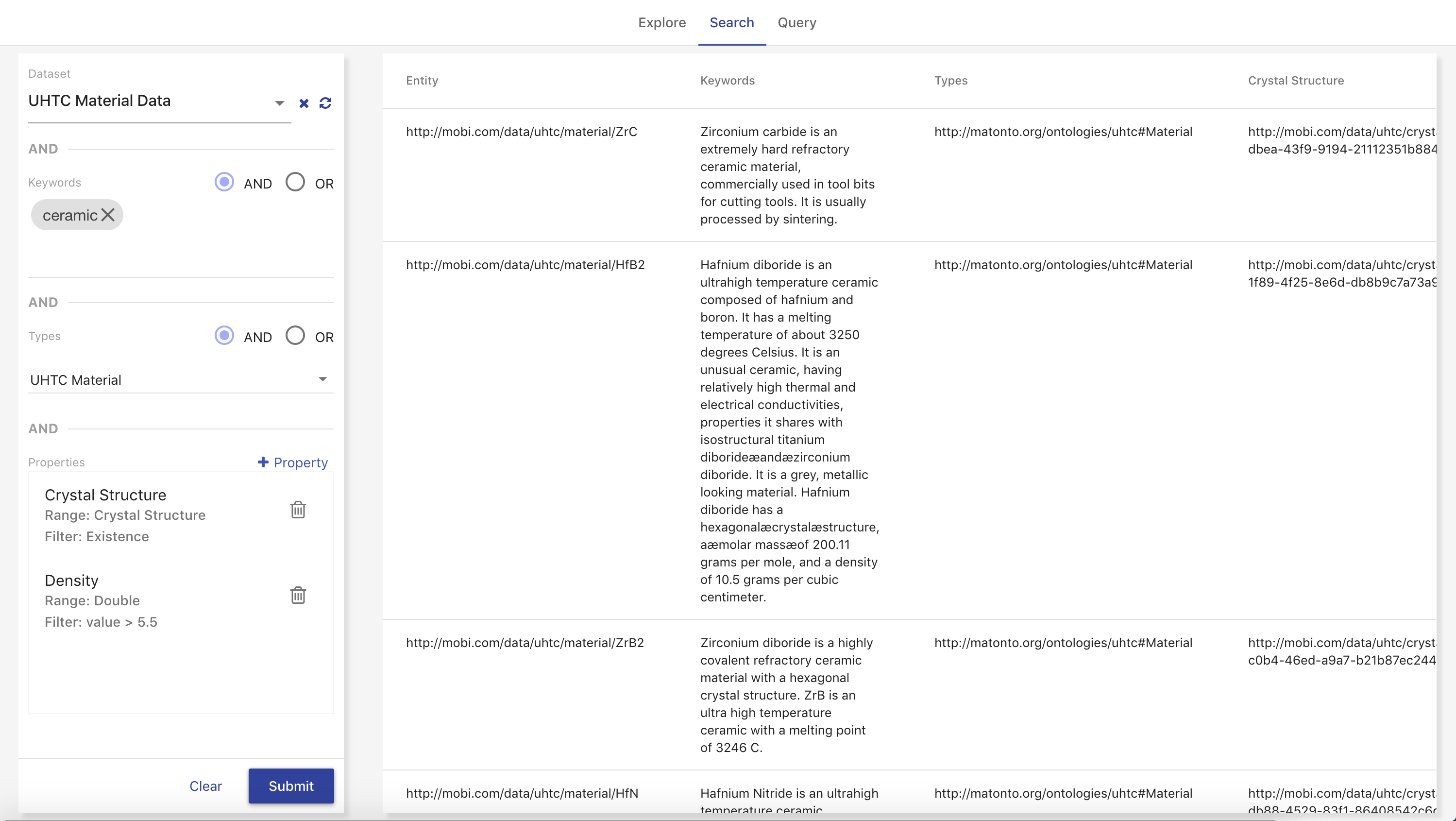
The left side of the Search tab contains a form for filtering on different aspects of entities in a selected Dataset. Each type of filter is concatenated together so that your results match all your filters in each section. The top section allows you to search for entities containing certain keywords in their property values. The radio buttons allow you to toggle between finding entities that match any of your keywords (OR) or all of your keywords (AND). The middle section allows you specify classes to filter the matching entities. Again, the radio buttons allow you to toggle between finding entities with any selected class (OR) or all selected classes (AND).
The bottom section allows you to apply filters based on property values. The box displays all property filters you’ve already set and the results must match all of them. To add a new property filter, click Property and the Add New Property Filter overlay will appear. First, you must select a Property from dropdown. This list includes all properties in the dataset’s ontologies with no domain or a domain of one of the selected classes from the middle section. If no classes are selected in the middle section, all properties in the dataset’s ontologies will be available. If you select an object property, the Property dropdown will appear again so you can filter on properties on the instances in that range. If you wish to stop the filter at the existence of the object property instead, click the Submit button. If you select a data property, the Filter Type dropdown will appear with a list of types of filters depending on the range of the selected property. Once you select a filter type, the appropriate input box(s) will be shown.
The right side of the Search tab displays the results of your most recent search. Each row represents a matching entity in the dataset and each column equates to a property on that entity that matched one of your filters. If multiple values on the same property matches one of your filters, the values will be separated onto different lines.
Query
The Query tab of the Discover page allows you to submit SPARQL query against the AVM repository and optionally a specific dataset.
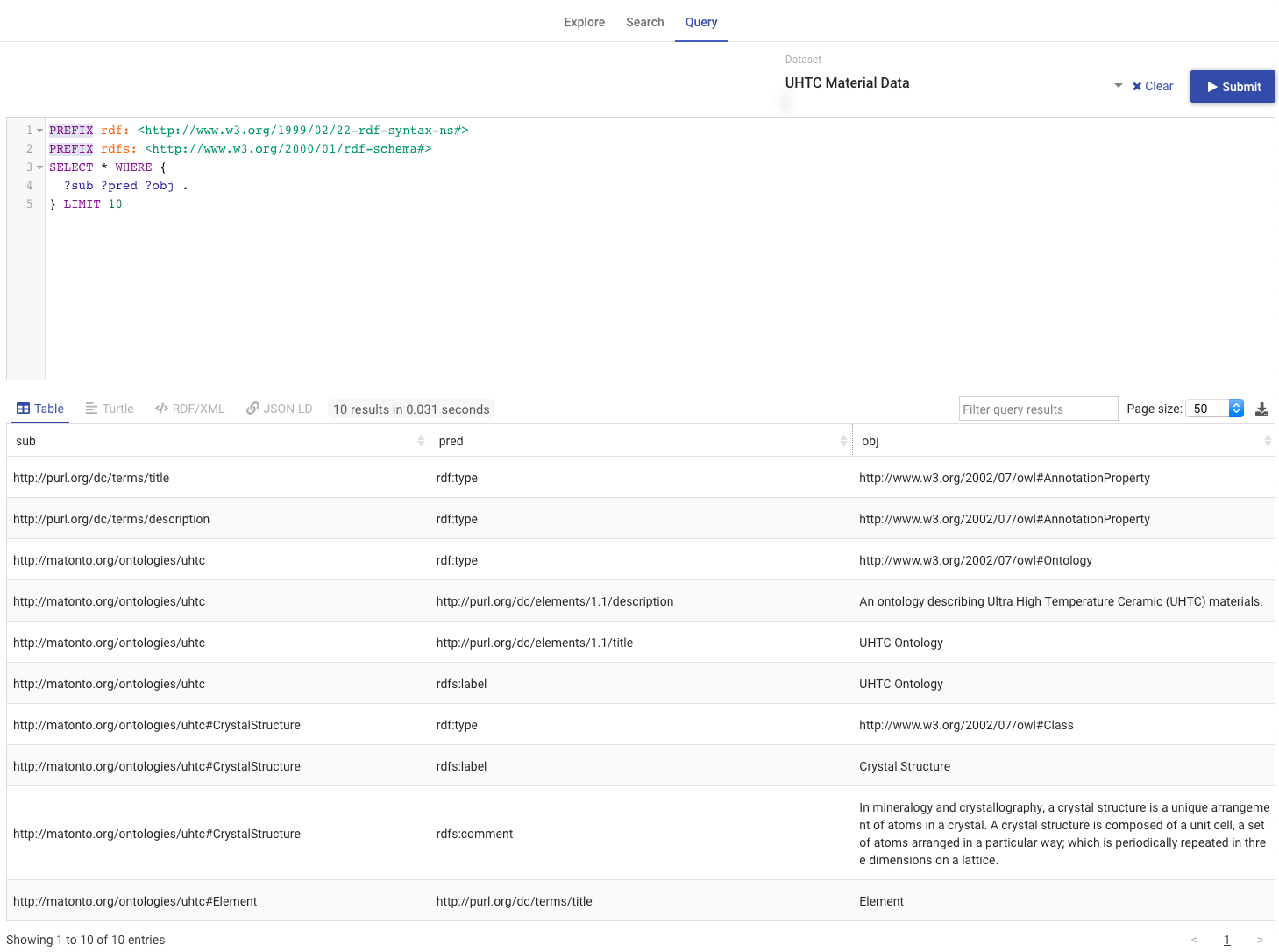
The Query tab provides a SPARQL query editor powered by the YASGUI SPARQL library. The top section of the page contains the query editor (powered by YASQE), a Dataset field and a Submit button. The Dataset field contains a list of all available datasets within the AVM repository. Selecting a dataset limits the query to search through the data within the selected dataset. Clicking Submit executes the entered query against the AVM repository, optionally limited by the selected dataset, and updates the bottom section with the results.
The bottom section displays the results of the most recently submitted SPARQL query (powered by YASR). The section has separate tabs for rendering the query result set depending on the type of SPARQL query submitted. SELECT query results are displayed under the Table tab where the headers of the table are the variables specified in the SPARQL query. The Table comes with features such as filtering, page size, sorting and pagination. CONSTRUCT query results can be displayed under the Turtle, JSON-LD and RDF/XML tabs. The query results are limited to 500 triples/rows for rendering, but the entire result set can be downloaded using the button in the upper right corner of the bottom section.
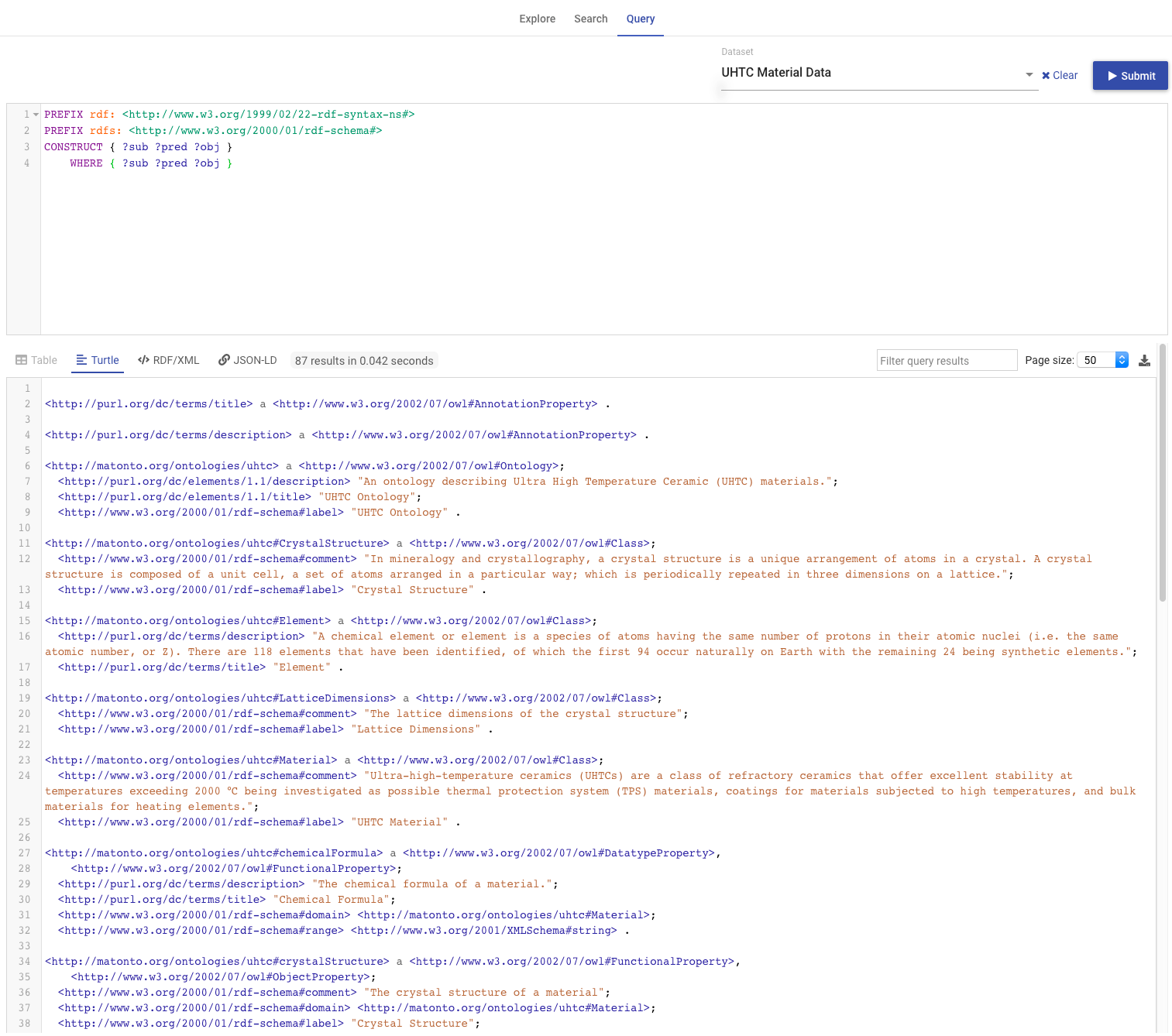
My Account
The My Account page of AVM provides users with a way to configure their own account and customize various aspects of the application to suit their needs.
To reach the My Account page, click on the display of your username in the left menu.
The My Account page contains four main tabs for configuring your account:
Profile
The Profile tab contains a form for viewing and editing your basic profile information. This information includes your First Name, Last Name, and Email address. None of this information is required. Your current settings for these fields will be displayed to start. To edit, simply change the values in one or more of the fields and and click Save in the bottom right. If the change was successful, you will see a success message at the top of the section.
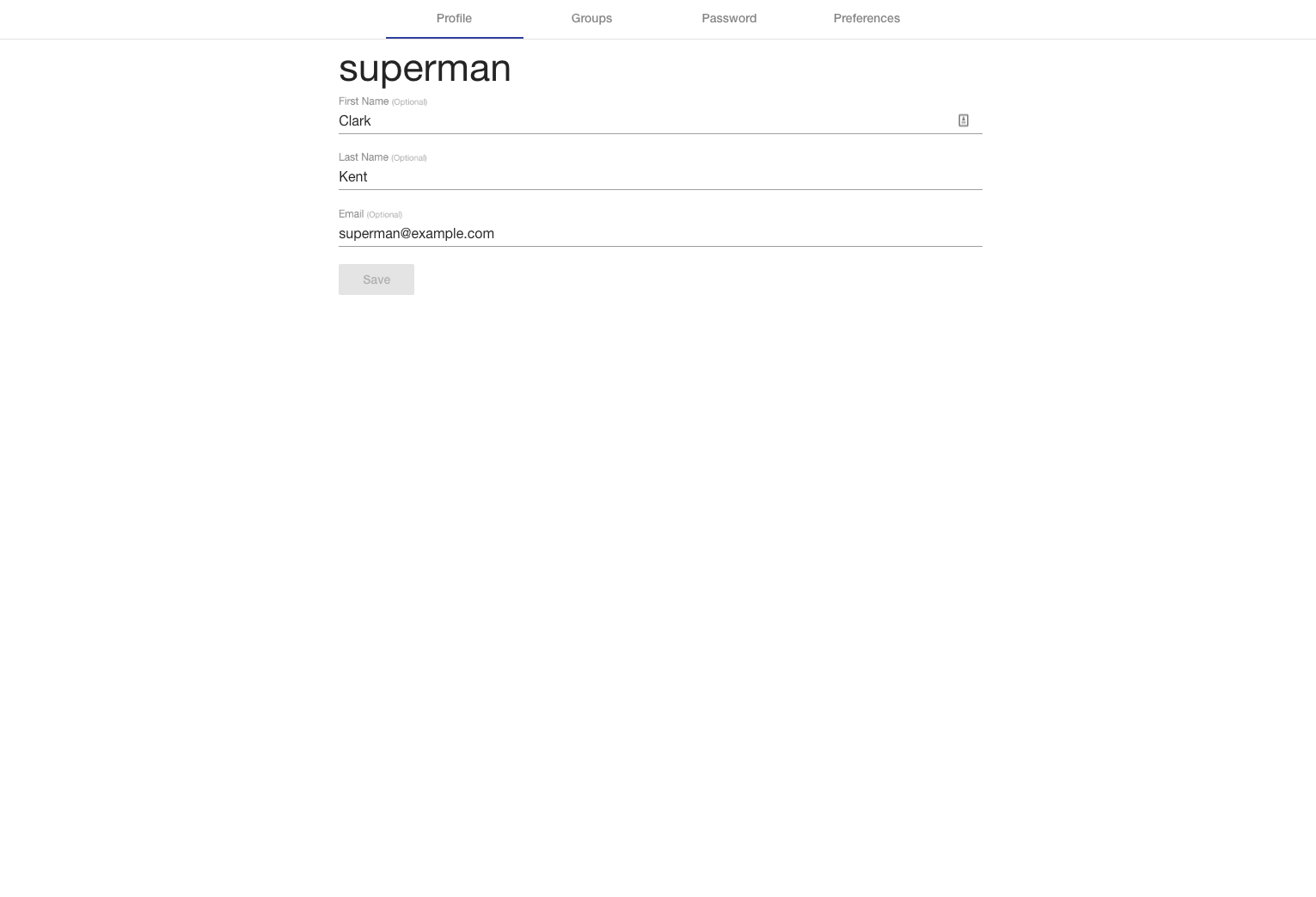
Groups
The Groups tab contains a list of all the groups you belong to. Next to each group title is an indicator of how many users are within that group. If a group has the admin role, an indicator will be next to the group’s title.
Password
The Password tab contains a form for updating your password. To change it, you must first input your Current Password in the first field. Then enter your desired New Password in the second field and the Confirm Password field and click Save in the bottom right. If the change was successful, you will see a success message at the top of the tab.
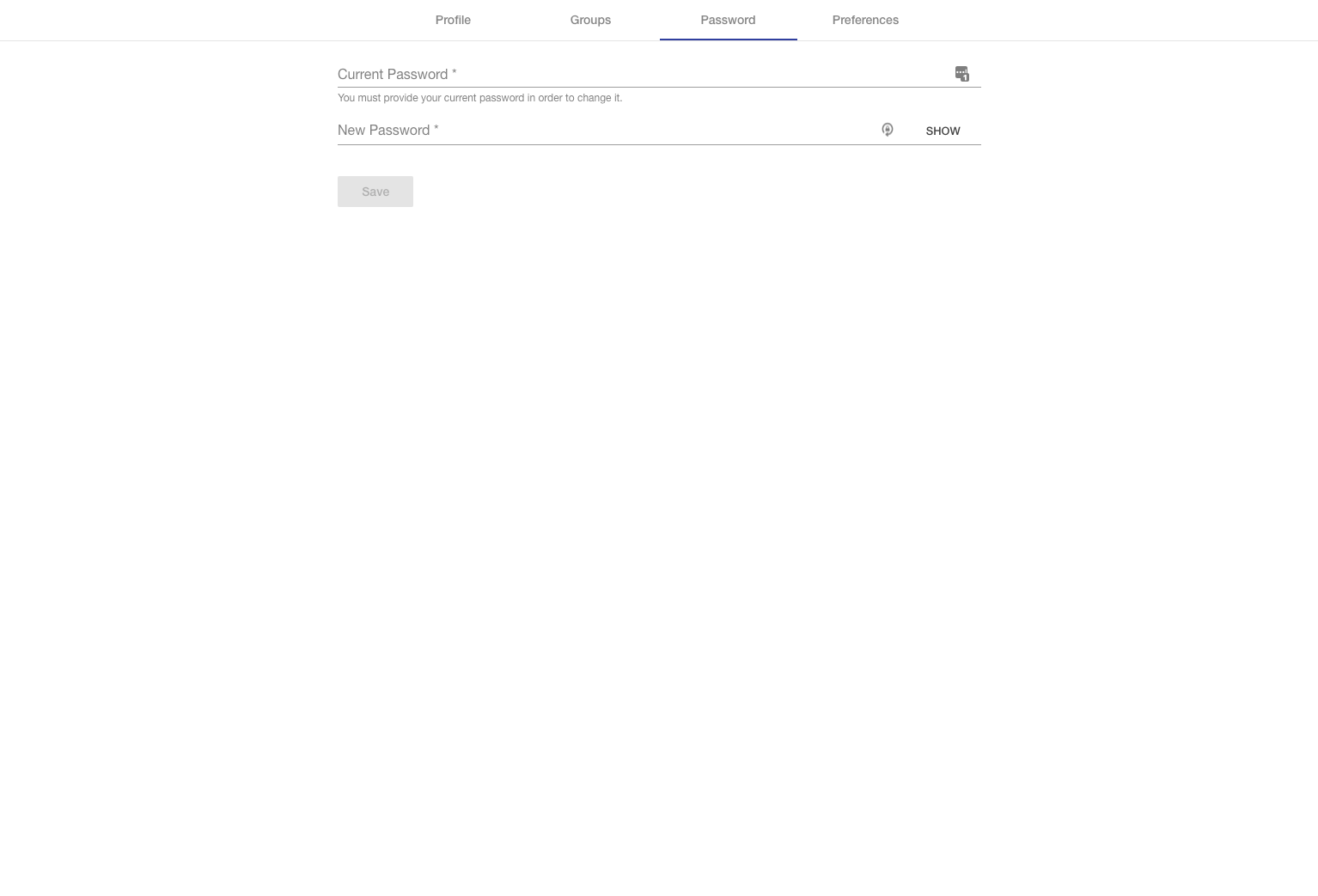
Preferences
The Preferences tab will dynamically populate with user preference definitions added to the repository (see documentation here). These preferences are specific to your user.
|
Note
|
Default preferences coming soon! |
Administration
The Administration page provides administrators with a portal to create, edit, and remove users and groups in AVM. From this module, you can also assign high level access control for common actions within the application.
To reach the Administration page, click on Administration in the left menu. This option is not available to non-administrators.
There are four main tabs of the Administration page:
Users
The Users tab allows you to create, edit, and remove users from the application.
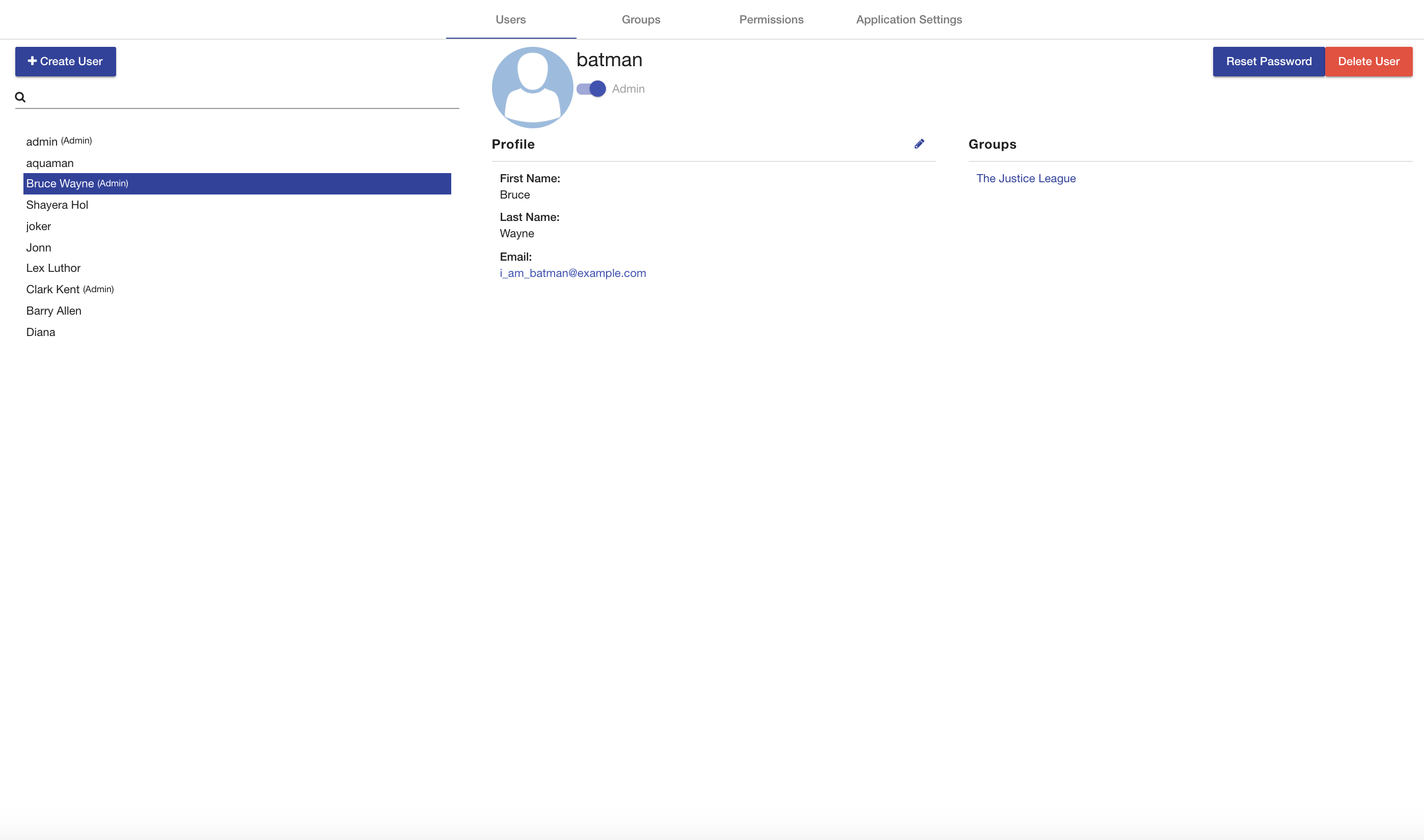
The left side of the tab contains a list of all the users in AVM. Each user is displayed using their first and last names, if available, or their username. If a user is an administrator, whether by having the admin role or by being a part of a group with the admin role, an indicator will be next to their username in the list. At the top of the list is a search bar that will filter the list of users based on their first name, last name, or username. Clicking on a user will load that user’s information into the right side of the section.
|
Note
|
The default Admin user can not be deleted. |
The middle of the Users tab contains the username of the selected user, a block for viewing and editing the user’s profile information, and a block for resetting the user’s password. Resetting a user’s password cannot be undone.
The right side of the tab contains blocks for viewing and editing the selected user’s permissions and viewing the user’s groups. Clicking on the title of a group will open it in the Groups section.
To create a user, click Create User and the Create User overlay will appear. The Username field (required) must be unique within the application. The Password fields (required) allow you to enter in the password for the new user. The First Name, Last Name, and Email fields are not required, but allow you to enter in basic profile information for the new user. The last section contains a checkbox for setting whether the new user is an administrator. Clicking Cancel will close the overlay. Clicking Submit will create a new user with the entered information.
Groups
The Groups tab allows you to create, edit, and remove groups from the application. Groups allow you to associate users with one another and apply the same permissions and roles to all members.
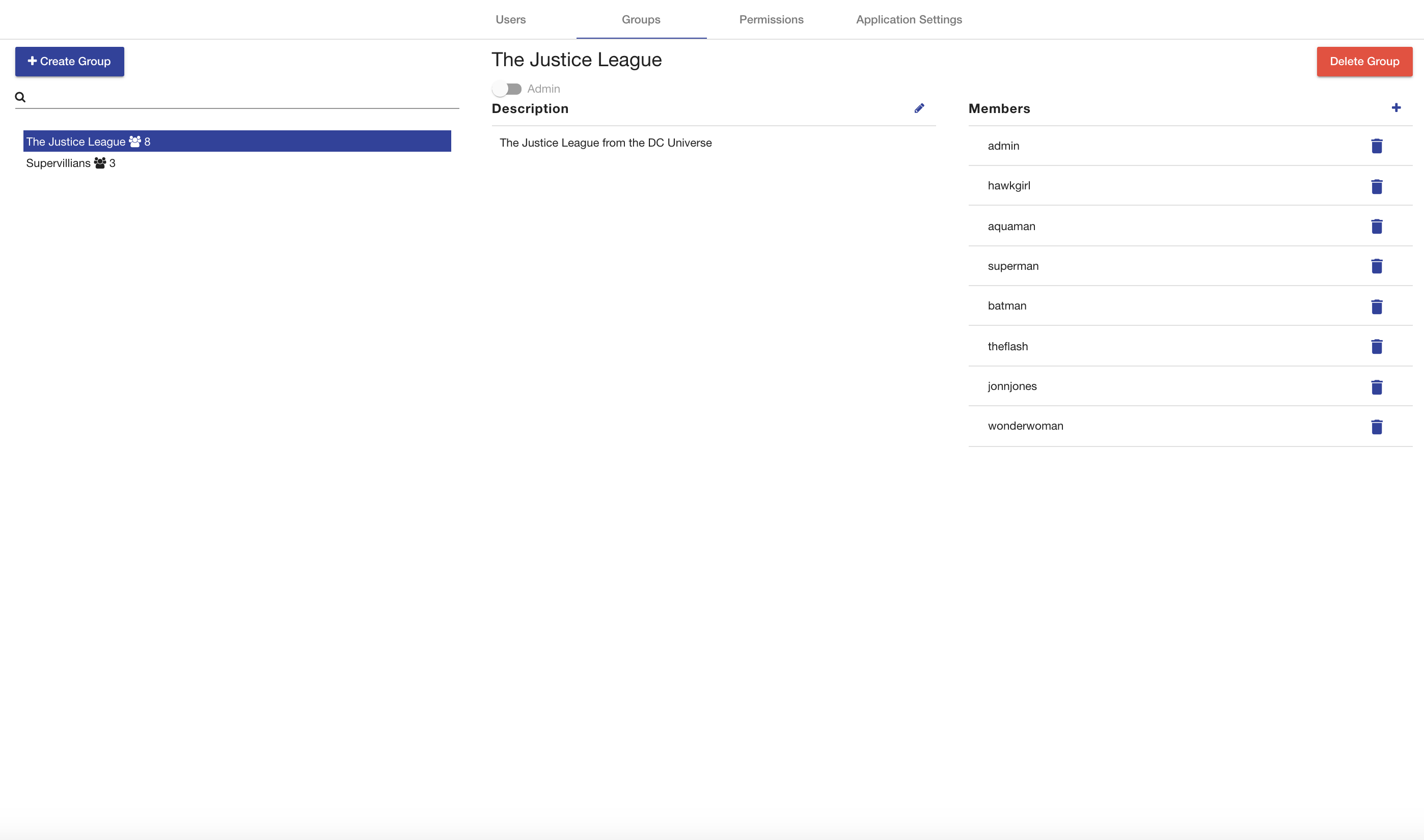
The left side of the tab contains a list of all the groups in AVM. Next to each group title is an indicator of how many users are within that group. At the top of the list is a search bar that will filter the list of groups based on their title. Clicking on a group title will load that group’s information into the right side of the section.
The right side of the tab contains the selected group’s title and two rows of blocks. The top row contains blocks that allow you to edit the group’s description and permissions. If a group has the "Admin" role, all members within that group are considered administrators.
The bottom row contains a block that allows you to view, add, and remove the group’s members. To add another user to the group, click Add Member and that line in the table will transform into a drop down selector of all the users in AVM that have not already been selected. Selecting a user in this drop down will automatically add them to the group. To remove a user from the table, click on the corresponding delete button at the end of the row. Any changes in this table will immediately be applied. Clicking on a username in this table will open that user’s information in the Users section.
To create a group, click Create Group and the Create Group overlay will appear. The Group Title field (required) allows you to specify a name for the group. The Description field allows you to enter in a description about what the group represents. At the bottom of the overlay is a table for adding users to the group. Your user account will be added automatically. To add others to the group, click Add Member and that line in the table will transform into a drop down selector of all the users in AVM that have not already been selected. To remove a user from the table, click on the corresponding delete button at the end of the row. Clicking Cancel will close the overlay. Clicking Submit will create a new group with the entered information and add the listed users to it.
Permissions
The Permissions tab allows you to set high level access control for common actions in the application, such as creating Ontology Records and querying the system repository. Permissions can be set to allow all authenticated users (the Everyone slider) or limit access to specific users and groups. To set the permission to a user or group, unselect the Everyone permission, find a user or group in the search box underneath the appropriate box, and select it. To remove a user or group from the permission, click the X button next to the username or group title. After you have finished making the changes you want, make sure to click the save button in the bottom right.
|
Note
|
More permissions coming soon! |
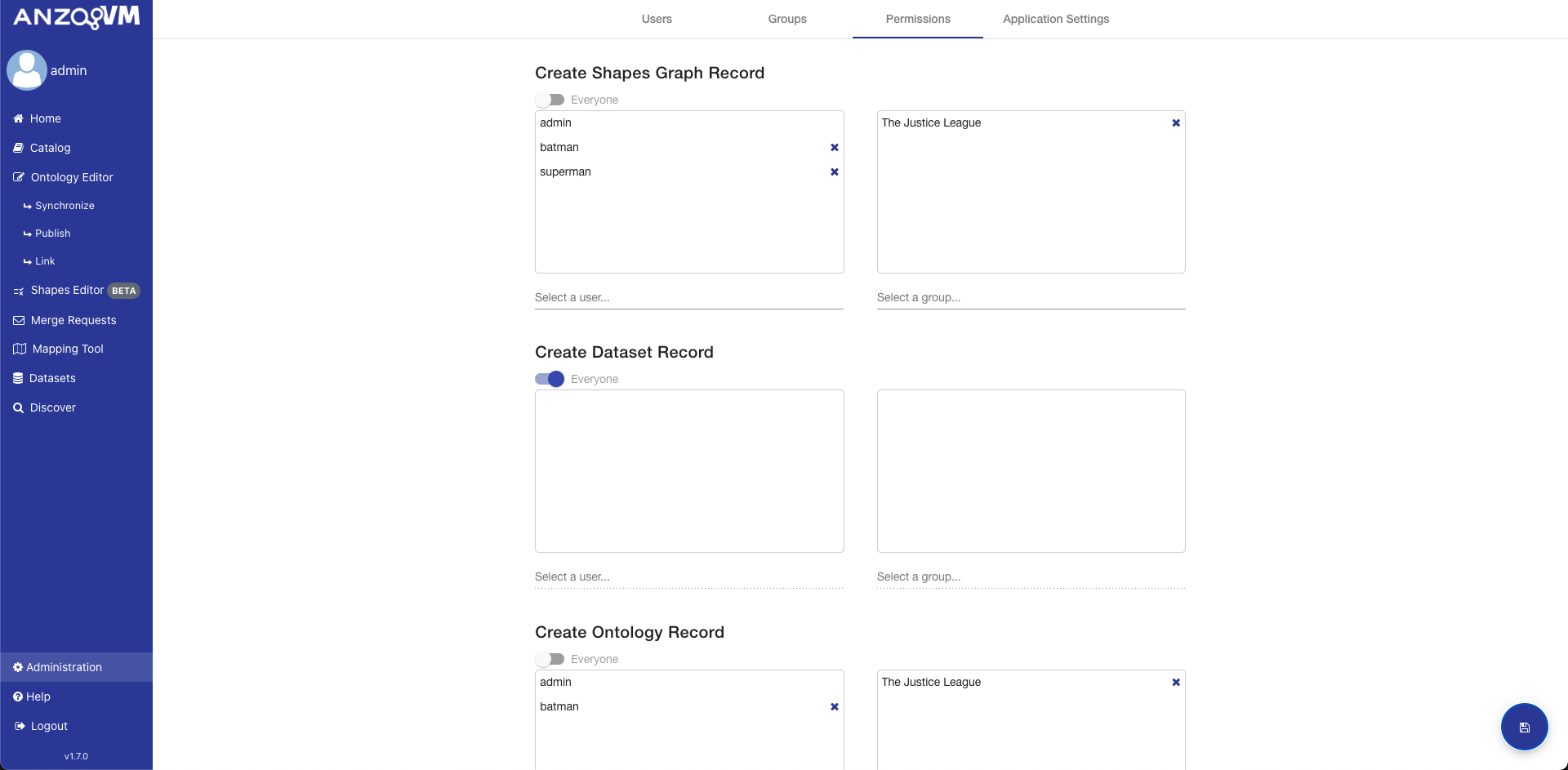
Application Settings
The Application Settings tab enables you to alter/maintain system-wide settings. Below are descriptions of the settings currently available in the application.
|
Note
|
More Application Settings coming soon! |
- Default Ontology Namespace
-
The namespace to be used when generating default IRIs for new ontologies/vocabularies in the Ontology Editor.
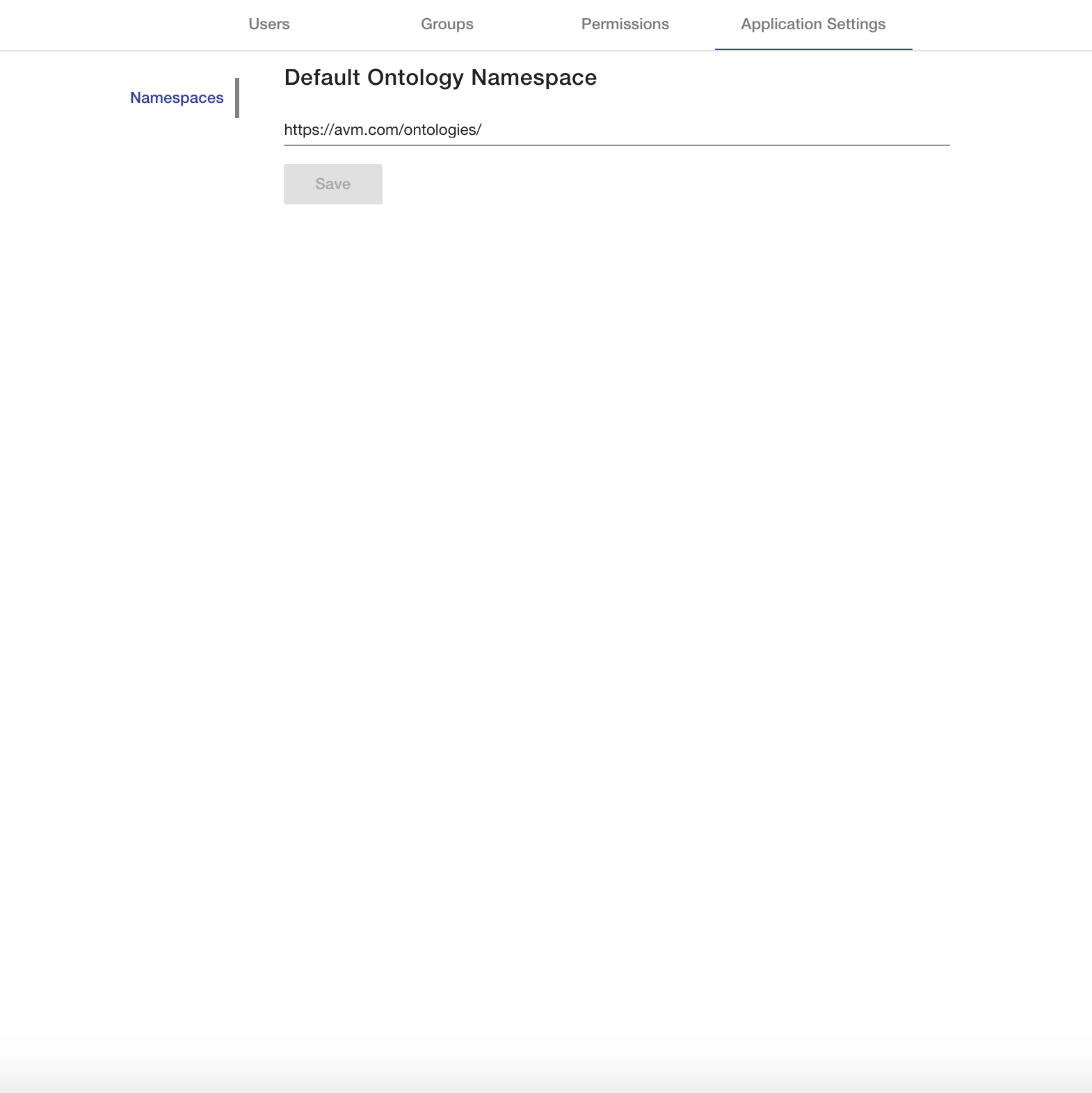
Configuration
All default configuration files for Apache Karaf and AVM are located inside the {AVM_HOME}/etc directory.
AVM
Basic Service Configuration
The basic AVM services can be configured using the following files:
| Configuration File | Description |
|---|---|
|
Configurations for the AVM Catalog |
|
Configurations for the AVM State Manager |
|
Configurations for the AVM System Repository |
|
Configurations for the AVM Provenance Repository |
By default, all resources besides provenance data are stored in the system repository which is an RDF triplestore located in the data/repos/system directory of the AVM distribution. The provenance data is stored within the prov repository. Each repository in AVM is uniquely identified by its id. To change the data location, id, or title of either repository, edit the dataDir, id, and title properties respectively in the appropriate file. Apache Karaf will dynamically reload any changes made to this existing file.
You can create new repositories to be used for storage in AVM. First, choose either a "native" repository or a "memory" repository. These two types of repositories are defined in the NativeRepositoryConfig and MemoryRepositoryConfig classes in the com.mobi.repository.impl.sesame module. Once you have chosen the type of repository, make a new .cfg file in the {AVM_HOME}/etc directory with a file name that starts with either "com.mobi.service.repository.native" or "com.mobi.service.repository.memory". In the file, set the id, title, and dataDir properties you wish for the repository. The file should look like this:
id=demo
title=Demonstration
dataDir=path/to/directory
Apache Karaf will automatically recognize the new configuration file and create the new repository.
The repository that all Catalog resources are stored with is controlled within the com.mobi.catalog.config.CatalogConfigProvider.cfg file. The storage repository for all other types of data are controlled individually in other configuration files. To change each of these repository configurations, open the associated .cfg file and change the id of the repository.target property to be the id of the new repository. For example to change the repository for storing Catalog resources to the repository in the example above, you would open the com.mobi.catalog.config.CatalogConfigProvider.cfg file and edit the repository target line to be:
repository.target = (id=demo)
Apache Karaf will automatically detect the changes and reload the new configuration.
Anzo Access Configuration
To enable the Publish and Sync actions in AVM, you must configure AVM with details about the Anzo server. To do this, create a file called com.mobi.enterprise.avm.connector.api.AnzoConfigProvider.cfg in the etc/ directory of your AVM installation. The file must have the following fields.
| Property Name | Description | Required | Default |
|---|---|---|---|
|
The host name of the Anzo server. |
✓ |
|
|
The port for the Anzo server |
✓ |
|
|
Whether to use SSL when connecting to the Anzo server. Most the time, this should be |
✓ |
|
|
The username of the account AVM should use when connecting to the Anzo server. |
✓ |
|
|
The password of the account AVM should use when connecting to the Anzo server. |
✓ |
|
|
The connection timeout in number of milliseconds when communicating with the Anzo server. |
10000 |
|
|
The read timeout in number of milliseconds when communicating with the Anzo server. |
30000 |
An example file would look like this.
anzo.hostname = localhost
anzo.port = 8443
anzo.ssl = true
anzo.username = sysadmin
anzo.password = 123
Core Security Configuration
The configuration for user authentication, authorization, and management are stored in the following files in the {AVM_HOME}/etc directory:
| Configuration File | Description |
|---|---|
|
Configurations for the AVM RDF Engine |
|
Configurations for the XACML security policy manager |
AVM utilizes JAAS for user authentication and basic authorization. By default, user credentials and information are managed by the RdfEngine service which is configured with the com.mobi.jaas.engines.RdfEngine.cfg file. The file contains an id of the repository to be used for storage, the encryption settings for JAAS which are enabled to start, and the two default roles: "user" and "admin". Apache Karaf will automatically detect any changes and reload the updated configurations.
The default user for AVM is "admin" with password "admin". To change the credentials of the "admin" user or perform any other user management activities, utilize the Administration page, the My Account page, or the appropriate REST endpoints.
For more advanced authorization functionality, AVM uses the an Attribute Based Access Control (ABAC) system called XACML. Policies describing the attributes for allowing or denying individual access requests are managed by the XACMLPolicyManager service which is configured with the com.mobi.security.policy.api.xacml.XACMLPolicyManager.cfg file. The file contains an id of the repository to be used for storage, the location the XACML policy files should be stored in, and whether the policy file location should be created if it does not already exist. Apache Karaf will automatically detect any changes and reload the updated configurations.
LDAP Configuration
AVM supports LDAP integration into its security framework. In order to be able to log into the AVM application with the Users/Groups defined in your organization’s LDAP directory, you must create a file called com.mobi.enterprise.ldap.impl.engine.LDAPEngine.cfg with the following properties and put it in the {AVM_HOME}/etc directory. If a property is not required, you can delete the line from the config file. The list of possible fields for the config file are shown in the table below.
| Property Name | Description | Required | Default |
|---|---|---|---|
|
Should always be |
✓ |
|
|
The hostname of the LDAP server (ex: |
✓ |
|
|
The port of the LDAP server (ex: |
✓ |
|
|
The number of seconds it will keep trying to reach the LDAP server before it gives up (ex: |
✓ |
30 |
|
Whether to connect to the LDAP engine with SSL (ex: |
false |
|
|
Whether direct authentication to the LDAP engine is disabled (ex: |
false |
|
|
The number of milliseconds before a LDAPUser should be retrieved (ex: |
3600000 |
|
|
The admin DN on your LDAP server (ex: |
||
|
The admin password on your LDAP server (ex: |
||
|
The base DN at which to start looking for users on the LDAP server (ex: |
✓ |
|
|
An optional LDAP filter for retrieved users. (ex: |
||
|
The field name on users that the AVM application will use as the username to log in (ex: |
✓ |
|
|
The field name on users whose value is the first name of the user (ex: |
||
|
The field name on users whose value is the last name of the user (ex: |
||
|
The field name on users whose value is the email address of the user (ex: |
||
|
The field name on users whose values are the groups they are a part of (ex: |
✓ |
|
|
The format of the user membership field. Should be set to the field name on groups that the values of the user membership field uses. If this is not set, assume the values are full group DNs. (ex: |
||
|
The base DN at which to start looking for groups on the LDAP server (ex: |
✓ |
|
|
An optional LDAP filter for retrieved groups (ex: |
||
|
The field name for groups' ids (ex: |
✓ |
|
|
The field name for groups' names/titles (ex: |
||
|
The field name on groups whose value is the description of the group (ex: |
||
|
The field name on groups whose values are the users that are a part of the group (ex: |
✓ |
|
|
The format of the group membership field. Should be set to the field name on users that the values of the group membership field uses. If this is not set, assume the values are full user DNs. (ex: |
An example file would look like this.
repository.target = (id=system)
ldap.server = localhost
ldap.port = 10389
ldap.timeout = 30
ldap.admin.dn = uid=admin,ou=system
ldap.admin.password = secret
ldap.users.base = ou=people,dc=example,dc=com
ldap.users.filter = (businessCategory=Superhero)
ldap.users.id = uid
ldap.users.firstName = givenName
ldap.users.lastName = sn
ldap.users.membership = memberOf
ldap.groups.base = ou=groups,dc=example,dc=com
ldap.groups.id = cn
ldap.groups.name = cn
ldap.groups.description = description
ldap.groups.membership = member
SSO Configuration
AVM can be configured to integrate with an SSO provider for authentication. LDAP must be configured in order for the SSO integration to work as this is how user information will be retrieved. To disable direct authentication against the LDAP directory, add ldap.disable-auth = false to the com.mobi.enterprise.ldap.impl.engine.LDAPEngine.cfg file. AVM supports SAML, OAuth 2.0, and OpenID SSO providers.
SAML Configuration
In order to configure AVM to use SAML, you will need to create a file called com.mobi.enterprise.auth.saml.api.SAMLConfigProvider.cfg in the {AVM_HOME}/etc directory. The file must have the following fields.
|
Note
|
${karaf.etc} is a reference to the {AVM_DIST}/etc/ directory that the application will understand and replace.
|
| Property Name | Description | Required |
|---|---|---|
|
The title for the SSO provider. This title will be used in the UI for triggering the SSO authentication in the format of “Login with title”. |
✓ |
|
The SP EntityId. The SSO provider must be configured to expect requests with this SP EntityId |
✓ |
|
The file path to a file containing the X509 certificate for verifying the signature of SAML responses. Best practice is to put the file in the |
✓ |
|
The optional file path to a file containing the PKCS8 key for verifying the signature of SAML responses. Best practice is to put the file in the |
|
|
The URL for the SingleSignOnService from the IdP. This is where AVM will redirect to. |
✓ |
|
The name of the |
An example file would look like this.
title=Samling
entityId=https://localhost:8445/avm/#/login
certFile=${karaf.etc}/samling.cert
keyFile=${karaf.etc}/samling_pkcs8.key
ssoUrl=https://capriza.github.io/samling/samling.html
idAttribute=ShortName
ssoBinding=urn:oasis:names:tc:SAML:2.0:bindings:HTTP-POST
Default SAML Token Duration
In order to configure the token duration for SAML logins, you must create a file called com.mobi.enterprise.auth.rest.SAMLRest.cfg with the following properties and put it in the {AVM_DIST}/etc/ directory before starting the application, otherwise the token duration will use the default of one day. There is only one possible field for the config file as shown in the table below that is configurable and not required to set the token duration value.
| Property Name | Description | Required | Default |
|---|---|---|---|
tokenDurationMins |
Token Duration time in minutes |
1440 |
An example file would look like this.
### 1 day token duration
tokenDurationMins = 1440
OAuth/OpenID Configuration
In order to configure AVM to use OAuth or OpenID, you will need to create two files in the {AVM_DIST}/etc directory: com.mobi.enterprise.auth.oauth.api.OAuthConfigProvider.cfg and com.mobi.enterprise.auth.oauth.impl.token.OAuthTokenLoginModuleProvider.cfg. The latter must be an empty file. The former can be used to configure a generic OAuth 2.0 Provider or an OpenID Provider. For either, the file must have the following fields.
| Property Name | Description | Required |
|---|---|---|
|
The title for the SSO provider. This title will be used in the UI for triggering the SSO authentication in the format of “Login with title”. |
✓ |
|
The ID for the AVM installation. The OAuth/OpenID provider must be configured to expect requests with this clientId |
✓ |
|
The OAuth scopes to include in the authentication request |
✓ |
|
The optional client secret to use in requests to the OAuth/OpenID provider. |
|
|
An optional property used to specify which claim in the returned JWT contains the user’s username. These values must match what is configured for the LDAP users id. Defaults to using the |
For OAuth 2.0, the file must also contain these fields.
| Property Name | Description | Required |
|---|---|---|
|
The OAuth 2.0 grant type to use for authentication. AVM currently supports the CODE and IMPLICIT flows. |
✓ |
|
The URL for the OAuth/OpenID provider. This is where AVM will redirect to. |
✓ |
|
The URL to hit to retrieve the token in the CODE flow. |
|
|
The file path to a file containing the PKCS8 key for verifying the signature of JWT tokens. Best practice is to put the file in the |
✓ |
An example file would look like this.
title=Mock OAuth
clientId=mobi
scope=read,openid
grantType=CODE
redirectUrl=http://localhost:8080/authorize
tokenUrl=http://localhost:8080/token
keyFile=${karaf.etc}/NTs4oGbx1A-cROpjgUKdKtzTEkHUhhSwQ7xdhN6FdlQ_pub.pem
For OpenID, the file must also contain these fields.
| Property Name | Description | Required |
|---|---|---|
|
The hostname of the OpenID provider. The standard |
✓ |
An example file would look like this.
title=Mock OAuth
clientId=avm
scope=read,openid
openidConfigHostname=http://localhost:8080
Azure AD OpenID Setup
If you want to configure OpenID integration with Azure AD, there are a few extra steps that need to be taken due to the unique structure of the returned JWTs.
The complementary LDAP configuration for an Azure AD OpenID provider must set the userPrincipalName as the ldap.users.id property in the com.mobi.enterprise.ldap.impl.engine.LDAPEngine.cfg as the Azure AD JWTs do not contain the typical samAccountName values.
In addition, v2.0 of Azure AD adds an additional field to the header of the JWT after signing it, thus making the signature incapable of being verified by the algorithms returned from the JWKS endpoint. In order to stop Azure AD from adding this additional field, you can add a new custom scope to the App registration. The steps to do this are described in this article under “Problem 1”.
Email Service Configuration
The configuration for the AVM Email Service is stored in the following file in the {AVM_HOME}/etc directory:
| Configuration File | Description |
|---|---|
|
Configurations for the AVM Email Service |
The AVM Email Service is built on the Apache Commons Email API. The Email Service provides the ability to connect to a provided SMTP server and send an email using a configured email account. By default, the service is configured to connect to a Gmail SMTP server in the com.mobi.email.api.EmailService.cfg file. The service has configurations for smtpServer, port, emailAddress, emailPassword, security, and emailTemplate. Please see below for different configurations of popular email services.
Email Template
The AVM Email Service supplies a default email template that works across most email clients. The default file is located in the {AVM_HOME}/etc directory. If you want to provide your own email template, modify the emailTemplate configuration to the new email template with either a relative or absolute path to the file. The email service will resolve relative file paths for an email template using the {AVM_HOME}/etc directory as the base directory.
The email service provides a method for doing a simple string replace on the !|$MESSAGE!|$ binding within the template. For more complex HTML inserts, the service provides a method to replace all HTML between the two !|$BODY!|$ bindings. Custom templates must have the aforementioned bindings (!|$MESSAGE!|$ & !|$BODY!|$). The !|$MESSAGE!|$ binding must be between two !|$BODY!|$ bindings. For example:
<html lang="en" xmlns="http://www.w3.org/1999/xhtml">
...
<body>
!|$BODY!|$
<table>
    <tbody>
    <tr>
        <td>
            <p>
                <!-- A simple message to replace -->
                !|$MESSAGE!|$
            </p>
        </td>
    </tr>
    </tbody>
</table>
!|$BODY!|$
...
</body>
</html>
SMTP Configurations
Gmail
To send emails with Gmail, you must also follow the steps here to allow less secure apps to access the gmail account. Gmail also has strict sending limits that can impair functionality as your organization grows. Additionally, Gmail may flag a machine that it does not recognize and prevent access. If this occurs, log in to your gmail and grant the device access.
smtpServer = smtp.gmail.com
emailAddress = my.email@gmail.com
emailPassword = my-password
port = 587
security = STARTTLS
emailTemplate = emailTemplate.html
Outlook
smtpServer = smtp-mail.outlook.com
emailAddress = my.email@outlook.com
emailPassword = my-password
port = 587
security = STARTTLS
emailTemplate = emailTemplate.html
Office 365
smtpServer = smtp.office365.com
emailAddress = my.email@yourdomain.com
emailPassword = my-password
port = 587
security = STARTTLS
emailTemplate = emailTemplate.html
Yahoo
smtpServer = smtp.mail.yahoo.com
emailAddress = my.email@yahoo.com
emailPassword = my-password
port = 465
security = STARTTLS
emailTemplate = emailTemplate.html
Mailgun
smtpServer = smtp.mailgun.org
emailAddress = my.email@mg.gitlab.com
emailPassword = my-password
port = 587
security = STARTTLS
emailTemplate = emailTemplate.html
Apache Karaf
The Karaf instance that runs AVM can be configured using the configuration files located in the {AVM_HOME}/etc
directory.
| Configuration File | Description |
|---|---|
|
Configurations for Maven repositories used for bundle resolution and deployment |
|
Configurations for HTTPS connections |
The org.ops4j.pax.url.mvn.cfg file specifies how Apache Karaf will resolve Maven URLs. This file is set up so that Apache Karaf will use the basic Maven repositories along with your local Maven repository and the public AVM remote repository to resolve artifacts.
The org.ops4j.pax.web.cfg file configures the web service Apache Karaf uses to run AVM. By default, AVM only runs HTTPS on port 8443.
AVM Shell
The AVM Shell is a wrapper around the Karaf shell which provides additional commands and tools for working with AVM data. To access the shell, run the bin/client script in AVM_HOME (that’s bin\client.bat for you Windows users). The startup screen of the AVM shell looks like the following.
                 @#@@
                @###@
               @@@@@                   _     _
   @@@       @@@@      _ __ ___   ___ | |__ (_)
  @,,,@@@@@&    @     | '_ ` _ \ / _ \| '_ \| |
  @,,&&     @  @      | | | | | | (_) | |_) | |
              @@      |_| |_| |_|\___/|_.__/|_|
               @@
              @///@
              @////&
               @@@@


  mobi (x.x.x)
  Powered by Apache Karaf (4.0.6)

Hit '<tab>' for a list of available commands
and '[cmd] --help' for help on a specific command.
Hit '<ctrl-d>' or 'osgi:shutdown' to shutdown mobi.

karaf@mobi>
The AVM specific commands all start with mobi:. To view the list of available commands, type mobi: and hit TAB. To get information about a particular command, type the name of the command and --help afterwards and run it. For example, running mobi:import --help would show you this.
karaf@mobi>mobi:import --help
DESCRIPTION
        mobi:import

	Imports objects to a repository or dataset

SYNTAX
        mobi:import [options] ImportFile

ARGUMENTS
        ImportFile
                The file to be imported into the repository

OPTIONS
        -c, --continueOnError
                If true, continue parsing even if there is an error on a line.
        -d, --dataset
                The id of the DatasetRecord the file will be imported to
        -r, --repository
                The id of the repository the file will be imported to
        --help
                Display this help message
        -b, --batchSize
                The number representing the triple transaction size for importing.
                (defaults to 10000)
You can also run commands in the AVM shell without opening it by running bin/client "command". For example, to run the mobi:repository-list command, you would run bin/client "mobi:repository-list". If the command you are running involves files with spaces in the name, make sure the spaces are escaped, meaning use "\ " instead of " ". The same goes for commands that include text within quotes, make sure the quotes are escaped as well.
Administration Guide
Anzo Vocabulary Manager (AVM) is made available as a compressed distribution package. Deployment consists of unpacking this distribution to an appropriate location on the filesystem and modifying included configuration files. AVM comes pre-bundled with an open-source, file-based RDF database. By default, all data, logs, and configurations will be stored in the extracted file location.
AVM will not run without a valid license file. You will need to collect your server ID from the installation and provide it to your sales or support team so they can create your unique license file.
|
Note
|
AVM customers will be individually provided with distributions and license files. Please consult your sales or support representative for more information. |
AVM Requirements
Hardware Requirements
We provide recommended hardware requirements as a guideline. These specifications are based on standard deployment environments. Larger production data or user requirements may require more powerful hardware configurations.
The table below provides a summary of the recommended hardware for production servers and the minimum requirements for test servers.
| Component | Minimum | Recommended | Guidelines |
|---|---|---|---|
Available RAM |
1 GB |
8 GB or more |
AVM needs enough RAM to load large ontology and data files and run AVM processes. The configurations provided refer to maximum Java heap size. |
Disk Space |
10 GB |
40 GB or more |
By default, AVM stores all data and configurations in the extracted file location. |
CPU |
1 core |
4 cores or more |
Multi-core configurations dramatically improve performance of the bundled application server and database. |
Software Requirements
The table below provides a summary of the software requirements.
| Component | Minimum | Recommended | Guidelines |
|---|---|---|---|
Operating System |
RHEL/CentOS 6 |
RHEL/CentOS 7 |
AVM runs within standard Java runtimes; however, we recommend RHEL/CentOS operating systems for on-premise or cloud-based server environments. |
Java |
1.8 |
1.8 (latest) |
The latest versions of Java 8 include security and performance updates. |
Web Browser |
Chrome |
Chrome |
Use the latest versions of web browsers for best compatibility, performance, and security. |
Firewall Requirements
The table below lists the TCP ports to open on the AVM host.
| Port | Description |
|---|---|
8443 |
Application HTTPS port. |
|
Tip
|
We recommend running AVM on the default port 8443 and using firewall configuration or a proxy server for SSL (port 443) termination and redirection. AVM does not run on non-SSL ports by default. |
Recommended Plugin Deployment Versions
The AVM-Anzo integration leverages two plugin bundles installed on the Anzo server. This matrix describes the recommended AVM-Anzo plugin versions for associated deployment versions of Anzo and AVM.
| Anzo Version | AVM Version | AVM-Anzo Plugins |
|---|---|---|
4.1 - 4.4 |
1.0 |
1.0.2 |
4.1 - 4.4 |
1.1 |
2.0.0 |
5.0 |
1.2 |
2.4.0 |
5.0 |
1.3 |
3.0.2 |
5.1 |
1.3 - 1.4 |
5.0.0 |
5.2 - 5.3 |
1.7 |
6.0.2 |
Installing AVM
Pre-Installation Configuration
Create Service Account
Before installing AVM, create a service account on the host server. The account will be used to run AVM. The service account should meet the following requirements:
-
The service account must have read and write permissions for the AVM installation directory. On Linux, this is typically
/opt/anzo/avm-distribution-<version>.
On a standard RHEL/CentOS system, this can be created using the following command:
sudo useradd -d /opt/anzo anzoInstall Java 8
Mobi requires the latest version of Java 1.8 to operate. On a standard RHEL/CentOS system this can be installed using the following command:
sudo yum install java-1.8.0-openjdkThe JAVA_HOME environment variable must be set for the user running
Mobi. On a standard RHEL/CentOS system this can be set using the
following commands:
sudo su - anzo
echo 'export JAVA_HOME=/etc/alternatives/jre_1.8.0' >> ~/.bashrc
exit
Install AVM
Collect the Server ID
After the pre-installation configuration steps, follow the instructions below to collect your AVM Server ID. These instructions assume that you have copied the AVM distribution to the server.
|
Note
|
These instructions are prepared for a standard RHEL/CentOS deployment server. |
-
Unpack AVM to the installation parent directory (e.g.
/opt/anzo)sudo su - anzo tar -xf $AVM_DIST.tar.gz -
Create a symlink to the latest distribution
ln -s $AVM_DIST latest -
Start the AVM Enterprise server
cd latest
./bin/start
The server will shut down immediately without a valid license file. This will output your unique server ID to the $AVM_DIST/etc/com.mobi.platform.server.cfg file. Open that file and copy the Server ID from the serverId property. It should look like the following.
serverId = "{UUID}"Send this Server ID to your sales or support team so they can generate you a valid license file.
Add License File
Copy the provided license file to the $AVM_DIST/etc/ directory.
cp license.lic $AVM_DIST/etc/Now you can start the AVM installation.
cd latest
./bin/start
To stop the AVM server, run the following command:
./bin/stopPost-Installation Configuration
Configure AVM for Synchronizing and Publishing
To enable Synchronize and Publish between Anzo and AVM, you must configure AVM with connection details about the Anzo server. To do this, create a file called com.mobi.enterprise.avm.connector.api.AnzoConfigProvider.cfg in the $AVM_DIST/etc/ directory. The file must have the following fields.
| Property Name | Description | Required | Default |
|---|---|---|---|
anzo.hostname |
The host name of the Anzo server. |
Yes |
|
anzo.port |
The port for the Anzo server. |
Yes |
|
anzo.ssl |
Whether to use SSL when connecting to the Anzo server. Most the time, this should be |
Yes |
|
anzo.username |
The username of the account AVM should use when connecting to the Anzo server. |
Yes |
|
anzo.password |
The password of the account AVM should use when connecting to the Anzo server. |
Yes |
|
timeout.connect |
The connection timeout in number of milliseconds when communicating with the Anzo server. |
10000 |
|
timeout.read |
The read timeout in number of milliseconds when communicating with the Anzo server. |
30000 |
An example file would look like this.
anzo.hostname = localhost
anzo.port = 8443
anzo.ssl = true
anzo.username = sysadmin
anzo.password = 123
Configure Anzo for AVM Publishing
To enable publishing from AVM, Anzo must be configured using two plugins provided by your service team:
-
com.inovexcorp.mobi.loader -
com.inovexcorp.mobi.vocabulary.orchestrationService
Upload these plugins to the Anzo server:
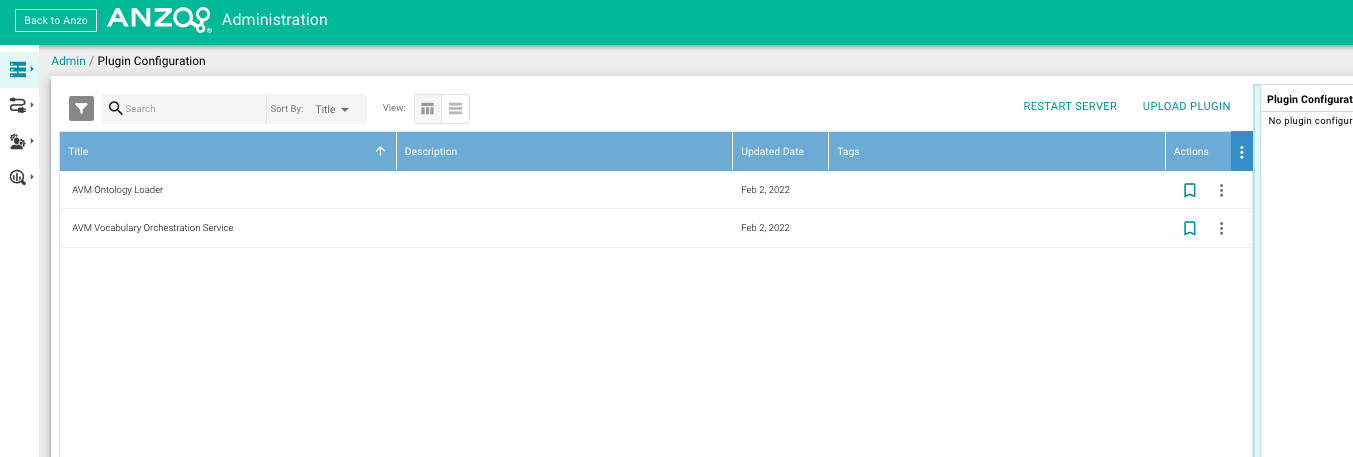
STOP and START the AVM Ontology Loader bundle.
Change the Default Java Heap Size
Set the max heap size in $AVM_DIST/bin/setenv (e.g.
JAVA_MAX_MEM=4G). In version 1.6, to include the JAVA_MAX_MEM and JAVA_MIN_MEM variables in the AVM startup, add the following line beneath them in the setenv file.
|
Note
|
All versions from 1.7 onwards have this line already added. |
export JAVA_OPTS="-Xms${JAVA_MIN_MEM} -Xmx${JAVA_MAX_MEM}"Change the Default Web Port
Change the default SSL port in $AVM_DIST/etc/org.ops4j.pax.web.cfg
org.osgi.service.http.port.secure = <SSL_APPLICATION_PORT>|
Tip
|
We recommend running AVM on the default port 8443 and using firewall configuration or a proxy server for SSL (port 443) termination and redirection. AVM does not run on non-SSL ports by default. |
Configure Custom SSL Certificates
AVM comes bundled with default self-signed SSL certificates stored in a
Java
Keystore file in etc/keystore. To provide your own SSL certificates,
simply replace the default keystore file with your own:
cp mycerts.jks $AVM_DIST/etc/keystoreIf there is a keystore password, it can be configured in the
$AVM_DIST/etc/org.ops4j.pax.web.cfg file using the following
configuration properties:
| Configuration Property | Description |
|---|---|
org.ops4j.pax.web.ssl.password |
The password used for keystore integrity check |
org.ops4j.pax.web.ssl.keypassword |
The password used for keystore |
|
Note
|
.p12 and .jks files should both be supported |
Installing AVM as a Service
We recommend that you configure AVM as a Linux service for starting AVM automatically as the service user. Follow the instructions below to implement the service on a standard RHEL/CentOS environment.
|
Note
|
The below steps should be run as the root user. |
|
Warning
|
Be sure to correctly configure the file locations and user. |
-
Create a file called
avm.servicein the/usr/lib/systemd/systemdirectory. For example:[Unit] Description=AVM Service. After=network.target StartLimitIntervalSec=30 [Service] Type=forking PIDFile=/install_path/latest/karaf.pid User=anzo ExecStart=/install_path/latest/bin/start ExecStop=/install_path/latest/bin/stop ExecReload=/install_path/latest/bin/stop; /install_path/latest/bin/start Restart=always [Install] WantedBy=default.target -
Save and close the file, and then run the following commands to start and enable the new service:
systemctl start avm
systemctl enable avm
Once the service is enabled, AVM should be running. The AVM process
will start and stop automatically with the server. Any time you start
and stop AVM manually, run the following systemctl commands:
sudo systemctl stop avm and sudo systemctl start avm.
LDAP Configuration
In order to log into the AVM application with the Users/Groups defined
in your organization’s directory, you must create a file called
com.mobi.enterprise.ldap.impl.engine.LDAPEngine.cfg with the following
properties and put it in the $AVM_DIST/etc/ directory before starting
the application. If a property is not required, you can delete the line
from the config file. The list of possible fields for the config file
are shown in the table below.
| Property Name | Description | Required | Default |
|---|---|---|---|
repository.target |
Should always be (id=system) |
Yes |
|
ldap.server |
The hostname of the ldap server (ex: localhost) |
Yes |
|
ldap.port |
The port of the LDAP server (ex: |
Yes |
|
ldap.timeout |
The number of seconds it will keep trying to reach the
LDAP server before it gives up (ex: |
Yes |
30 |
ldap.ssl |
Whether to connect to the LDAP engine with SSL (ex: false) |
false |
|
ldap.disable-auth |
Whether direct authentication to the LDAP engine is
disabled (ex: |
false |
|
ldap.expiry |
The number of milliseconds before a LDAPUser should be
retrieved (ex: |
3600000 |
|
ldap.admin.dn |
The admin DN on your LDAP server (ex:
|
||
ldap.admin.password |
The admin password on your LDAP server (ex:
|
||
ldap.users.base |
The base DN at which to start looking for users on the
LDAP server ( |
Yes |
|
ldap.users.filter |
An optional LDAP filter for retrieved users. (ex:
|
||
ldap.users.id |
The field name on users that the Mobi Enterprise
application will use as the username to log in (ex: |
Yes |
|
ldap.users.firstName |
The field name on users whose value is the first
name of the user (ex: |
||
ldap.users.lastName |
The field name on users whose value is the last
name of the user (ex: |
||
ldap.users.email |
The field name on users whose value is the email
address of the user (ex: |
||
ldap.users.membership |
The field name on users whose values are the
groups they are a part of (ex: |
Yes |
|
ldap.users.membership.search |
The format of the user membership field.
Should be set to the field name on groups that the values of the user
membership field uses. If this is not set, assume the values are full
group DNs. (ex: |
||
ldap.groups.base |
The base DN at which to start looking for groups on
the LDAP server (ex: |
Yes |
|
ldap.groups.filter |
An optional LDAP filter for retrieved groups (ex:
|
||
ldap.groups.id |
The field name for groups' ids (ex: |
Yes |
|
ldap.groups.name |
The field name for groups' names/titles (ex: |
||
ldap.groups.description |
The field name on groups whose value is the
description of the group (ex: |
||
ldap.groups.membership |
The field name on groups whose values are the
users that are a part of the group (ex: |
Yes |
|
ldap.groups.membership.search |
The format of the group membership
field. Should be set to the field name on users that the values of the
group membership field uses. If this is not set, assume the values are
full user DNs. (ex: |
An example file would look like this.
repository.target = (id=system)
ldap.server = localhost
ldap.port = 10389
ldap.timeout = 30
ldap.admin.dn = uid=admin,ou=system
ldap.admin.password = secret
ldap.users.base = ou=people,dc=example,dc=com
ldap.users.filter = (businessCategory=Superhero)
ldap.users.id = uid
ldap.users.firstName = givenName
ldap.users.lastName = sn
ldap.users.membership = memberOf
ldap.groups.base = ou=groups,dc=example,dc=com
ldap.groups.id = cn
ldap.groups.name = cn
ldap.groups.description = description
ldap.groups.membership = member
Configure Default Authentication Token (JWT) Duration
In order to configure the token duration for non-SSO authentication, you
must create a file called com.mobi.jaas.SimpleTokenManager.cfg with
the property detailed below and put it in the $AVM_DIST/etc/ directory before starting the application, otherwise the token
duration will use the default of 24 hours.
| Property Name | Description | Required | Default |
|---|---|---|---|
tokenDurationMins |
Token Duration time in minutes |
1440 |
An example file would look like this.
### 1 day token duration
tokenDurationMins = 1440
SSO Configuration
AVM can be configured to integrate with an SSO provider for authentication. LDAP can be configured alongside the SSO provider to retrieve additional user details, but it is not required. If configured, it is recommended to disable direct authentication against the LDAP directory by adding ldap.disable-auth = false to the com.mobi.enterprise.ldap.impl.engine.LDAPEngine.cfg file. AVM supports SAML, OAuth 2.0, and OpenID SSO providers.
SAML Configuration
In order to configure AVM to use SAML, you will need to create a file
called com.mobi.enterprise.auth.saml.api.SAMLConfigProvider.cfg to the
$AVM_DIST/etc/ directory. The must have the following fields.
|
Note
|
${karaf.etc} is a reference to the $AVM_DIST/etc/ directory that the
application will understand and replace
|
|
Note
|
In order for the certFile to ba valid format, it must contain the appropriate -----BEGIN CERTIFICATE----- header and -----END CERTIFICATE----- footer
|
| Property Name | Description | Required |
|---|---|---|
title |
The title for the SSO provider. This title will be used in the UI for triggering the SSO authentication in the format of “Login with title” |
Yes |
entityId |
The SP EntityId. The SSO provider must be configured to expect requests with this SP EntityId |
Yes |
certFile |
The file path to a file containing the X509 certificate for verifying the signature of SAML responses. Best practice is to put the file in the |
Yes |
keyFile |
The optional file path to a file containing the PKCS8 key for verifying the signature of SAML responses. Best practice is to put the
file in the |
|
ssoUrl |
The URL for the SingleSignOnService from the IdP. This is where AVM will redirect to. |
Yes |
idAttribute |
The name of the |
|
ssoBinding |
The full URN of the binding to be used for the SAML Requests. Defaults to |
|
standalone |
Whether the SAML configuration should be considered by itself or with a LDAP backend as well. Defaults to |
|
firstNameAttribute |
An optional property to specify the name of the attribute in the SAML responses that contains the first name of the authenticated user. Only applicable if |
|
lastNameAttribute |
An optional property to specify the name of the attribute in the SAML responses that contains the last name of the authenticated user. Only applicable if |
|
emailAttribute |
An optional property to specify the name of the attribute in the SAML responses that contains the email of the authenticated user. Only applicable if |
|
groupAttribute |
An optional property to specify the name of the attribute in the SAML responses that contains the groups that the authenticated user is a part of. The values of this attribute will be used as the Group’s title in AVM. Only applicable if |
An example file with an LDAP backend would look like this.
title=Samling
entityId=https://localhost:8443/avm/#/login
certFile=${karaf.etc}/samling.cert
keyFile=${karaf.etc}/samling_pkcs8.key
ssoUrl=https://capriza.github.io/samling/samling.html
idAttribute=ShortName
ssoBinding=urn:oasis:names:tc:SAML:2.0:bindings:HTTP-POST
An example standalone configuration would look like this.
title=Samling
entityId=https://localhost:8443/avm/#/login
certFile=${karaf.etc}/samling.cert
keyFile=${karaf.etc}/samling_pkcs8.key
ssoUrl=https://capriza.github.io/samling/samling.html
idAttribute=ShortName
ssoBinding=urn:oasis:names:tc:SAML:2.0:bindings:HTTP-POST
standalone=true
firstNameAttribute=FirstName
lastNameAttribute=LastName
emailAttribute=MBox
groupAttribute=Groups
Default SAML Token Duration
In order to configure the token duration for SAML logins, you must
create a file called com.mobi.enterprise.auth.rest.SAMLRest.cfg with
the following properties and put it in the $AVM_DIST/etc/ directory
before starting the application, otherwise the token duration will use
the default of one day. There is only one possible field for the config
file as shown in the table below that is configurable and not required
to set the token duration value.
| Property Name | Description | Required | Default |
|---|---|---|---|
tokenDurationMins |
Token Duration time in minutes |
1440 |
An example file would look like this.
### 1 day token duration
tokenDurationMins = 1440
OAuth/OpenID Configuration
In order to configure AVM to use OAuth or OpenID, you will need to create two files in the $AVM_DIST/etc directory: com.mobi.enterprise.auth.oauth.api.OAuthConfigProvider.cfg and com.mobi.enterprise.auth.oauth.impl.token.OAuthTokenLoginModuleProvider.cfg. The latter must be an empty file. The former can be used to configure a generic OAuth 2.0 Provider or an OpenID Provider. For either, the file must have the following fields.
| Property Name | Description | Required |
|---|---|---|
title |
The title for the SSO provider. This title will be used in the UI for triggering the SSO authentication in the format of “Login with title” |
Yes |
clientId |
The ID for the AVM installation. The OAuth/OpenID provider must be configured to expect requests with this clientId |
Yes |
scope |
The OAuth scopes to include in the authentication request |
Yes |
clientSecret |
The optional client secret to use in requests to the OAuth/OpenID provider. |
|
userIdentifierClaim |
An optional property to specify which claim in the returned JWT contains the user’s username. These values must match what is configured for the LDAP users id. Defaults to using the |
|
standalone |
Whether the OAuth/OpenID configuration should be considered by itself or with a LDAP backend as well. Defaults to |
|
groupClaim |
An optional property to specify which claim in the returned JWT contains the groups the user is a part of. The values of this attribute will be used as the Group’s title in AVM. Only applicable if |
For OAuth 2.0, the file must also contain these fields.
| Property Name | Description | Required |
|---|---|---|
grantType |
The OAuth 2.0 grant type to use for authentication. AVM currently supports the CODE and IMPLICIT flows. |
Yes |
redirectUrl |
The URL for the OAuth/OpenID provider. This is where AVM will redirect to. |
Yes |
tokenUrl |
The URL to hit to retrieve the token in the CODE flow. |
|
keyFile |
The file path to a file containing the PKCS8 key for verifying the signature of JWT tokens. Best practice is to put the file in the |
Yes |
An example file would look like this.
title=Mock OAuth
clientId=mobi
scope=read,openid
grantType=CODE
redirectUrl=http://localhost:8080/authorize
tokenUrl=http://localhost:8080/token
keyFile=${karaf.etc}/NTs4oGbx1A-cROpjgUKdKtzTEkHUhhSwQ7xdhN6FdlQ_pub.pem
For OpenID, the file must also contain these fields.
| Property Name | Description | Required |
|---|---|---|
openidConfigHostname |
The hostname of the OpenID provider. The standard |
Yes |
An example file would look like this.
title=Mock OAuth
clientId=avm
scope=read,openid
openidConfigHostname=http://localhost:8080
Azure AD OpenID Setup
If you want to configure OpenID integration with Azure AD, there are a few extra steps that need to be taken due to the unique structure of the returned JWTs.
The complementary LDAP configuration for an Azure AD OpenID provider must set the userPrincipalName as the ldap.users.id property in the com.mobi.enterprise.ldap.impl.engine.LDAPEngine.cfg as the Azure AD JWTs do not contain the typical samAccountName values.
In addition, v2.0 of Azure AD adds an additional field to the header of the JWT after signing it, thus making the signature incapable of being verified by the algorithms returned from the JWKS endpoint. In order to stop Azure AD from adding this additional field, you can add a new custom scope to the App registration. The steps to do this are described in this article (https://medium.com/@abhinavsonkar/making-azure-ad-oidc-compliant-5734b70c43ff) under “Problem 1”.
Password Encryption Configuration
AVM provides a way to automatically encrypt plaintext passwords stored
within service configurations on startup and subsequent updates. The setup
for this is very short. All you have to do is ensure that a file called
com.mobi.security.api.EncryptionService.cfg exists in the $AVM_DIST/etc
directory and contains the following fields:
enabled=true
password=ENTER_A_UNIQUE_PASSWORD_HERE|
Note
|
This password is not the password you want to encrypt, rather it is a unique master password used for encrypt and decrypt operations. |
This encryption config is present and enabled by default, meaning your passwords will be automatically encrypted. An alternate way of providing an encryption master password is via environment variable. To configure the use of an environment variable, use the following fields:
enabled=true
variable=MY_CHOSEN_ENVIRONMENT_VARIABLE
If you use an environment variable, make sure before you start AVM that you have stored a unique password as the value for that environment variable.
|
Warning
|
If there is a default password in the Encryption Config (i.e. CHANGEME) make sure
you change it to a unique password before starting AVM, otherwise your passwords will be easy
to decrypt.
|
Once the encryption config is added, start AVM and if an AVM service configuration includes a plaintext password, it will encrypt the value and update the configuration file. To change an encrypted value, simply replace it with the new plaintext value in the configuration file and after a few seconds it will be automatically re-encrypted and the file will be updated.
Services that use Encryption
| Service | Config File | Field that gets encrypted |
|---|---|---|
LDAP |
com.mobi.enterprise.ldap.impl.engine.LDAPEngine.cfg |
ldap.admin.password |
AnzoConfigProvider |
com.mobi.enterprise.avm.connector.api.AnzoConfigProvider.cfg |
anzo.password |
com.mobi.email.api.EmailService.cfg |
emailPassword |
To update the encryption master password, change the password field in the com.mobi.security.api.EncryptionService.cfg file while AVM is running. After a few seconds have passed, all passwords will be automatically re-encrypted using the new master password.
|
Note
|
If the master password is changed while AVM is not running, all previously encrypted passwords must be re-entered in plain text for the encryption service to re-encrypt. |
Developer Guide
OntologyCache Configuration File
AVM utilizes the Repository Cache Ontology API implementation to represent Ontologies.
Configuration file for the CacheRepositoryCleanup job:
com.mobi.cache.impl.repository.CleanupRepositoryCache.cfgThis file is responsible for deleting stale ontologies within the repository after a specified period in order to preserve resources and improve processing. The format looks like the following:
repoId = ontologyCache
expiry = 1800
scheduler.expression=0 0 * * * ?
Load Dataset Data
Data can be manually loaded into an existing Dataset using the AVM shell. You will need the full path to the data file and the IRI of the target DatasetRecord.
Open the AVM shell and run the mobi:import command passing the IRI of the DatasetRecord and the path to the data file. For example, if you wanted to load data located at /Users/tester/Documents/testData.trig into the https://mobi.com/records/my-dataset DatasetRecord, you would run the following command:
mobi:import --dataset https://mobi.com/records/my-dataset /Users/tester/Documents/testData.trigAll triples that are not within a named graph will be loaded into the system default named graph. All triples within named graphs will be added and their named graphs associated with the Dataset.
Accessing Swagger REST API Documentation
Every installation of AVM provides Swagger Documentation for the full suite of AVM REST APIs. This documentation is provided as a standard Swagger YAML file as well as a fully interactive hosted version. The Swagger YAML file can be downloaded at $AVM_HOST/swagger-ui/mobi-swagger.yaml. To reach the Swagger Documentation UI, navigate to $AVM_HOST/swagger-ui/index.html. For example, in a default deployment these URLs would look like https://localhost:8443/swagger-ui/mobi-swagger.yaml and https://localhost:8443/swagger-ui/index.html, respectively.